Roles and permissions

Control who can issue and manage credentials

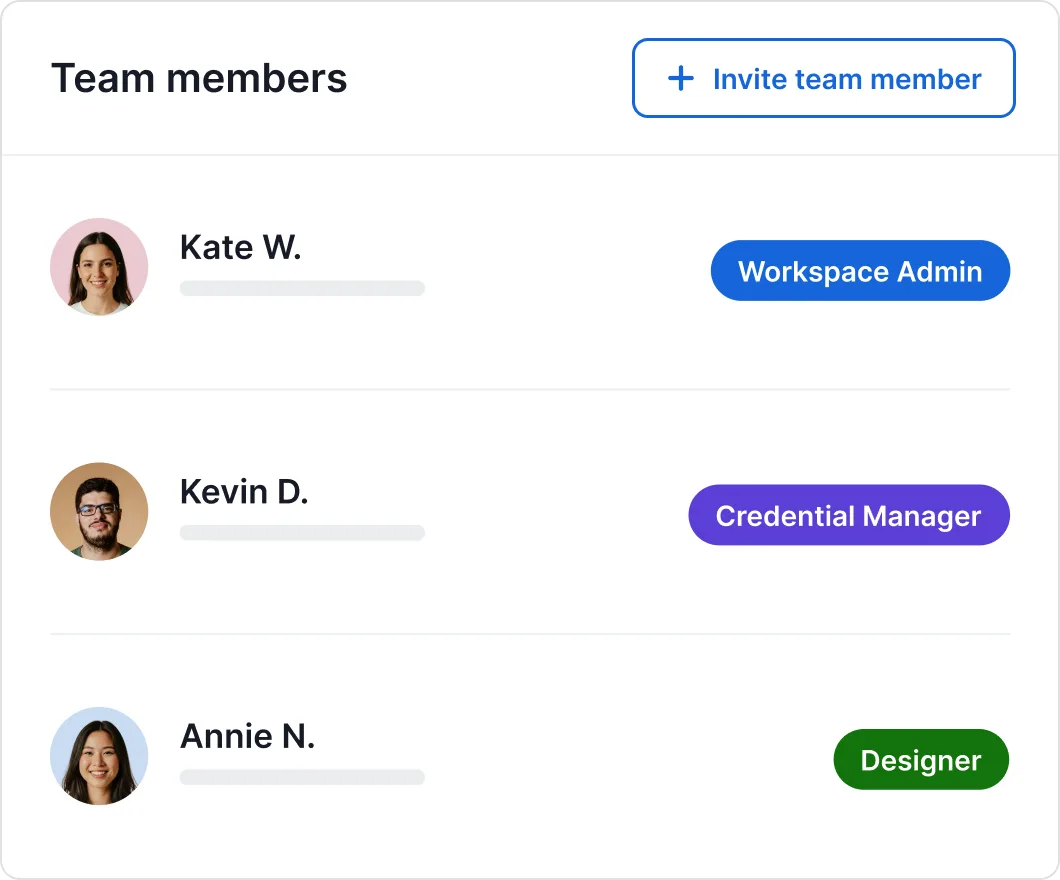
Colleagues, trainers, instructors and partners each get their own login to Certifier account. A role decides what each person can do and you can limit anyone to the courses or programs they run.

Connect tools
Control who can issue and manage credentials

2,000+ organizations and institutions use Certifier

ElevenLabs

ElevenLabs powers its conversational AI partner certification program with Certifier.

View credentials arrow right

The Economist

The Economist uses Certifier to award 2,000+ certificates for courses in AI and critical thinking.

View credentials arrow right


Roles and access levels

Decide who can view, who can issue and who can manage

Assign roles to control what each team member can do, from designing certificates and issuing credentials to reviewing drafts, managing analytics, and changing settings. Keep sensitive actions restricted and require approval before issuing when needed.

  • Change a role any time; it applies at once

  • Drafts have no public page until issued

  • Billing and the subscription stay with your admins
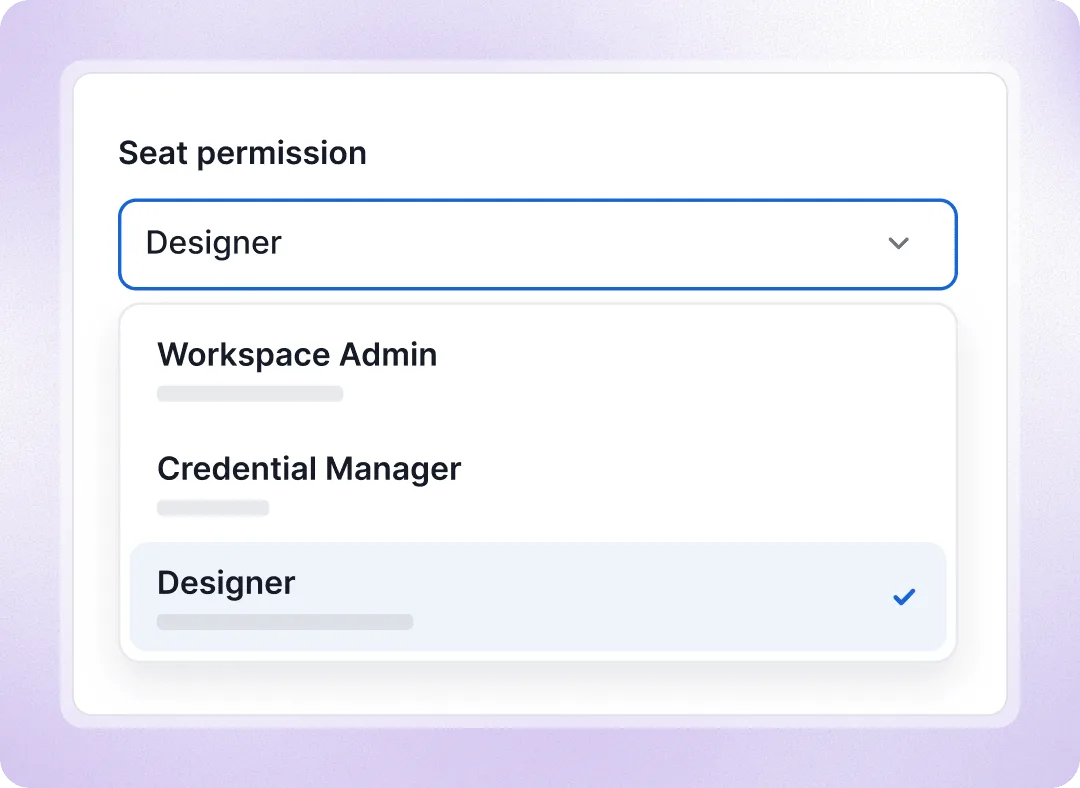
Decide who can view, who can issue and who can manage

Set team permissions and track credential activity
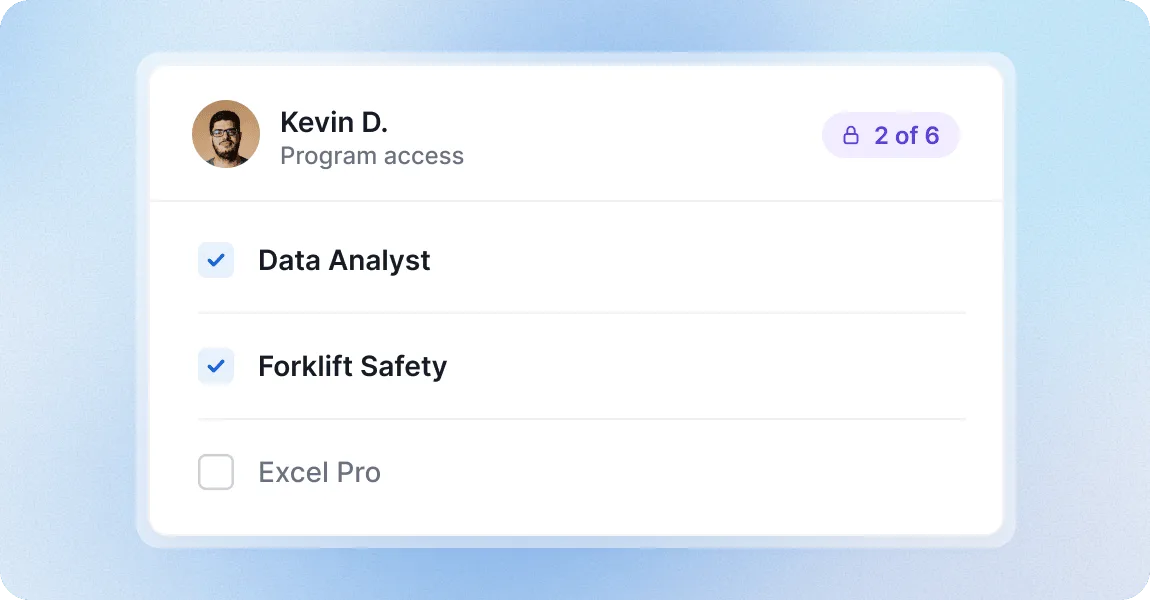
Restrict access to specific programs

Restrict access to specific programs

On top of a role, limit a team member to specific programs. A trainer sees only their own courses and issues from those alone, one department can’t open another’s certificates, and a partner who administers one program for you works on that program and nothing else.
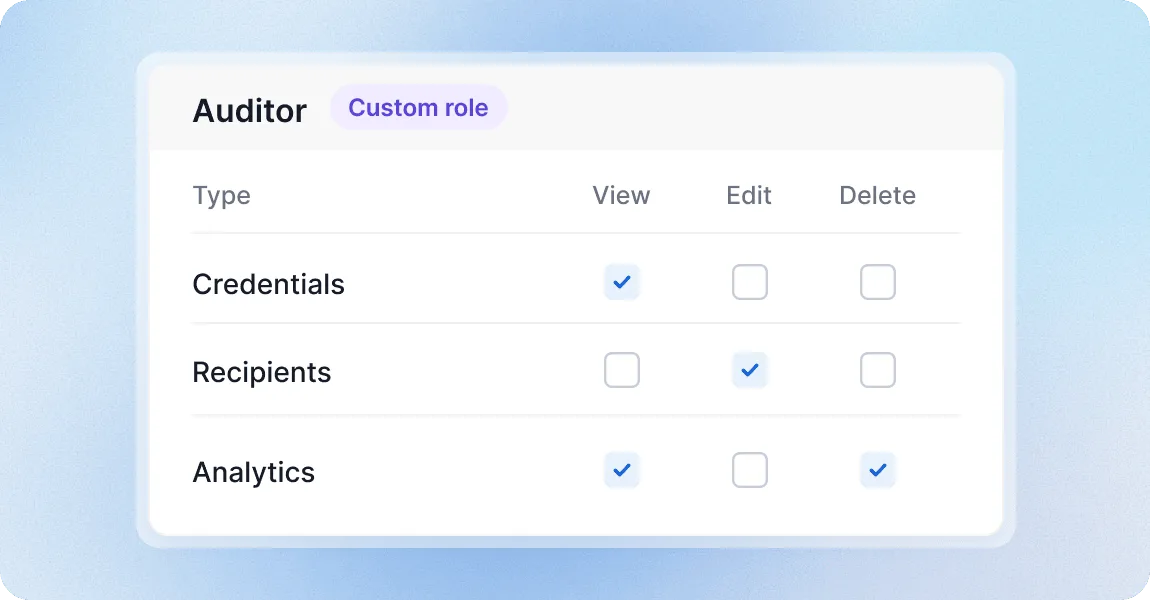
Create roles with custom permissions

Create roles with custom permissions

When the ready-made roles don’t fit, create your own: for every part of the workspace, from designs and programs to credentials, recipients, forms, integrations and analytics, tick what the role may view, create, edit, delete, issue or send.
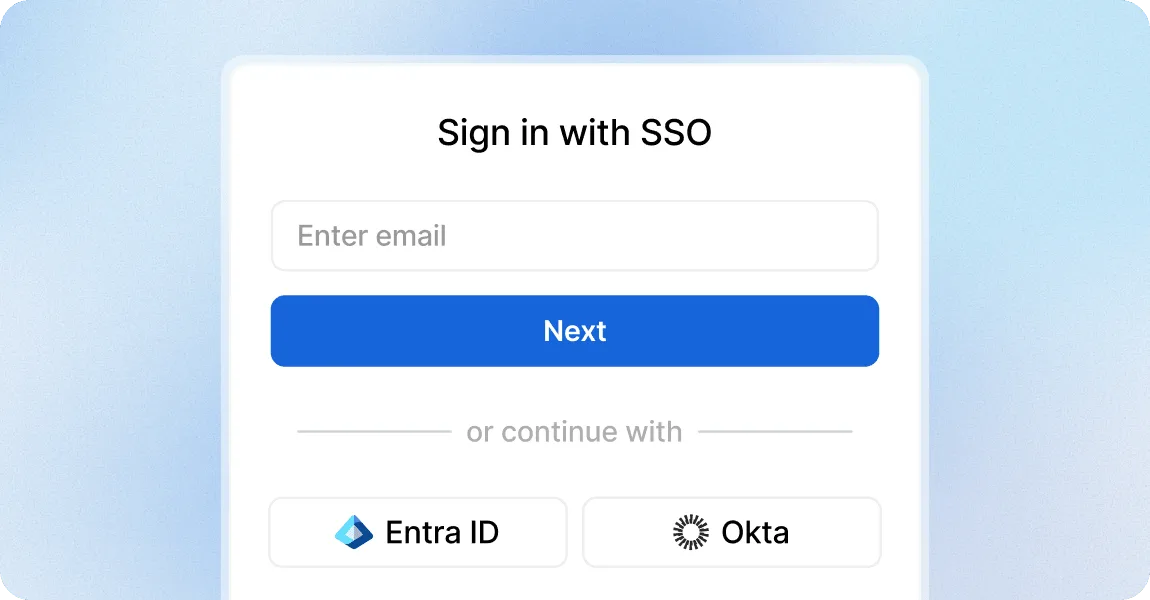
SSO with Google, Microsoft or Okta

SSO with Google, Microsoft or Okta

Connect Certifier to your company’s SSO over SAML: everyone signs in with the company account they already have, and someone removed there can no longer sign in. Any user can also protect their login with MFA from an authenticator app.
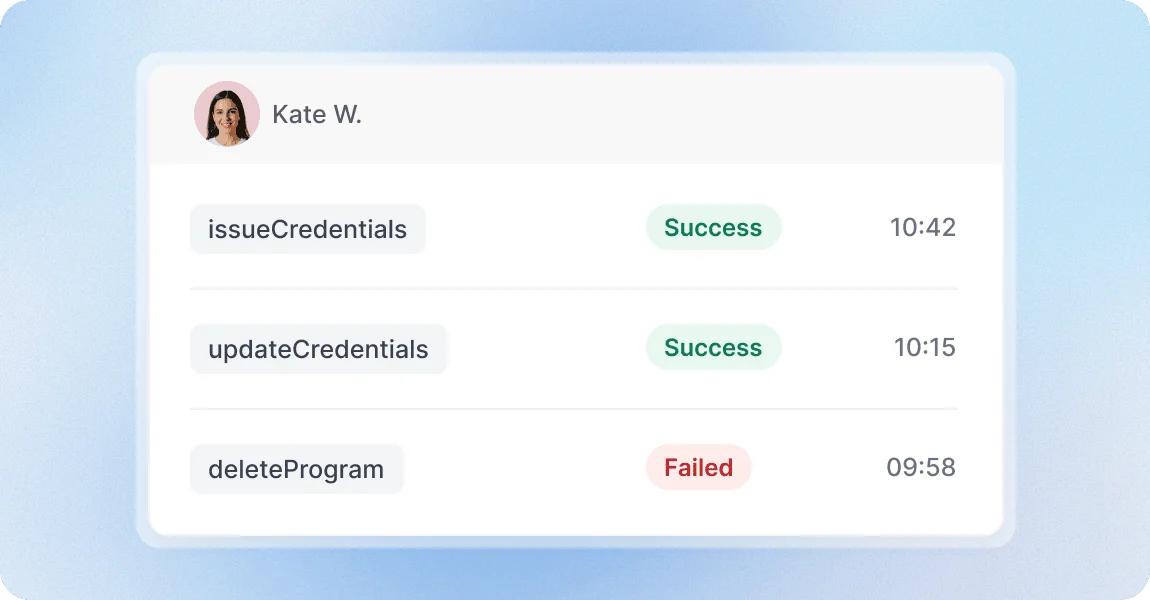
See who did what in Activity logs

See who did what in Activity logs

Every action is logged, so you have an audit trail: the person, their time and location. Filter by user or action to see who issued or changed a certificate or deleted a program, or to check that a new role grants what you intended.

Control credential access with a platform teams trust

G2 recognized Certifier as 2026 Leader in digital certificate and badge management for all teams.

  • Best for Enterprise

  • Best for Mid-Market

  • Best for Small Businesses

Your questions about credential roles and permissions

Every invited member uses a seat, whether or not they have accepted yet; deactivating someone frees the seat for a colleague, and reactivating takes one again. If you need more users later, you can add seats at any time; talk to our team.
No. Logins, roles and SSO apply only to the people who run your account. Recipients get an email with a link to their certificate or badge and can view, share and download it without creating an account or logging in, so the number of recipients never affects how many seats you need.
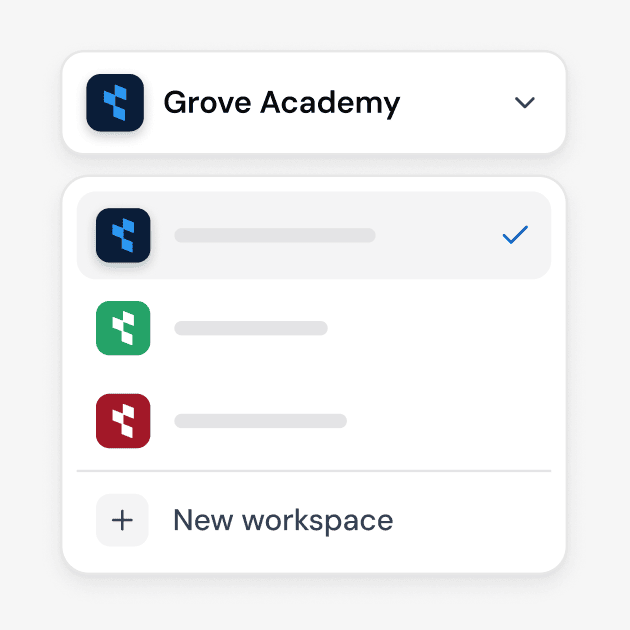
Roles and program access keep one workspace tidy when everyone issues under the same brand: each department or trainer sees only their own programs. Use a separate workspace when a unit must appear as a different issuer, with its own branding and domain, or when its data must stay completely apart. Each workspace has its own team and roles.
Only admins see everything. Anyone else sees what their role and program access allow, so a trainer or department works in their own programs without seeing the rest. Nothing is hidden from you: whatever they issue stays in your account’s full list.
Yes. Create a custom role that only allows viewing the records they may see, such as issued credentials and analytics, and limit the member to the relevant programs. They sign in with their own account, see exactly those records and can’t issue, change or delete anything. Deactivate their access when the project ends.
Nothing disappears, not even records from years ago: credentials, designs, programs and team members belong to your organization, not to whoever created them. Ownership of the account can be handed to a colleague at any time, and if the previous owner has already left, our support team transfers it after checking that the request is authorized. Deactivate the leaver’s membership and their seat is free again.
No. SSO handles sign-in: everyone then signs in through your company’s single sign-on, and only people assigned to the Certifier app there can be invited. You still invite each person in Certifier and set their role; automatic provisioning through SCIM isn’t available. Plan SSO before you invite the whole team, because existing password users are removed and re-invited when it is switched on.