Trusted by:
University of Southern California
Warner Bros.
Volvo
Amazon
Stanford University
Updated: January 16, 2026
6 min read
Maybe, you've already faced the challenge of creating 100, 1000, or even more certificates. We will explain how to use Certifier Attributes feature to make this process easy and convenient. Read on.
Research with AI:
Creating certificates one by one quickly becomes frustrating. It takes time. It also makes mistakes more likely, particularly when every certificate needs different names or details. That’s where Certifier's dynamic attributes help.
In this article, you’ll learn what attributes are and how they work. You’ll see how they let you create certificates in bulk while still personalizing each one for the recipient. We’ll also show which attributes are available by default and when it makes sense to create your own.
Learn how to use attributes to speed up certificate creation and keep everything accurate.
Attributes let you create certificates in bulk while automatically personalizing each one with recipient-specific data.
Details like names, emails, dates, or course info are filled in from a spreadsheet - ID is generated by Certifier.
You can fully style attributes in the certificate editor, just like regular text.

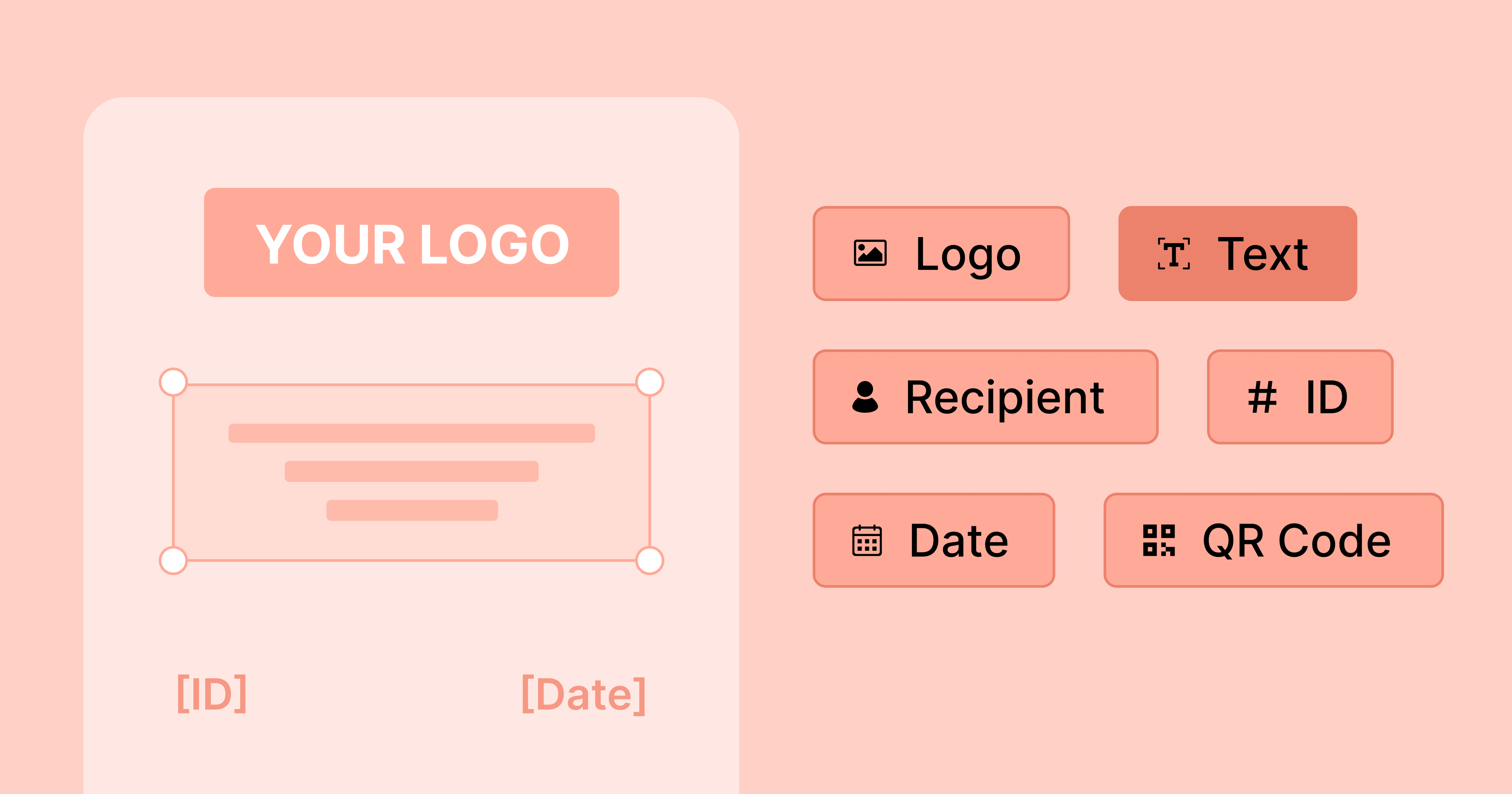
Attributes are dynamic elements that you can use to create and personalize issued certificates. For example, you can add dynamic attributes with the students' names to the certificate design. Attributes can also be used in automatic emails sent to certificate recipients.
Create and Send Digital Credentials
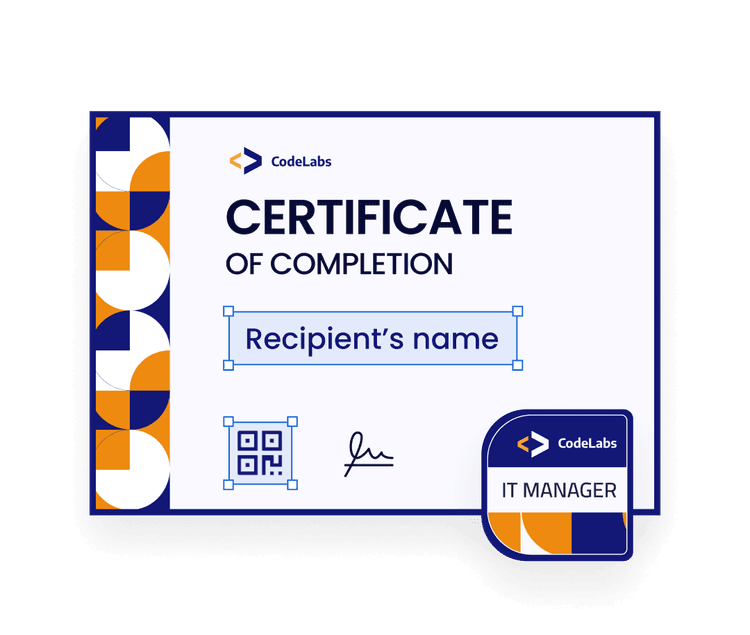
Here is a list of the most popular attributes offered by Certifier:

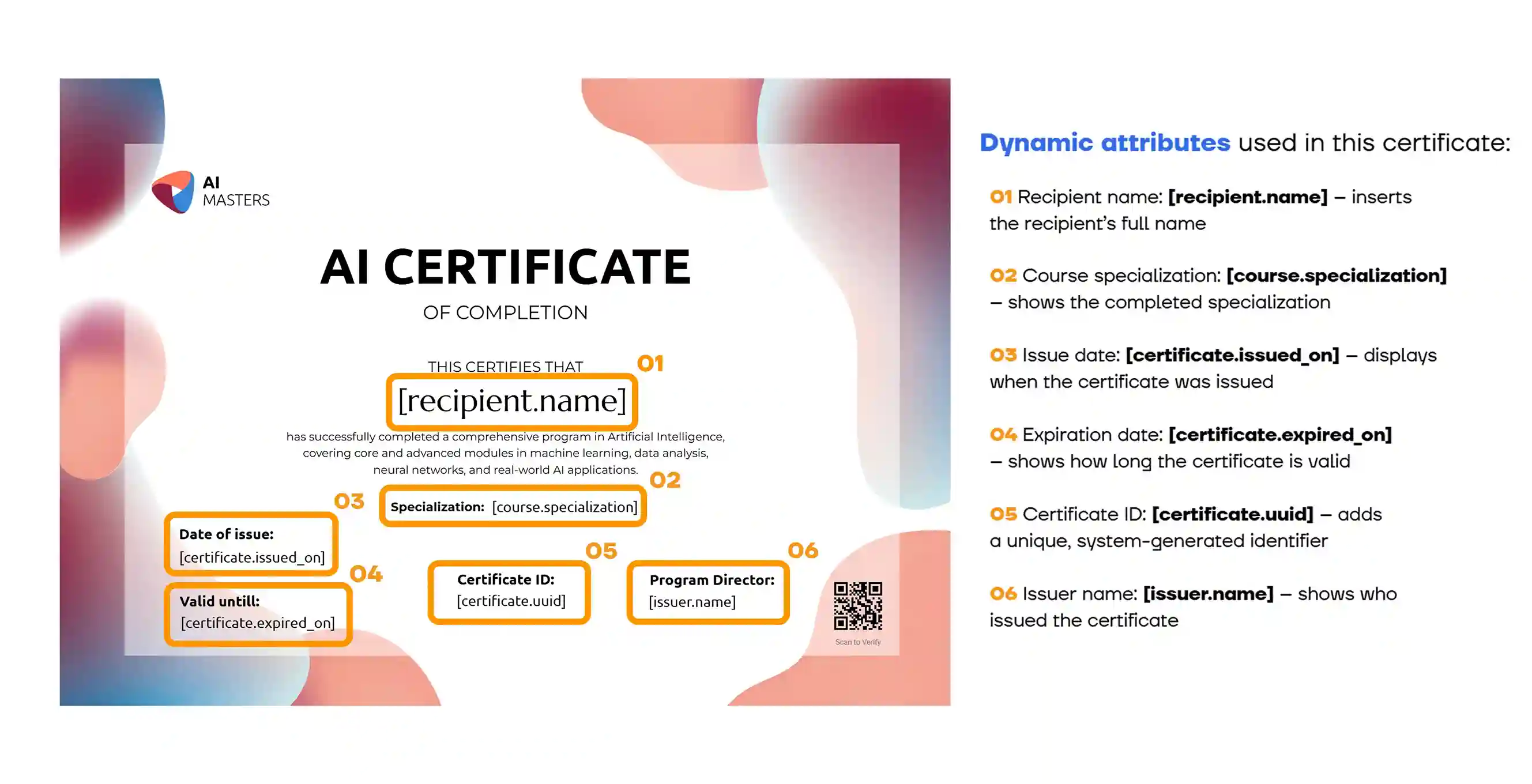
[recipient.name] - is a name of the recipient that will be displayed on a generated PDF certificate, as well as on the list of recipients within your Certifier dashboard. Data for this attribute is retrieved from an uploaded CSV file with the recipients’ list.
[recipient.email] - is an email address that is used to send the certificate. It is a required element. Data for this attribute is retrieved from an uploaded CSV file. The mandatory format for uploading email addresses is as follows: xxx@example.com.
[issuer.name] - a name of the person or an organization that issued certificates. You can use this attribute in your certificate design. Data for this attribute is retrieved from the account name, you can enter it in the Settings tab. You can’t upload data for this attribute from a CSV file.
[course.name] - attributes that display the course title. You can use it in your certificate design. Data for this attribute is retrieved from the course name, you can change it in the Courses > Edit Course tab. You can’t upload data for this attribute from a CSV file.
[certificate.id] - an individual certificate code number. You can add this attribute to your certificate design. Attribute has a 16-digit code format. Data for this variable is created automatically by the Certifier system. You can’t upload data for this attribute from a CSV file.
[certificate.issued_on] - displays the date when the certificate was created. You can add it to your certificate design. Data for this attribute is created automatically by the system or you can upload it via CSV file. The mandatory format for uploading is DD-MM-YYYY.
[certificate.expired_on] - displays the certificate validity period. You can add it to your certificate design. Data for this attribute is retrieved from an uploaded CSV file. The mandatory format for uploading is DD-MM-YYYY.
No, you do not have to use attributes in a certificate design, but to issue a certificate, you must upload a CSV file that contains at least 1 record with a Recipient Name and Recipient Email provided.
Dynamic attributes may feel unfamiliar at first, but they make certificate creation simpler, not harder. Instead of creating a separate certificate for each person, you design one certificate template. Dynamic attributes then fill in the correct details for every recipient automatically.
But there’s more to it than that:
If you’re issuing a single certificate, attributes remove manual edits. You don’t change names or dates by hand. You add the data once, and Certifier handles the rest. This also reduces mistakes, like typos or missing details.
If you’re issuing dozens or thousands of certificates, attributes become essential. The same design works for every recipient. Names, emails, dates, IDs, or grades are pulled in automatically. There's no need to double-check every certificate.
Every certificate follows the same layout and rules. Your branding is consistent and your certificates are professional, no matter how many you issue.
Dynamic attributes work whether you:
Add recipients manually
Upload a spreadsheet
Use integrations or automation
The process stays the same. Only the data source changes.
Once your design uses dynamic attributes, you can reuse it anytime. The same template can work for future courses, events, or cohorts without requiring any redesign.
Feature | With Dynamic Attributes | Without Dynamic Attributes |
|---|---|---|
Create certificates in bulk | ✓ One design works for everyone | ✗ Each certificate must be edited one by one |
Personalize names, emails, dates | ✓ Filled automatically from your data | ✗ Manual typing for every certificate |
Risk of typos and mistakes | ✓ Low (data is reused consistently) | ✗ High (copy-paste errors happen) |
Time spent per certificate | ✓ Same effort for 1 or 1,000 recipients | ✗ Increases with every new recipient |
Certificate IDs & issue dates | ✓ Generated automatically | ✗ Added manually (or skipped) |
Design consistency | ✓ Always consistent | ✗ Easy to break formatting |
Reuse the same template later | ✓ Ready to reuse anytime | ✗ Requires rework |
Works with spreadsheets & automation | ✓ Yes | ✗ No |
Yes, the editor in the visual certificate builder works for any attributes: you can change the font style, size, and color of the text.
You can also:
Change the width if you want the data to be distributed in a few lines.
Add text into an attribute field, e.g. “[certificate.issued_on]" like “Date: [certificate.issued_on]”.
Don’t worry. This problem is easy to solve. You can select a custom attribute and upload the data you need instead.
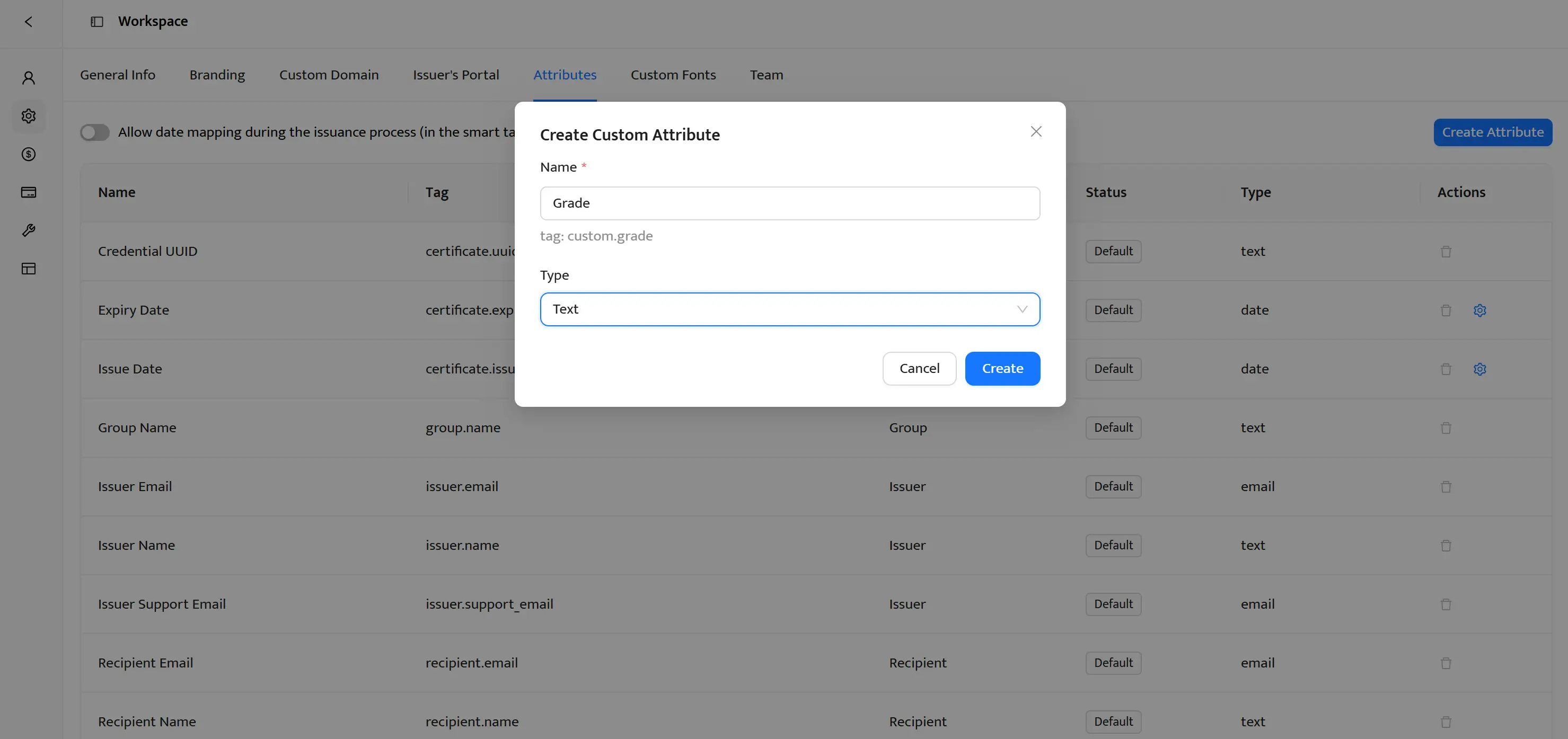
The custom attribute feature is available for our Professional plan users and above. In order to create a custom attribute, you need to go to your Profile, click on Settings, and open the Attributes field. This field displays all the attributes you have: both default and custom ones marked with grey or blue tags, respectively.
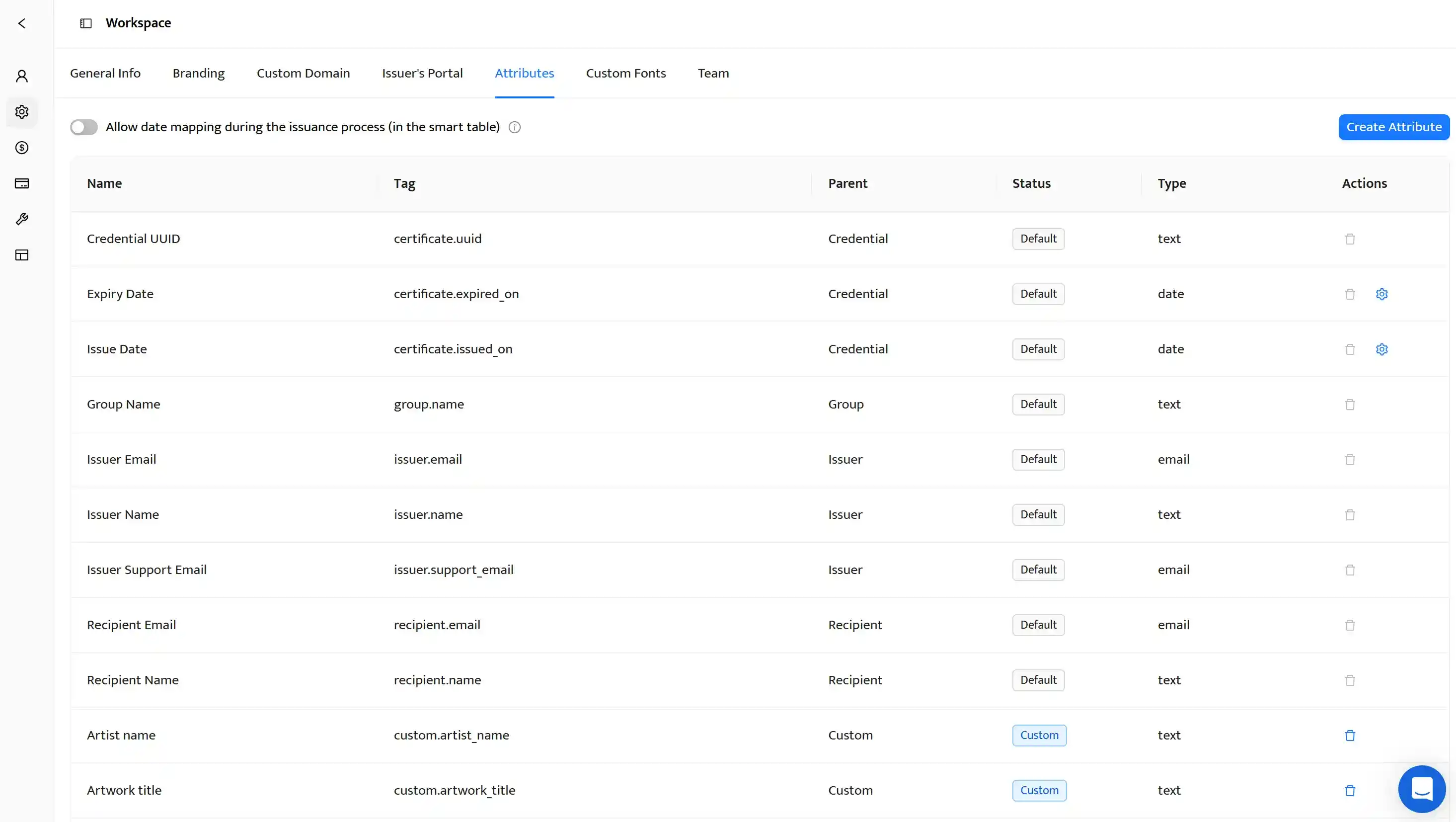
For example: You need to add a grade each of your recipients got during the course. Everything you should do in this case is to go to the Attributes section, click on the Create Attribute button, and name your custom attribute. Following this, make sure to include a column with recipients’ grades in your spreadsheet.
Dynamic attributes are what make personalized certificates work. They let you design one certificate and reuse it for every recipient. Once set up, the process runs smoothly. Names, dates, and other details are filled in automatically. This keeps certificates accurate and consistent, even as your volume grows. You can try this yourself - sign up for Certifier and start issuing personalized certificates using dynamic attributes in just a few minutes.
Here are the most common questions on using dynamic attributes. Read to more about this topic.

- SaaS Growth
- Digital Credentials
- APIs
- Product Marketing
- Company Operations
CEO and Co-Founder
Sergey is CEO and Co-Founder of Certifier, a Forbes 30 Under 30 honoree building digital credential infrastructure for 2,000+ organizations worldwide and shaping the future of credentialing.


