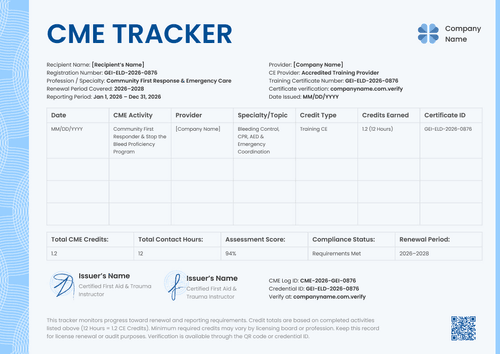
Professional green CME log template
Personalize this professional green CME log online or receive the editable Word package. Record approved CME activities and pair the log with its related training certificate in Certifier.
Customize this template for free
Email and export in bulk
Track recipient engagement
Download in
Don't have Certifier account? Sign up
Free professional green CME log template
This professional green CME log template gives accredited providers and medical education teams a structured record of continuing medical education (CME) activity. It groups activity-level credit evidence under one reporting period.
The dark green frame keeps the design formal. Separate sections organize recipient data and activity evidence. The summary remains easy to review in portrait or landscape.
Open the CME log in Certifier to replace the sample provider identity. Map each approved activity field, then attach a related training certificate from the credential template gallery. Both documents may then be issued as one credential set.
For recurring CME records, connect the approved activity source through the Google Sheets integration. A CME administrator should review the values before delivery.
What is a CME log?
A CME log is a provider-issued record of continuing medical education activities reported for one professional. It shows the learning recorded during a defined reporting period.
The activity table lists the Activity Type and Date. Hours/Credits states the assigned value. Description explains the activity, while Credit Category shows its classification. The Summary records the reporting totals and Renewal Period.
The log may accompany a certificate for an individual activity in a broader training credential workflow. The certificate confirms that activity. The CME log consolidates the approved reporting record.
What does this professional green CME log include?
A CME record should reflect the provider's approved reporting rules. The following elements are visible in the supplied CME log design:
Static layout elements
- CE provider header: Fixed positions hold the CME Log title and provider logo. Labeled lines identify the CE Provider and Verification Code.
- Recipient and verification sections: Section labels organize Professional Name and Registration Number. Profession / Specialty appears in the same block. A separate area groups CME Log ID and Credential ID, while Verify at provides the verification route.
- CME activity table: Fixed columns arrange Activity Type and Date before Hours/Credits. Description and Credit Category complete each activity row.
- Summary and authorization area: The Summary labels Total Credits Earned and Total CE Points. Renewal Period appears beside them. A signature position and Commission Chairman title sit above the audit note.
- Professional green styling: A dark green border and rounded corner details frame the page. Fine inner rules separate the record from the decorative edge in both orientations.
Dynamic fields (automatically populated after mapping in Certifier)
- Professional identity and reporting scope: Professional Name and Registration Number identify the record holder. Profession / Specialty provides context, while Reporting Period defines the activity window.
- Provider and verification data: CE Provider and Verification Code identify the source. CME Log ID and Credential ID trace the issued record, while Verify at supplies the live verification route. Date Issued records document production.
- CME activity rows: Each row records Activity Type and Date. Hours/Credits states the assigned value. Description summarizes the learning. Credit Category shows how the provider classified it.
- Credit summary: Total Credits Earned and Total CE Points summarize the completed activities. Renewal Period shows the cycle to which the reported values apply.
- Authorized signatory: The approver's name and title identify the responsible authority. The signature records approval of the CME log.
These are the changing fields visible in the supplied CME log design. They are not guaranteed to be pre-mapped. Configure the required fields in Certifier’s design builder and use only information approved by the CME provider.
The CME Log ID and verification address should resolve to the correct issued record. Review Certifier's verifiable credentials features before selecting the final verification route.
How to issue the professional green CME log
Use this four-step controlled workflow:
- Customize the design and your branding — Open the professional green CME log design and choose A4 or US Letter. Select portrait or landscape, then replace the CE Provider details. Add the provider logo and authorized signature. Map the Professional Name and activity rows to approved data. Do the same for the summary values.
- Bundle it with a matching companion document — Attach a corresponding training certificate template. Check that the Activity Type and Date agree across both designs. The Hours/Credits value should also match before the documents are issued as one credential set.
- Connect your tools — Upload a spreadsheet of approved CME activities or connect the source through Google Sheets. Review other integrations if the provider uses another supported records platform.
- Review, issue, and verify — Have the CME administrator review the activity rows and summary totals. Issue the log and certificate together, then open the verification address to confirm the CME Log ID. Recipients may retain or share the verified record according to provider policy.
Available CME log template formats
Edit and issue the professional green CME log online
Use Certifier to update the provider identity and map professional-specific CME data. The online route keeps the log connected to its live credential page and related training certificate.
Receive the professional green CME log in Microsoft Word
Enter an email address in the catalog popup to receive the available Word package. The offline files cover the supplied portrait and landscape layouts. Provider approval is still required before use.
Export an issued CME log as PDF
Recipients may export an issued CME log from their credential page. Issuers may export PDF records within their current plan limits. Browse certificate templates if another companion training design is required.
Who issues CME logs?
Accredited CME providers
Accredited providers issue CME logs from their approved participation records. They confirm how each activity is classified and which credit value applies.
Hospital and medical education offices
Authorized education offices may issue logs for internal professional learning. Their records process should identify the responsible CE provider and approving authority.
Medical associations and credentialing administrators
Professional associations or designated administrators issue CME logs where their policy grants that role. Physician learners may retain the record, but they should not issue it themselves.
Frequently asked questions
Yes. Select "Edit this template" to personalize the CME log through a free Certifier account. You may also enter an email address in the catalog popup to receive the Word package. Review Certifier pricing for current limits and feature availability.
No. An authorized provider must approve the activity data and credit values. The relevant licensing or professional body decides whether the record meets its requirements.
No. The log records the CME activities and credit totals entered by the issuer. Renewal depends on the rules of the responsible board or professional organization.
A CME log consolidates several activities across a reporting period. A CME certificate usually confirms one training activity and states its assigned credit.
Yes, where the selected plan supports private attached designs. The credential owner verifies access through the issuance email.
[a]Design changes:1. Add Accreditation Statement in the footer or the header as static text. Text:"The [Provider Name] is accredited by the Accreditation Council for Continuing Medical Education (ACCME) to provide continuing medical education for physicians."
2. Add AMA Credit Designation Statement as static text, beside the Credit Summary. Text: "The [Provider Name] designates this [learning format] for a maximum of [number] AMA PRA Category 1 Credit(s)™. Physicians should claim only the credit commensurate with the extent of their participation in the activity."
Certifier templates are provided for general informational and design purposes only. They do not constitute legal, regulatory, accreditation, or academic-recognition advice and are not guaranteed to satisfy the requirements of any institution, recognition body, regulator, or jurisdiction. Using this template does not by itself make a document an official diploma supplement or prove a qualification. The issuing organization is responsible for verifying the content, authority, approvals, and suitability of every document before use. This template is not an official Europass document and does not guarantee recognition of a qualification.