


Trusted by:
University of Southern California
Warner Bros.
Volvo
Amazon
Stanford University
Updated: July 03, 2026
8 min read
This tutorial is a step-by-step guide on how to create and issue certificates for your online school students, webinar attendees, or course graduates via a one-click automatic email using Certifier.
Research with AI:
Certifier is a unique solution for those who want to generate dozens of digital certificates in bulk with minimum effort and time. The creating and issuing process of professionally-designed certificates requires just three easy steps.
Let's learn how to create beautiful certificates in bulk with the Certifier automatic certificate generator!
Bulk certificate generation lets you create and send multiple personalized certificates at the same time instead of issuing them one by one.
With Certifier, the entire process takes three steps: choose a template, upload recipient data, and auto-send certificates.
Dynamic fields automatically personalize each certificate with recipient-specific details.
You can preview everything before sending, issue certificates instantly, or save them as drafts.

Bulk certificates are necessary for those who want to issue multiple certificates at once instead of creating separate individual certificates for every student or course participant.
It’s the feature that streamlines the workflow a lot. You can forget about the hours spent on creating certificate templates. Using a bulk certificate generator, you can reduce the process to a few clicks.
Using a bulk certificate generator may appear difficult and intimidating. But actually, a bulk certificate generator is a tool that allows you to create a large number of certificates quickly and easily.
With just a few clicks, you can generate multiple certificates at once, saving you time and effort. The Certifier certificate builder makes the process of creating certificates in bulk easy and user-friendly. See bulk certificate issuance in action in our video tutorial:
In general, the bulk certificate creation takes only three steps. Let's explore them one by one:
Once logged into our certificate editing app, you will be automatically redirected to our Designs tab. The first thing you should do is to click on the Create Design button, which will lead you to our certificate creation process.
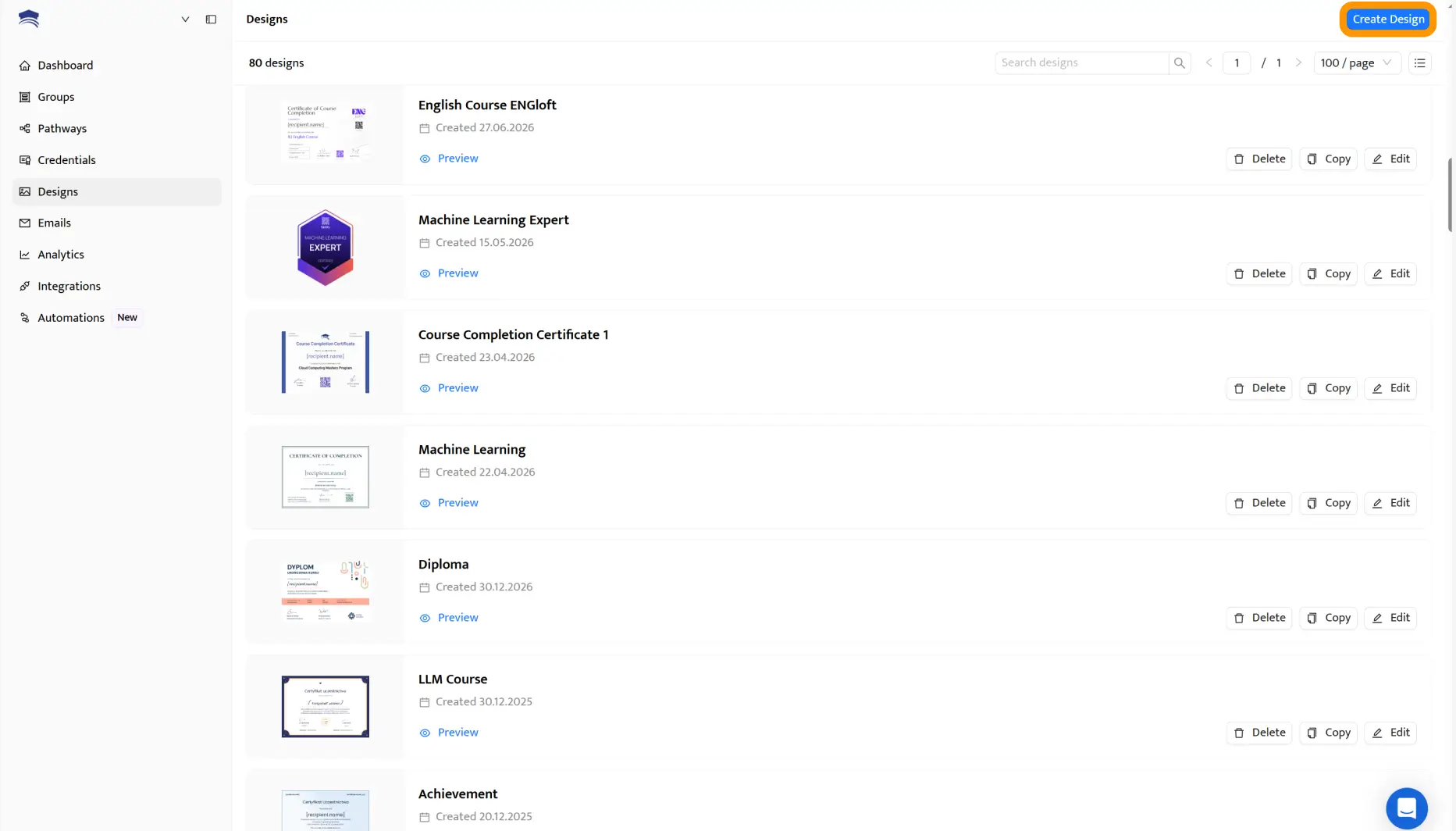
Our online certificate maker works just in the same way as any standard builder does. Most of our users prefer to go directly to the Templates tab and choose a pre-made certificate template that has been professionally designed and prepared for your use.
Create and Send Digital Credentials
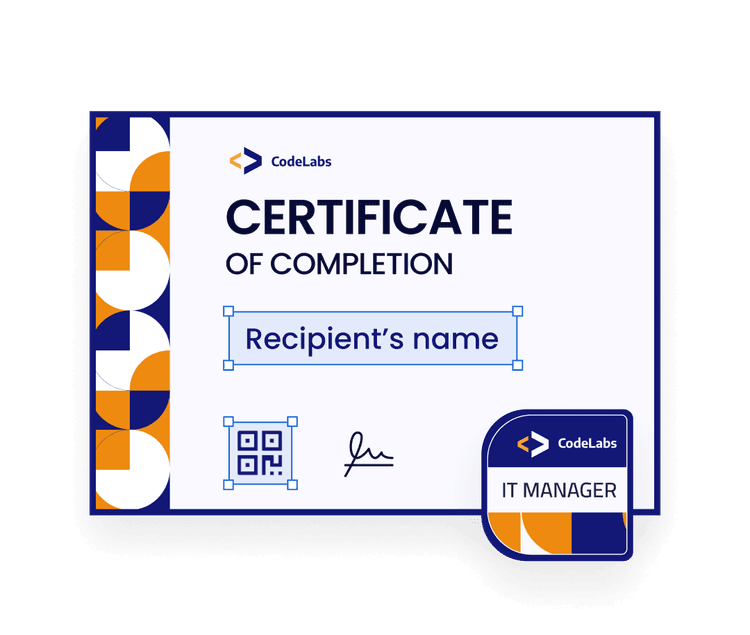
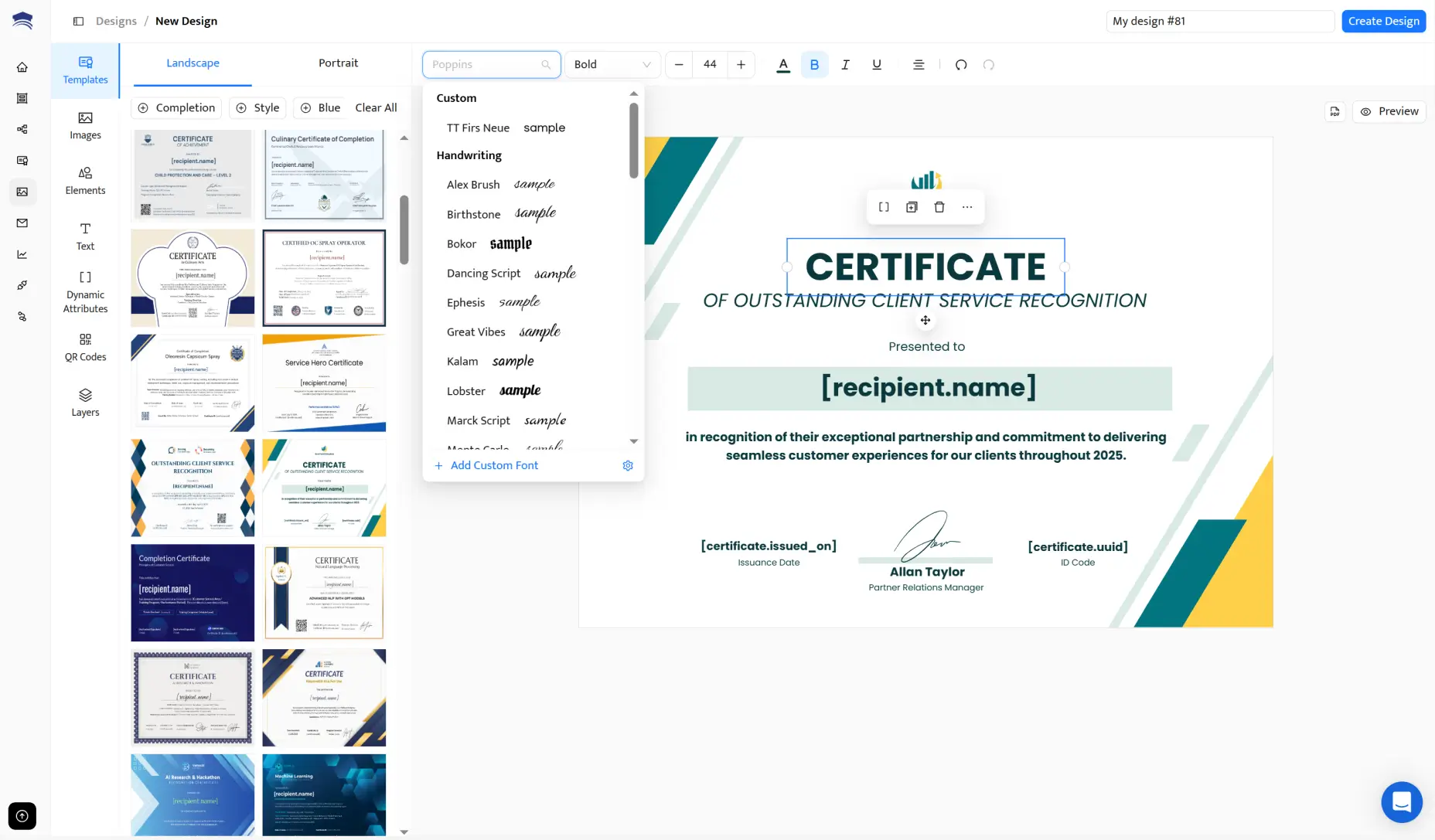
Good to know: You can customize each template however you want to. Use our bulk certificate generator to change the fonts, colors, and upload branding elements, the company’s logo, and a custom background to create personalized certificates.
The sky is the limit here. The Background tab gives you also the possibility to set up the paper size and orientation. You can also generate a QR code to give your certificate an extra layer of verification.
The possibility to add dynamic attributes is the feature that makes Certifier exceptional among other apps because it enables our customers to send dozens of certificates to different recipients in just one click. To make a long story short, you can think of an attribute as a placeholder for the information that will be derived automatically.
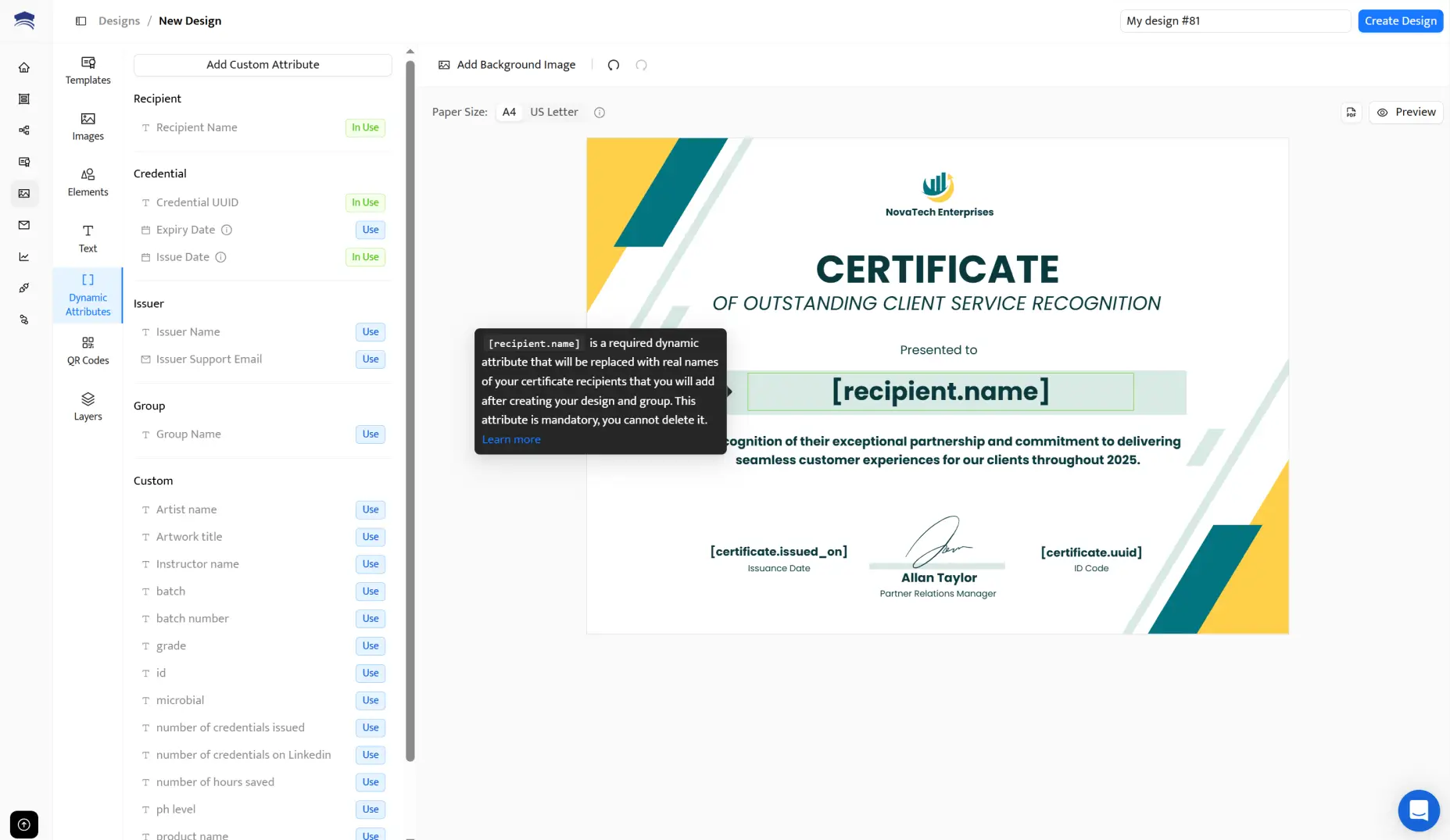
Please note: You should not delete the attribution on certificates and type the full name of your recipient instead of the [recepient.name] attribute provided. This dynamic attribute will get automatically replaced by the name and surname of your recipient based on the data you upload to the Certifier tool in the next step.
Name your design using the empty field in the upper right corner of the builder and press the Create Certificate Design or Save button.
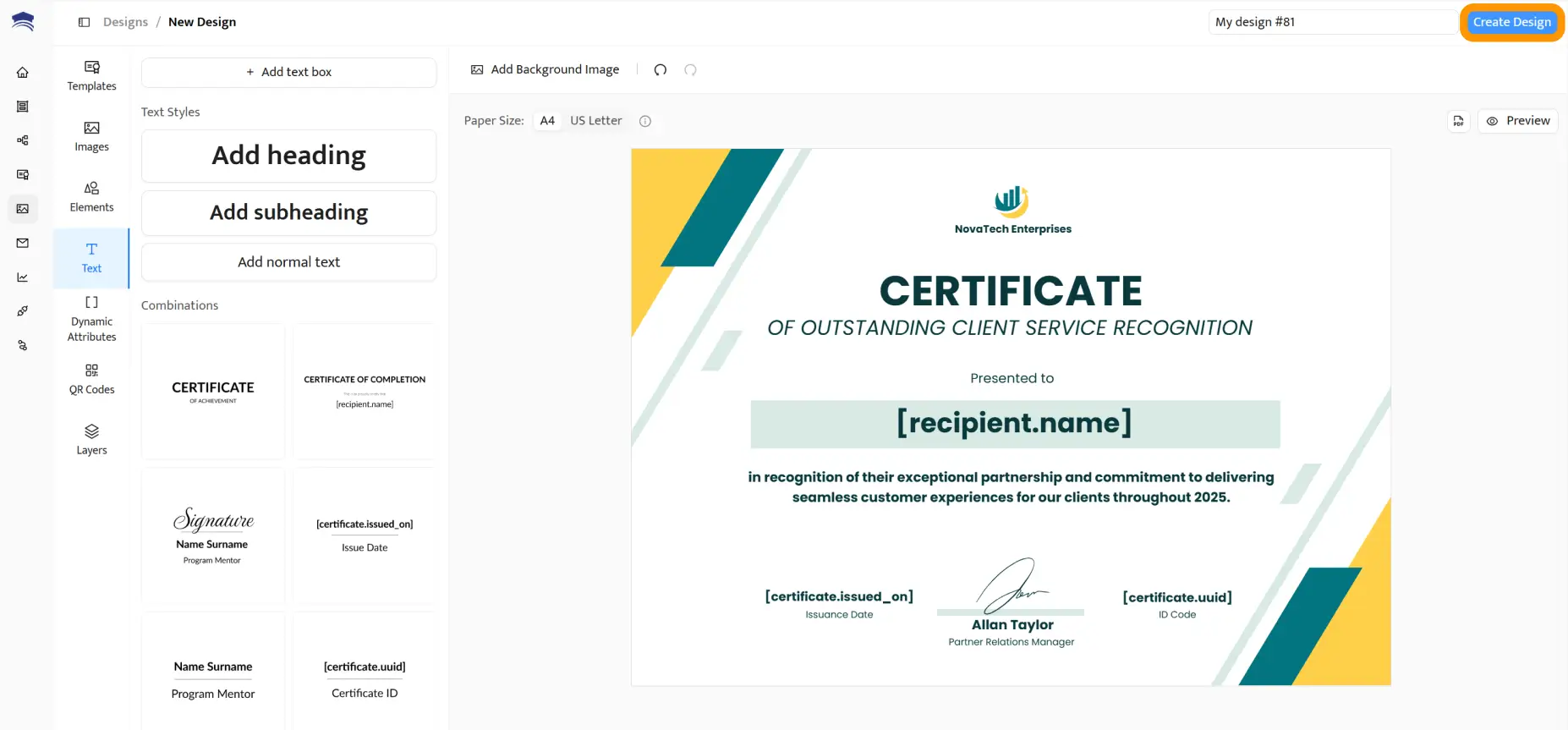
🙋 Please note: Do not start looking for a Download button, or try downloading your design template because this is not how Certifier works. The possibility to save your certificates will become available only once these very certificates are issued.
All the designs that you create and save are stored in the Designs tab so that you can reuse your templates in the future.
Once you have successfully finished the digital certificate creation process, it is high time to upload recipients data and link them both together with the dynamic attributes in the template. Don’t worry, the process is pretty straightforward.
Once you save your first design, it will trigger the pop-up window with uploading your data.
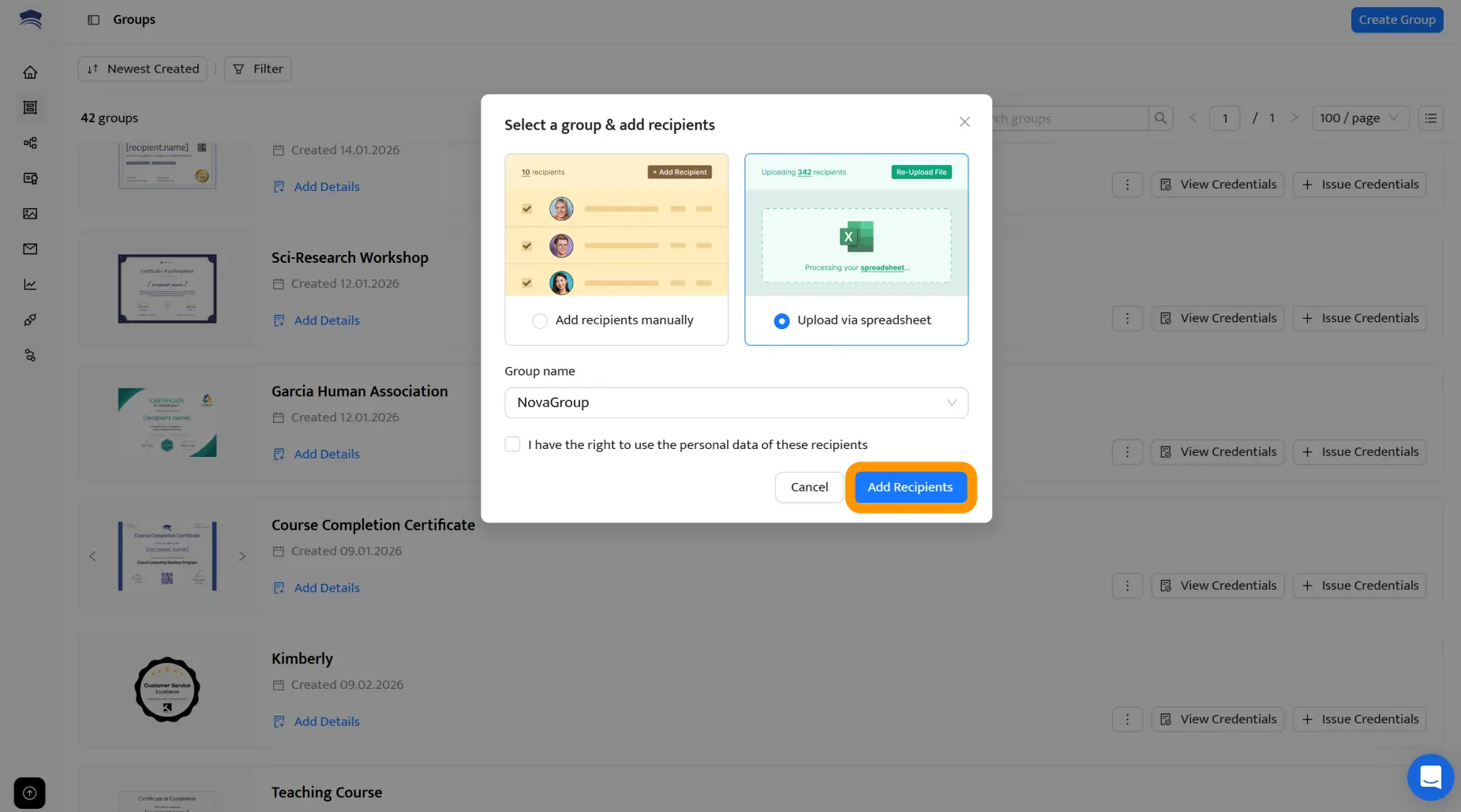
Our recommendation: Name the certificate design template using the names of a course/webinar/or any other occasion that you want to issue your certificates on because it will be visible in the recipient’s wallet from which the recipient can download and share the certificate further.
You can upload the recipients’ data in two ways:

One by one – so you will insert the name and email address of each recipient manually.
Via native Zoom integration (recommended) – Certifier natively connects Zoom attendance events with issuance. Choose Zoom Meeting Ended or Webinar Ended action, connect your Zoom account through OAuth, choose the Issue Credential action in Certifier, map the fields and then automatically send certificates of attendance!
Via spreadsheet upload – automatically, the tool will pull out the necessary data from the spreadsheet in CSV, XLSX, XLS formats. Our certificate generator from Excel allows you to upload all data at once and link it to dynamic attributes in seconds.
Our bulk certificate generator will suggest you to download the template of this spreadsheet to ease the process a little bit. If you launch webinars using Zoom, WebinarJam, or ClickMeeting, then you can export a list of your attendees directly from the platforms.
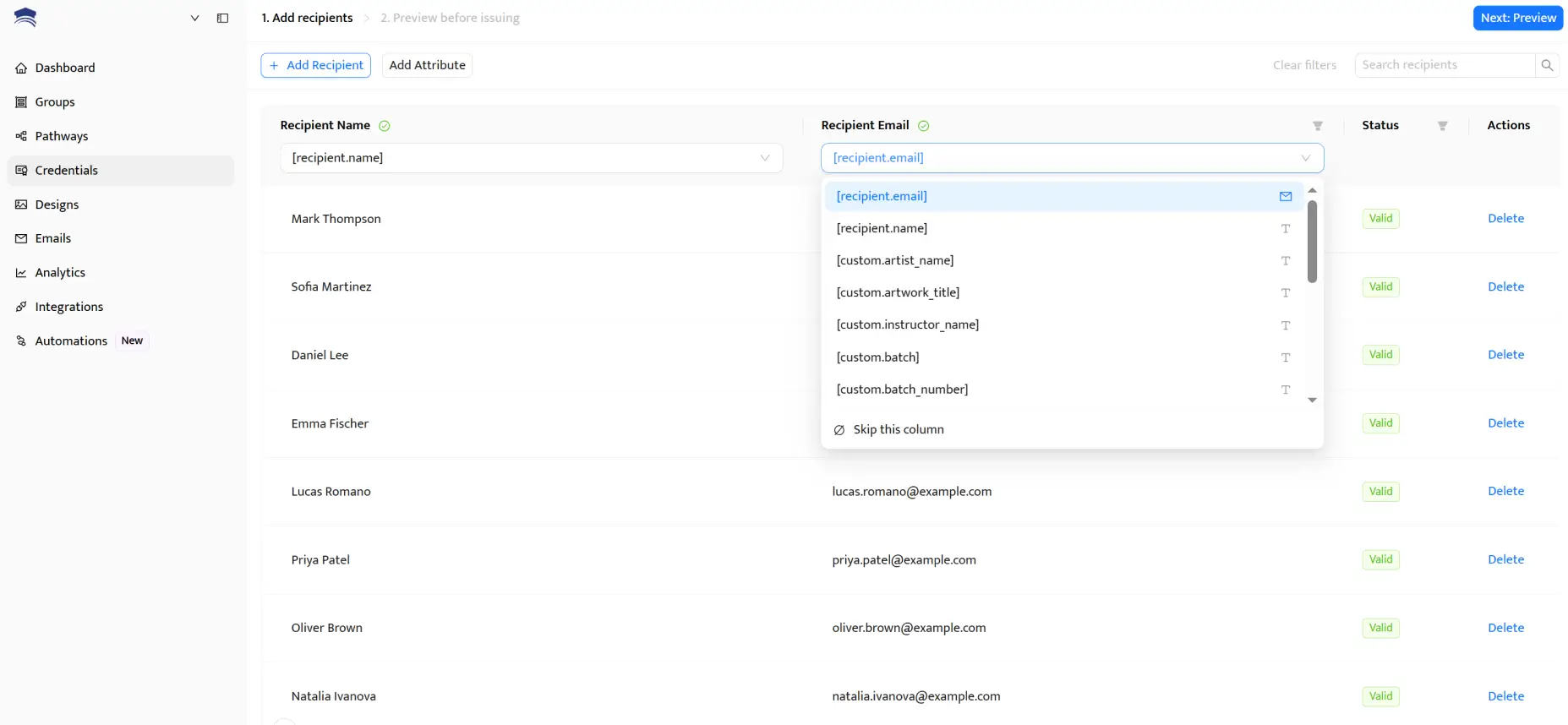
Our template includes two columns called Recipient Name and Email. You may have already guessed that the entities from the Recipient Name column will replace the [recipient.name] attribute, while the emails from the Email column will be used to send your certificates to lots of students with just one click.
You can change our template depending on your needs, for example, by adding the columns that you used as attributes on your design template. Once a spreadsheet is uploaded, you will be asked to map (link) the columns from your document with the attributes you placed on your template.
If you issue certificates in bulk on a regular basis, meaning daily, weekly, or after every course session, you don’t have to upload a CSV file every time.
Certifier offers native integration with Google Sheets and Microsoft Excel that keeps your recipient data in sync automatically. You can update names, emails, or other fields directly in your spreadsheet, and Certifier will use the latest data whenever you generate new certificates.
Once you have mapped the attributes and columns together, you should press the Preview Before Publishing button so that our multiple certificate generator can check whether everything is alright. If there are any errors, the Certfier tool will let you know how to fix them.
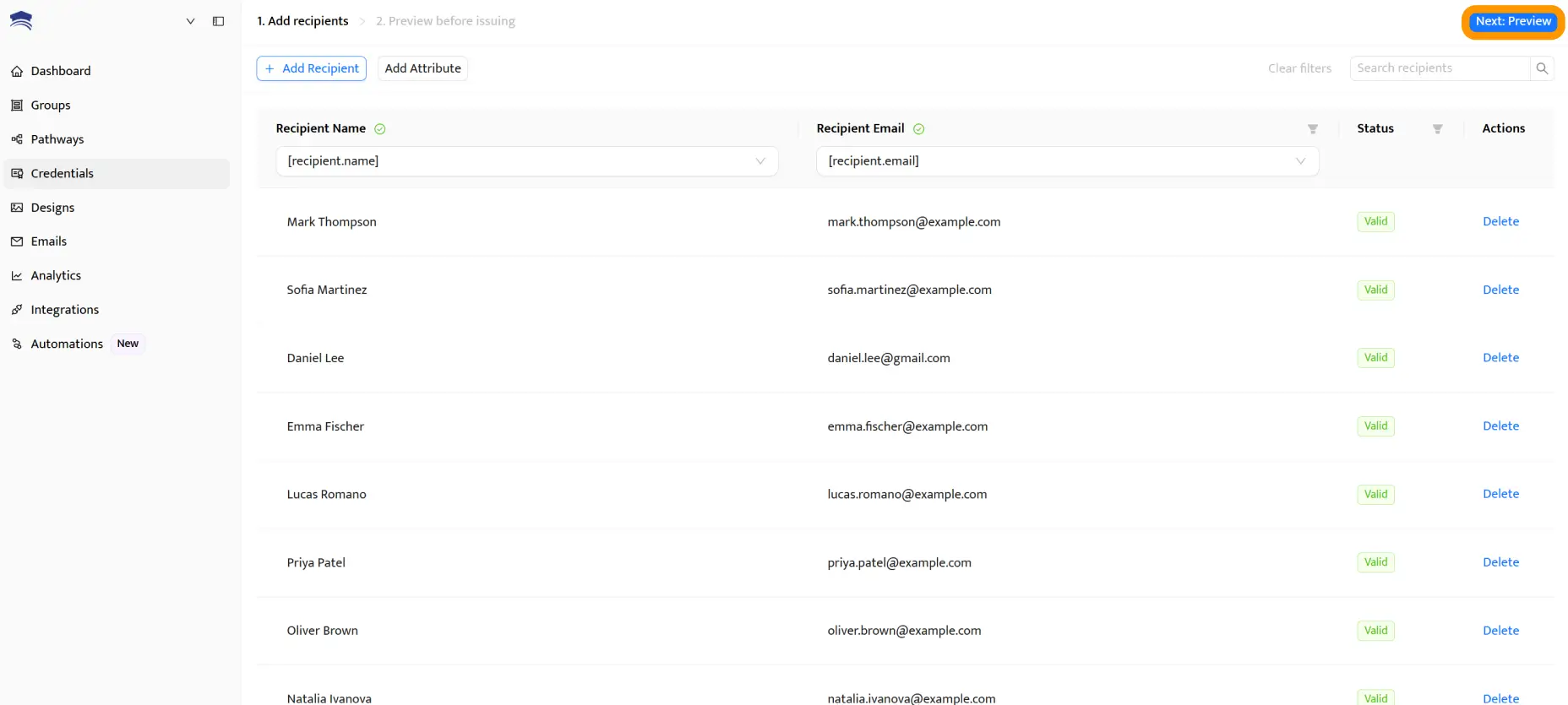
Following this, you have two options:
Hitting a Save as Draft button and issuing your certificates later.
Press the Save & Publish button and the certificates you have just created will be sent directly to the emails of your students in seconds!
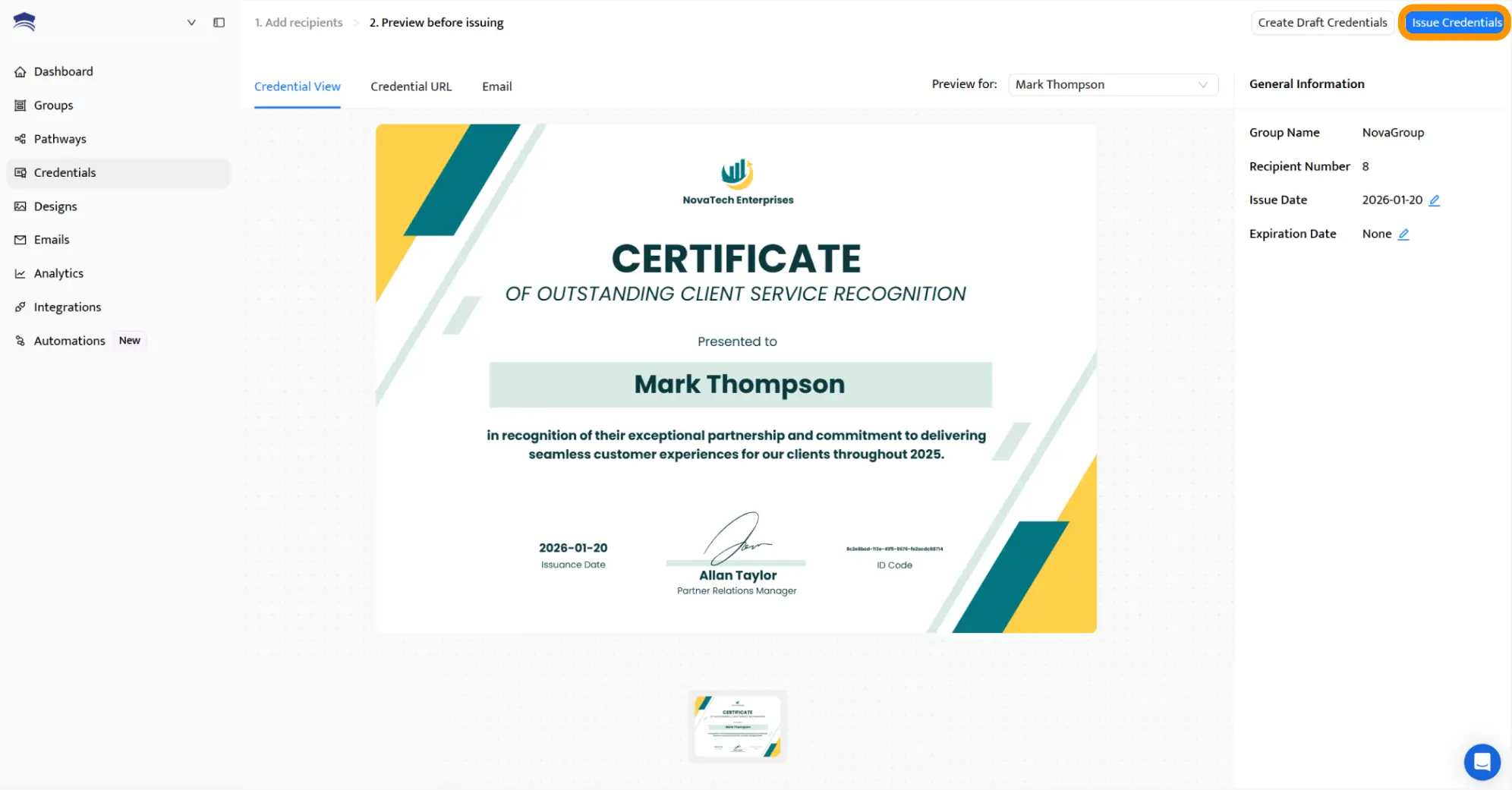
So now, when your certificates are issued, you can download them to your computer, resend, or delete them.
Be careful: Once you delete a certificate from the dashboard of Certifier, your students will not be able to open them through their email anymore!
That’s it – everything about how to generate bulk certificate. With our multiple certificate generator, it's easy, isn't it? And the best part is that you can use bulk certificate generator free – just sign up.
Create and Send Digital Credentials
With bulk certificate generation, issuing certificates stops being a manual task and becomes a repeatable process. You can send certificates to 10 people or 1,000, and the steps stay the same - as well as the time you spend doesn’t grow with the list.
If you issue certificates regularly, Certifier helps you keep the process consistent, accurate, and easy to manage from one place.
Start for free and see how simple bulk certificate issuance can be.
Here are some of the most common questions that may appear while starting with bulk generators.
The bulk certificate generator like Certifier simplifies the certificate creation process by leveraging data from sources like Google Sheets or CSV files. You can upload your recipient information, customize the certificate templates with personalized text, images, and logos, and then generate all the certificates in bulk with just one click.
Absolutely! The bulk certificate generator lets you personalize each certificate by using variables or placeholders that dynamically populate recipient-specific information such as names, dates, and achievements. This way, each certificate can be unique and tailored to your recipients.
Using a bulk certificate generator offers several advantages:
It saves time by automating the certificate creation process.
It ensures consistency in design and format.
It allows for easy customization with personalized text boxes and backgrounds
It enables you to generate a large number of certificates efficiently.
The bulk certificate maker PDF offers various delivery options.
You can choose to send the certificates via email directly from the generator.
Download them as PDF files to distribute manually.
Or even integrate them with your organization's system using APIs for seamless certificate management and distribution.
Absolutely! Certifier provides customer support to assist you with any questions or issues you may encounter. You can also report any bugs or suggest improvements to enhance the user experience. Your feedback is valuable in making our generator even better. Use our bulk certificate generator free, and don’t worry about the bugs.
Yes, you can! The digital certificates generated by online makers can be easily downloaded as PDF files and printed. You can choose the desired format and layout for printing, ensuring that your certificates look professional and ready to be presented.
To create bulk certificates, use certificate templates with a mail merge feature. Prepare a data source like Google Sheets with recipient details, connect to the template, and automate the personalization process for issuing multiple certificates efficiently.
Easily generate certificates by selecting a versatile certificate template. Utilize tools that support bulk create certificates, ensuring all the features for personalization and branding are included. This streamlines the certificate distribution process for large numbers.
To create multiple certificates in PDF:
Employ a certificate template in a program that supports mail merge, like Microsoft Word.
Customize the template.
Perform a mail merge with your data.
Export the documents as PDFs to print certificates or send digitally.
You can also use a multiple certificate generator - it’s faster and easier.

- Product Management
- Customer Research
- Digital Credentials
- Product Strategy
- Design Systems
Product Manager
Uliana leads product management at Certifier, using her UI/UX background to explain platform features and help organizations maximize their credentialing capabilities.


