
Trusted by:
University of Southern California
Warner Bros.
Volvo
Amazon
Stanford University
Updated: July 31, 2026
8 min read
Some training providers send learners a static PNG and call it a badge. Here’s how to create a digital badge for training, with metadata, verification, LinkedIn sharing, and design tips that drive more shares.
Research with AI:
Some training providers issue digital badges that are just PNG files. They look like credentials, but they can't be verified, can't be properly added to LinkedIn, and typically get filed away rather than shared.
This guide covers how to create a digital badge for training: with embedded metadata, a verification link, and one-click LinkedIn sharing.
It also walks through the design choices that determine whether learners actually share their badges–and which platform handles the full process without requiring a designer or a developer.
A Canva or PNG badge is only a badge image. It can look professional, but it has no verification, metadata, or proper LinkedIn credential flow.
A real digital badge for training is a verifiable credential. It includes recipient data, issuer details, criteria, issue date, and a permanent verification URL.
Start with the training criteria before the design. Define the skill, completion threshold, evidence, and renewal rules so the badge carries real value.
Use templates to create the badge faster, but keep the design readable. Choose a clear skill title, minimal text, strong contrast, and visible issuer branding.
Use Certifier if you need to create, issue, verify, and share digital badges at scale–with templates, CSV upload, LinkedIn sharing, automation, and 250 free credentials per year.

A real digital badge has three layers that a PNG image from Canva doesn't have.
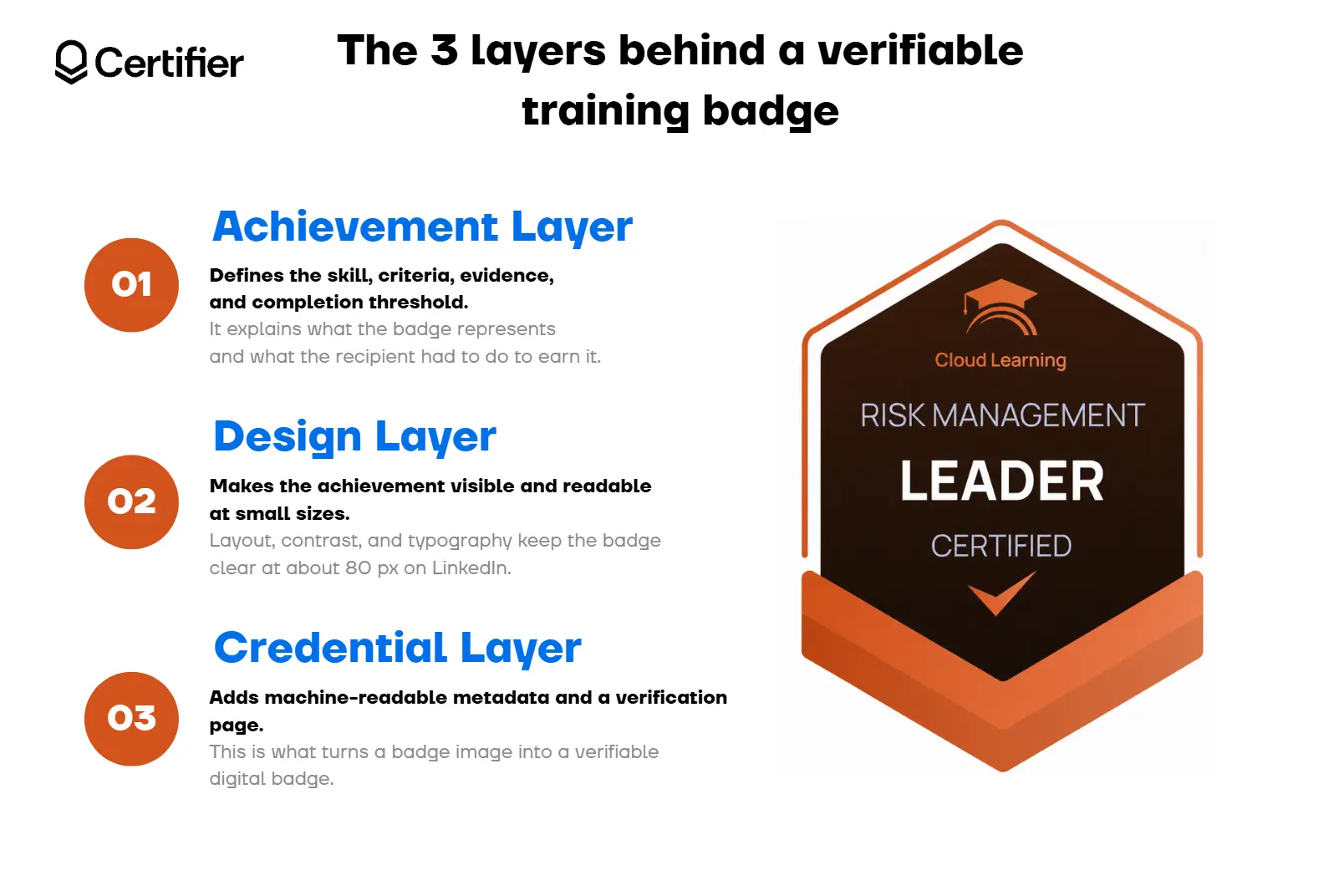
The achievement layer defines the skill, criteria, evidence, and completion threshold. It answers what the badge represents and what the recipient had to do to earn it. Without this layer, the training badge is decorative.
The design layer makes the achievement visible and readable at the small sizes where badges are actually displayed–roughly 80px wide on a LinkedIn profile. Layout, contrast, and typography all affect whether the badge communicates the credential or just looks like a sticker.
The credential layer is what separates a badge image from a verifiable digital badge. This layer embeds the issuer name, recipient name, issue date, criteria URL, and a unique verification link directly into the badge as machine-readable metadata.
The badge lives at a permanent URL that employers can open and verify independently. It can be added to the LinkedIn's Licenses & Certifications section as a proper credential entry, not just an image upload.
Most training providers who create badges in Canva or Google Slides have the design layer. They don't have the credential layer. That's what makes the badge unshareable in any meaningful professional context.
A badge image and a verifiable digital badge may look similar at first glance, but they work very differently after issuance. The table below shows where Canva stops at design and where Certifier adds verification, metadata, LinkedIn sharing, and scalable issuing.
Feature | Canva Badge | Certifier Digital Badge |
|---|---|---|
File format | PNG / PDF image | Verifiable credential at permanent URL |
Verification | None | One-click verification link + QR code (Professional plan and above) |
Metadata | None | Issuer, criteria, issue date, recipient, unique ID–Open Badge 3.0 |
LinkedIn profile | Image upload only | Adds to Licenses & Certifications as a credential entry |
Issuing method | Manual send | Single recipient, CSV upload for cohorts, or automated via LMS/CRM/API |
The metadata column is the core differentiator. When an employer clicks on a Certifier badge in a LinkedIn profile, they land on a credential page that shows the issuer, the criteria, the issue date, and a verification status. A Canva badge image shows none of that.
You can create and issue a digital badge for training in five steps. Here’s a brief overview of them:
01Choose a template
02Customize the design and criteria
03Add recipient data
04Issue via email
05Track sharing
The entire process requires no coding and no design experience.
Go to Certifier and create a free account. The free plan covers 250 credentials per year, includes the drag-and-drop badge editor, CSV upload for bulk issuance, and one-click LinkedIn sharing.
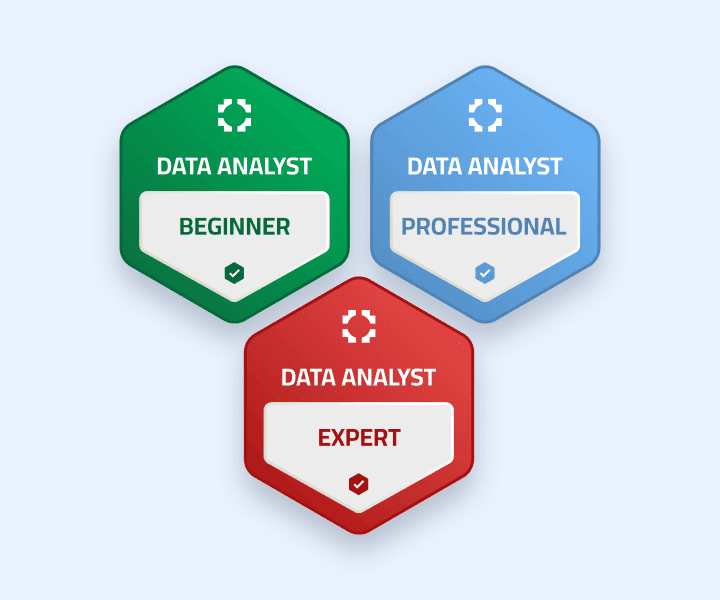
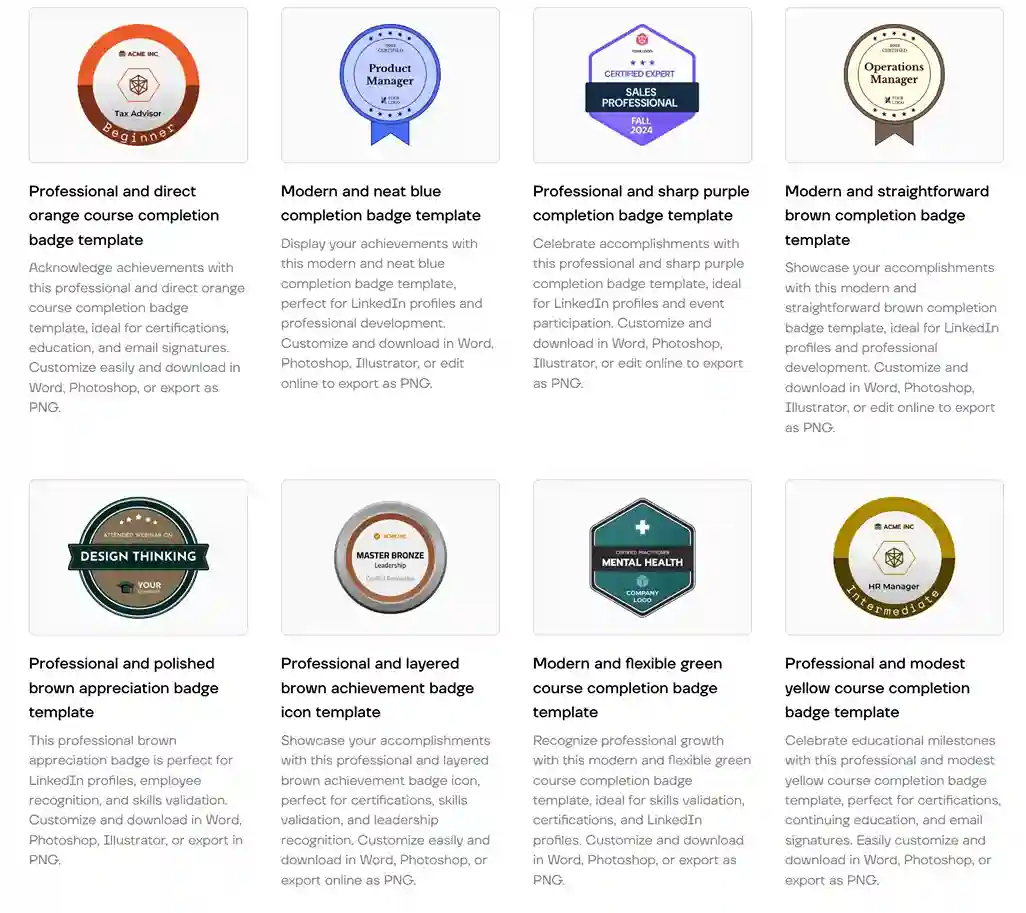
Certifier has hundreds of editable badge templates organized by category–achievement, completion, training, recognition.
Filter by category to find designs built for training contexts. If you want to create a digital badge from a blank canvas, the SVG-based editor supports that too.
You can also explore free digital badge templates before committing to a design direction.
Open the badge in the drag-and-drop editor. At a minimum, update:

Badge title: Use specific skill language, not generic labels. "Python Fundamentals Certified" communicates more than "Course Complete" to a recruiter or employer reviewing a LinkedIn profile.
Issuer logo and name: These appear in the badge metadata and build issuer brand visibility every time a recipient shares.
Criteria: Define what the recipient did to earn the badge–the training topic, completion threshold, evidence required, and any renewal terms. This goes into the Open Badge 3.0 metadata.
Issue date and expiry (optional): Expiry dates drive renewal behavior; set them for compliance or recurring training programs.
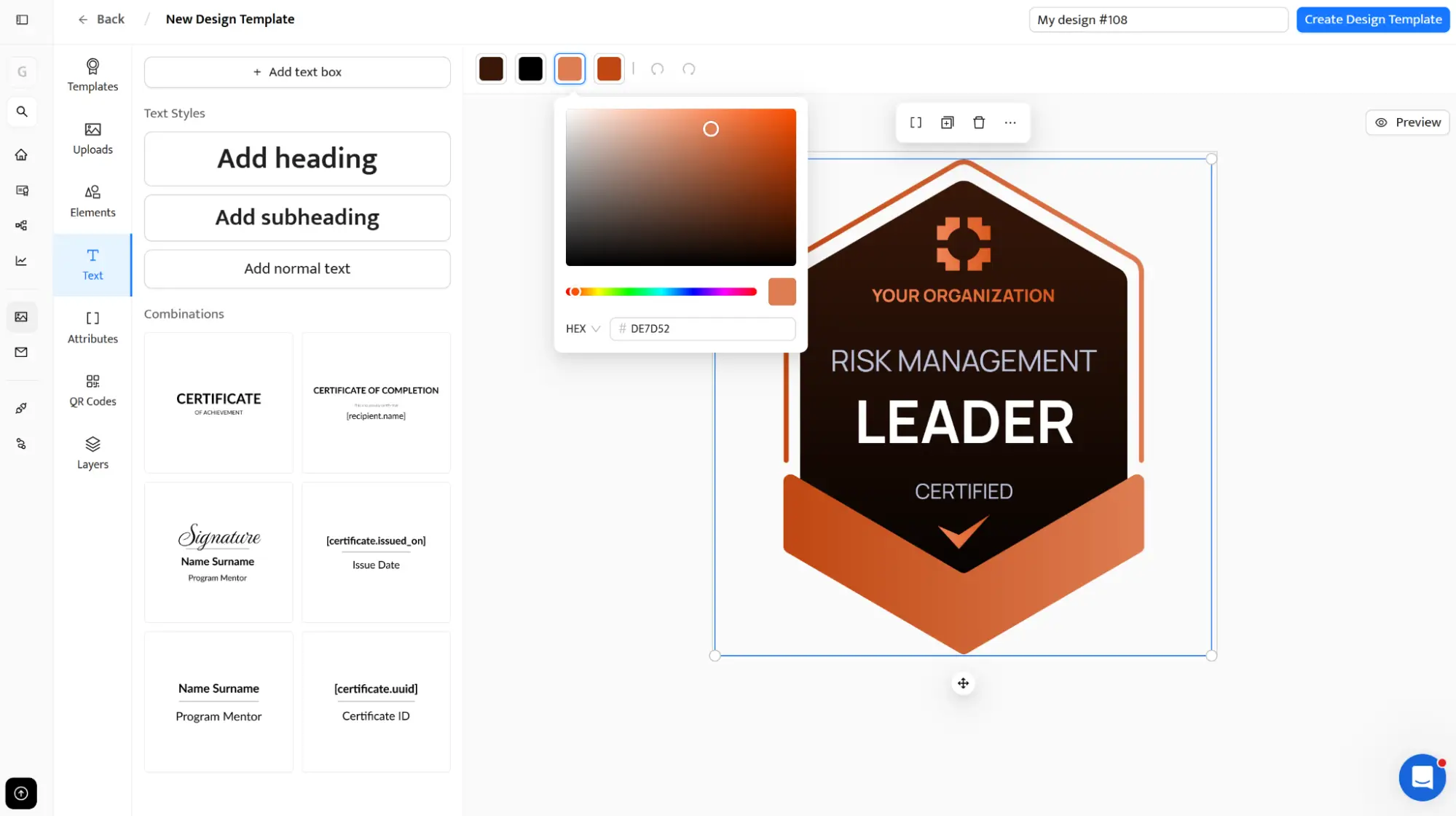
For deeper guidance on visual design choices specific to online course badges, the badge design ideas for online courses article covers layout, color coding, and hierarchy in detail.
There are two ways of issuing badges in bulk.
Review who met the training requirements.
Add approved recipients via CSV upload. Each row becomes one issued badge with personalized recipient data embedded in the metadata.
Issue and send badges to the cohort. Certifier delivers via branded email from your own domain.
Connect Certifier to your LMS, CRM, Zapier, or API.
Set the completion event that triggers issuance–course completion, assessment pass, attendance threshold.
Certifier issues and delivers badges automatically when learners meet the criteria.
For details on how to create digital badges in bulk, the step-by-step guide covers both CSV and automated routes.
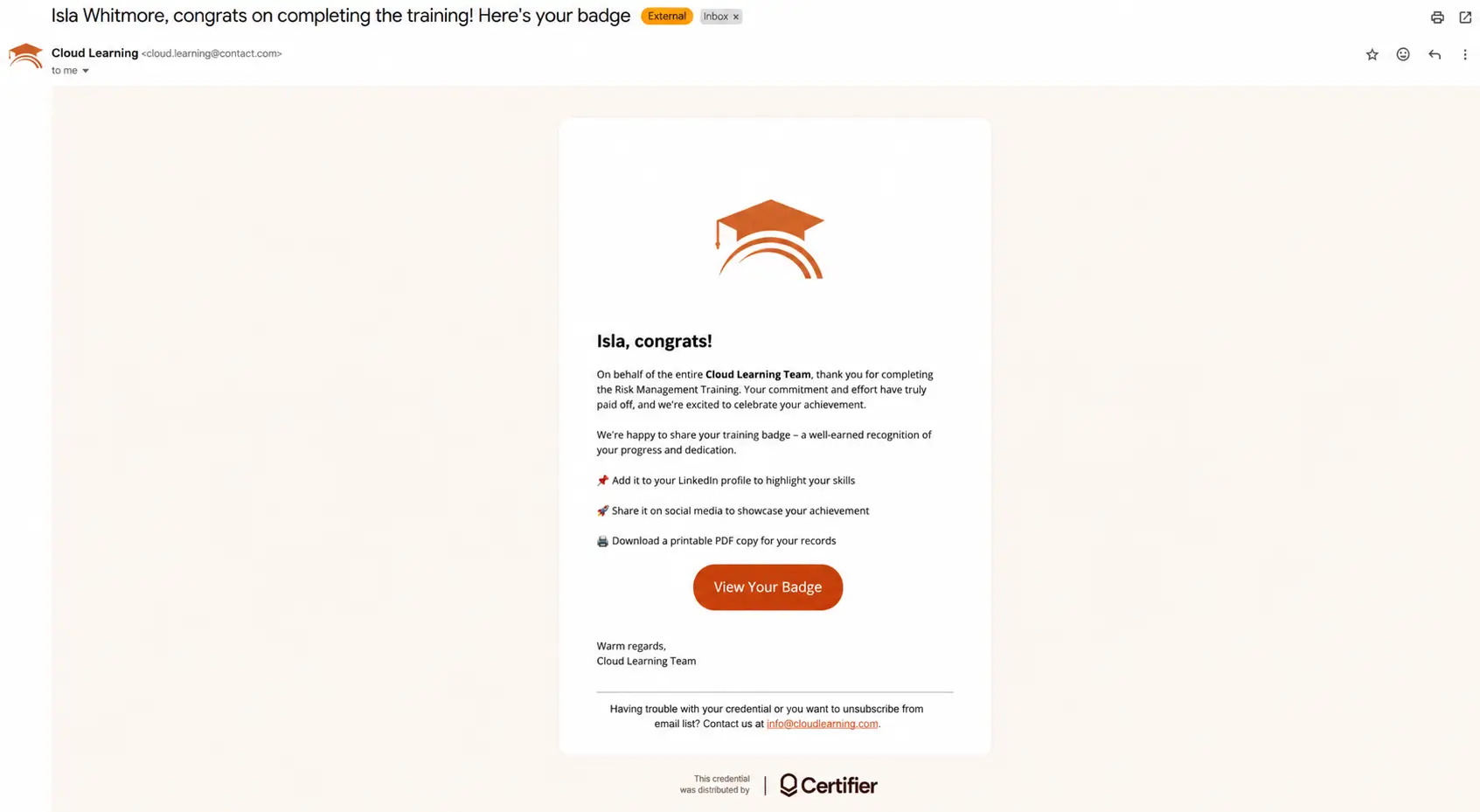
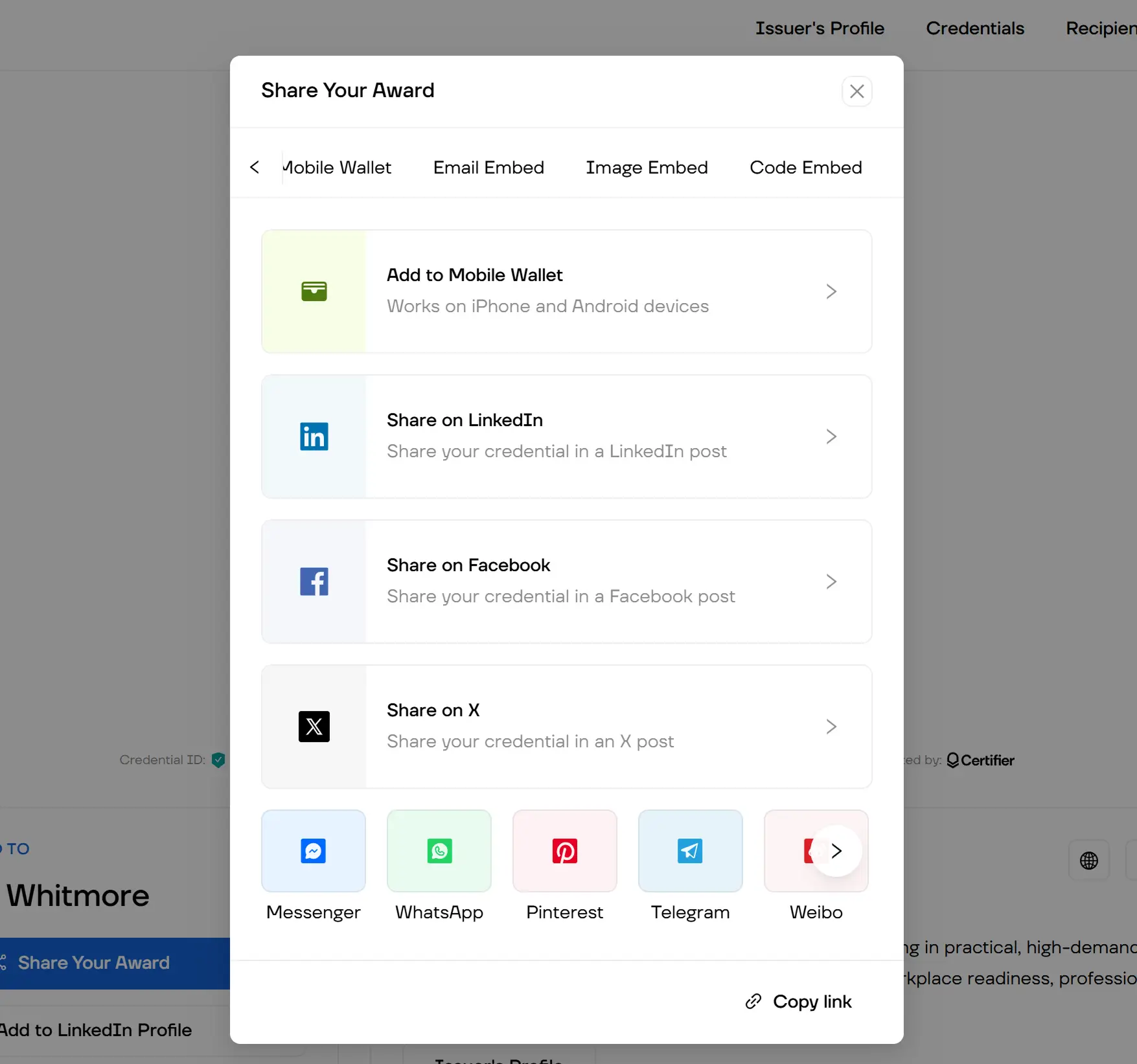
Each recipient gets an email with their badge and a link to their credential page. From there, they can share to LinkedIn in one click, share as a post to social media like Facebook or X with a pre-written caption, download as PDF, or share the verification URL directly.
When issuing badges to adult learners, this verification layer is especially important: employers who receive the link can review the issuer details, earning criteria, issue date, and current verification status.
Want the full setup process? The internal training badge guide walks through the design, badge details, issuing steps, and learner sharing flow.
If you want learners to share their training badges, design them with high-contrast, readable text that stays clear at small resolutions–and use specific skill-based titles.
A badge displayed at 80px on a LinkedIn profile needs to communicate the credential at a glance. These are the design choices that determine share rates:
Badge title: specific beats generic. "Risk Management Leader" tells a recruiter something. "Completion Badge" tells them nothing. Learners are more likely to share a badge that reflects a skill they want to be known for.
Keep text minimal. Badges are icons, not certificates. If you need more than four words on the badge itself, move the detail to the criteria field in the metadata where it belongs.
Issuer logo placement. Put the issuer logo in a consistent, visible position. Every time a recipient shares their badge, your organization's logo appears in their network's feed.
Readability at 80px. Test your badge at thumbnail size before publishing. High-contrast color combinations, like dark text on a light background or vice versa, survive small display sizes better than gradient or patterned backgrounds.
Color coding for badge programs. If you issue multiple badge types across a training curriculum, use consistent color coding by skill area or difficulty level. It builds a visual credential system learners want to complete.
When a recipient earns a Certifier badge, they can add it to the Licenses & Certifications section of their LinkedIn profile and share it with their network. The credential entry gives the badge a proper place on the profile, not just a static image in the Media section.
The LinkedIn credential entry can show the issuer name, credential title, issue date, and a direct link to the verification page. When a connection views the profile and clicks the badge, they land on the credential page. This is different from uploading a badge image to LinkedIn's Media section, which has no credential data attached.
LinkedIn sharing also turns each badge into a small distribution moment for the training brand.
Depending on the recipient’s LinkedIn settings and sharing choices, a new credential can appear as profile activity or as a post their network can see. The message comes from the person who earned the badge, which makes the share feel more personal.
For example, for a training cohort of 400 learners with a 40% share rate, that's roughly 160 organic posts appearing in professional feeds, each one displaying the issuer's name and badge. That reach isn't paid for and doesn't require any action from the training provider after the badge is issued.
For a full walkthrough of the LinkedIn sharing mechanics, the full list of benefits of digital badges covers the network effect in more detail.
The right badge tool depends on how your training program works. Some teams need a fast way to design a badge. Others need bulk issuing, verification, LinkedIn sharing, analytics, and a branded recipient experience.
Let’s take a quick look at the workflows behind the top badge creators, so you can narrow down your options before you compare every feature or pricing plan in detail.
For a full side-by-side comparison of best badge makers, feature tables, and pricing, see the dedicated comparison guide.
Choose Certifier if you want to:
Create branded, verifiable training badges without a complex setup or a designer
Issue badges manually to reviewed cohorts or automate delivery through LMS apps like TalentLMS and CRMs like Keap
Give learners a simple one-click path to add badges to LinkedIn
Start free (250 credentials/year, no credit card) and scale through bulk issuance
Explore Certifier’s digital badges to design, issue, and manage verifiable training credentials from one platform. Build branded badges, send them at scale, and give every learner a clear path to share their achievement on LinkedIn.
Choose Credly if you want to:
Run a large enterprise credentialing program with workforce credential ecosystem features
Build and manage a broad skills recognition framework across a large organization
Choose Accredible if you want to:
Manage an established credential program with advanced branding and analytics features
Issue both digital badges and certificates through one platform with deep customization
The difference between a badge image and a digital badge for training comes down to the credential layer: metadata, verification, and LinkedIn integration. That layer is what makes a badge shareable in a professional context and useful to the recipient beyond the day they receive it.
Create your first digital badge with Certifier for free–250 credentials per year, no credit card, no design experience required.
Use a badge creator online. Create a free Certifier account, choose a training badge template, customize the badge details, upload recipients via CSV, and issue. Certifier sends each badge by email and gives every recipient a shareable credential page.
For a broader look at use cases, see how teams use digital badges for recognition. To send badges at scale, follow the guide on creating digital badges in bulk.
A training badge should include:
A specific skill-based title
The issuer's name and logo
The criteria the recipient met (skill, completion threshold, evidence, renewal terms), the issue date
A unique verification link
For training providers who want branded, verifiable badges with LinkedIn sharing and bulk issuance, Certifier is the most accessible starting point: free plan available, no setup fee, hundreds of templates, and one-click LinkedIn integration.
Yes. Certifier's free plan covers 250 digital badges for professional development per year with no credit card required.
The free plan includes the badge editor, mass issuing and delivery, LinkedIn credentials, social media sharing, and verifiable certificates and badges. QR codes for badge verification are available on the Professional plan and above.
When a learner receives a Certifier digital badge for training, they can use the LinkedIn sharing option to add it to their Licenses & Certifications section.
A digital badge is typically icon-format and designed to display at small sizes–on LinkedIn profiles, in email signatures, and in digital portfolios. For a full explanation, see what is a digital badge.
A certificate is document-format, usually A4 or letter size, suited to formal recognition and printing.
No. Certifier's thundreds of editable templates cover training, achievement, and course completion contexts. The drag-and-drop editor lets you update the badge title, logo, colors, and fonts without any design tools.

- Product Management
- Customer Research
- Digital Credentials
- Product Strategy
- Design Systems
Product Manager
Uliana leads product management at Certifier, using her UI/UX background to explain platform features and help organizations maximize their credentialing capabilities.
Open Badges 3.0
https://www.imsglobal.org/spec/ob/v3p0Canva Help Page: Bulk Creation
https://www.canva.com/help/bulk-create1EdTech Open Badges Standard
https://www.1edtech.org/standards/open-badgesMordor Intelligence: Digital Badges Market Size & Share
https://www.mordorintelligence.com/industry-reports/digital-badges-market