

Trusted by:
University of Southern California
Warner Bros.
Volvo
Amazon
Stanford University
Updated: September 15, 2026
7 min read
Not sure why credential emails bounce or end up unopened? From sender setup and pre-send tests to triage and recipient recovery, here’s how you can handle incidents and increase deliverability for the next cohort's send.
Research with AI:
A missed newsletter costs nothing, but a missed certificate becomes a time-consuming support ticket.
Credential email is sent through a third-party platform on your behalf and addressed disproportionately to corporate inboxes that apply their own rules.
Whether it arrives comes down to three gates: can the receiving server prove the mail is really from you, does your sending history mean anything yet, and does the recipient's own IT policy let it through.
Whether you're setting up before a cohort send or working out what went wrong with the last one, this article provides resources for both: a three-gate diagnostic, a seed test you can run this week, an actionable incident triage tree, and a recovery path for recipients whose email is already gone.
Credential email is bursty, low-volume, sent through a third party, and one-shot, so generic deliverability advice doesn’t work.
Delivery comes down to three gates that cover sender authentication, sending reputation, and recipient inbox filters.
Set up a dedicated sending subdomain, two DNS records and hand the DNS request to your IT team.
Test against six real inbox types before sending to a cohort using the seed test below.
When something goes wrong, use the triage tree and status vocabulary to work out whose problem it is before you resend. Use the recovery path if the recipient's own inbox is what blocked it.

There are three things that decide it, in this order of weight: identity, history, and the recipient's own policy.
SPF and DKIM let a receiving server check that a message claiming to be from your domain actually came from a server you authorized and wasn't altered in transit.
DMARC then checks whether the domain SPF or DKIM authenticated actually aligns with the domain in the visible From address. Passing SPF or DKIM alone is not the same as passing DMARC alignment.
Here's what that looks like in the message headers a receiving server checks:
Authentication-Results: mx.example.com;
spf=pass (sender IP is authorized) smtp.mailfrom=send.yourorg.com;
dkim=pass (signature verified) header.d=send.yourorg.com;
dmarc=pass (p=quarantine sp=quarantine dis=none) header.from=yourorg.com
Receiving providers build a reputation for a sending domain and IP range over time, based on complaint rates, bounce rates, and consistency.
So, a brand-new sending domain or one that goes quiet for weeks between cohorts has little history for a mailbox provider to trust either way. That's a real constraint for credential programs.
A large share of credential mail lands in a Microsoft 365 or Google Workspace tenant rather than a personal Gmail account. The organization that owns that tenant sets its own filtering policy, external-sender warnings, and quarantine rules.
A corporate tenant can quarantine mail that passes SPF, DKIM, and DMARC perfectly. This is the gate no sender, including Certifier, can override.
That's the honest limit that has to sit up front: passing all three gates is necessary and not sufficient. No platform can override a receiving mail server's filtering decision.
What a good checklist does is remove every failure that's actually yours to fix, so what's left is diagnosable, and usually someone else's to act on.
Almost every published sender rule was written for steady, high-volume mail to consumer inboxes. However, credential programs rarely look like that.
Which kind of sender you are changes which rules actually apply to you:
Send Shape | Pattern | Which Published Rules Bite | What Changes For You |
|---|---|---|---|
Trickle | Continuous low volume: always-on course completions, rolling onboarding, self-paced certification. | The baseline tier only: SPF or DKIM, valid forward and reverse DNS, TLS. The 5,000/day bulk tier doesn't apply. | Reputation builds slowly but steadily. Failures are almost always authentication or tenant policy, not reputation. You can skip volume ramp entirely. |
Burst | Cohort spikes: hundreds in an hour after a course, exam, or event, then weeks of silence. | None of the published thresholds and that's the problem. | The most common credential-program shape and the one the volume paradox below describes. Ramp, batch-splitting, and pre-send testing matter most here. |
Sustained-high | Above 5,000/day: large associations at renewal season, enterprise compliance training, national certification bodies. | All of them, in full, including one-click unsubscribe on any lifecycle stream and Postmaster Tools monitoring. | The volume paradox doesn't apply to you. You need standard bulk-sender discipline plus the stream separation covered later in this article. |
These three shapes cover how credential programs deliver emails. They aren't a formal taxonomy, so use whichever row is closest.
Google and Microsoft all define bulk-sender obligations around roughly 5,000 messages a day to consumer mailboxes. A cohort send of 400 emails on a random Tuesday, followed by six weeks of silence, never crosses that line.
Falling below the threshold means you inherit none of the benefit of a warmed, consistent sending history. You spike from zero every time. And you rarely send enough on any one day for Google Postmaster Tools to show you data, since it filters out days with too little volume to report.
If you're a sustained-high sender, this paradox is not your problem: every published rule already applies to you in full.
Published deliverability guidance is written for marketers who control their own sending infrastructure. However, credential issuers are close to the only category of sender that routinely doesn't own the domain they send from.
The L&D manager, association program lead, or registrar asking "why did this bounce" often has no DNS access and no existing relationship with whoever does.
Credential mail skews toward employer, association, and institutional addresses far more than typical marketing mail does. Your email's fate is decided by a Microsoft 365 or Google Workspace admin's policy as much as by a consumer mailbox provider's spam filter.
That's why "ask their IT to allowlist us" is so often the real fix and why you can pass every authentication check and still get quarantined.
The great difference is that a missed marketing email that didn’t pass the filter is forgotten. But a missed credential is a support ticket, a frustrated recipient, and, for regulated or compliance-related programs, a critical documentation gap.
Create and Send Digital Credentials
This is the single highest leverage fix available to you and the reason it usually doesn't get done isn't technical. The request has just never reached the person who can action it.
Sending from Certifier's shared default sender address (no-reply@certifier.io) works and requires no setup, but every issuer sending through that shared reputation shares in whatever any of them do to it and you can't change the from-name recipients see.
Custom sender email is available on Certifier's Professional plan and above while Starter accounts send from the default address only, with no option to configure it.
If you're on Professional or higher, sending from your own dedicated subdomain gives you an independent reputation, a from-address your recipients recognize, and a domain your own IT team can monitor.
For anything beyond occasional trickle sending, it's worth the setup conversation. For a one-off, very low-volume program, the platform default is a reasonable place to start.
Certifier's custom sending domain setup routes through Amazon SES in the eu-west-1 region, on a dedicated mail-certifier subdomain rather than your organization's main domain.
The record set, confirmed against Certifier's current help center documentation:
Record Type | Host | Value | What It Does |
|---|---|---|---|
MX | mail-certifier.yourcompany.com (priority 10) | feedback-smtp.eu-west-1.amazonses.com | Routes bounce and feedback traffic for that subdomain to Certifier's sending infrastructure |
TXT (SPF) | mail-certifier.yourcompany.com | v=spf1 include:amazonses.com ~all | Authorizes Amazon SES to send mail on behalf of that subdomain |
The sentence that unblocks most IT conversations: these two records apply only to the mail-certifier subdomain and they don’t touch your organization's existing mail flow.
Whether this same MX and TXT/SPF pair is framed as required or optional depends on your domain's DMARC posture.
The two records are required when your sending domain enforces a strict DMARC policy, since without them that policy will reject or spam-fold the mail.
If your domain doesn't enforce strict DMARC, the same two records are a recommendation rather than a requirement, offered because they still improve deliverability even when nothing forces the issue.
If your organization's root domain enforces a strict DMARC policy, that policy governs your whole domain, including any subdomain that doesn't publish its own DMARC record.
That's one more reason the dedicated-subdomain approach matters. Certifier's app surfaces this directly: setting up a custom sender against a domain with a strict DMARC policy triggers an in-app alert, with its own help center article walking through the fix.
The distinction that matters here is relaxed versus strict alignment. Strict alignment requires the authenticated domain to match the visible From domain exactly, while relaxed alignment allows a matching organizational domain. This is a decision for whoever owns your DNS, so you need to raise it with them.
In May 2026, RFC 9989, 9990, and 9991 replaced RFC 7489 as the formal DMARC specification, moving it from an informational document to a Proposed Standard on the IETF standards track.
Three tags were deprecated: pct, rf, and ri. Three were added: np (policy for non-existent subdomains), psd (public suffix domain declarations), and t (a cleaner mechanism for staged rollout, replacing the old percentage-based pct approach).
Domain lookup for organizational boundaries now uses a DNS Tree Walk instead of the externally maintained Public Suffix List. Existing v=DMARC1 records keep working with no forced migration.
Use the template below as-is or adapt it as you need.
Subject: DNS request, new sending subdomain for [organization] credentials
We issue digital certificates and badges through Certifier and want to send them from our own subdomain instead of a shared platform address. This needs the following two DNS records added. Neither touches our existing email or website.

MX record for mail-certifier.[yourdomain].com, priority 10, value feedback-smtp.eu-west-1.amazonses.com
TXT (SPF) record for mail-certifier.[yourdomain].com, value v=spf1 include:amazonses.com ~all
These two records apply only to the mail-certifier.[yourdomain].com subdomain. They don’t change mail flow for [yourdomain].com or any existing mailbox.
If [yourdomain].com runs a strict DMARC policy, these two records are required, since without them that policy will reject or spam-fold our mail. If it doesn't, they're still recommended for better deliverability, so let's add them either way rather than revisiting this later.
Let us know which case applies as it may affect how mail from the new subdomain aligns and we'd rather flag that now than after the first send.
Once the records are added, we'll verify them in Certifier and confirm before sending anything to real recipients.
The setup above is only real once you've tested it against inboxes that behave the way your actual recipients' inboxes behave.
A useful seed list covers the range of places your recipients actually read mail: a consumer Gmail address, a consumer Outlook, Hotmail, or Live address, a Yahoo address, a Microsoft 365 tenant mailbox, a Google Workspace tenant mailbox, and, if you can arrange it, one domain known to run a strict DMARC policy.
There are two mistakes Certifier's support team comes across often:
sending your test mail to your own sending address, which tells you nothing about how a real recipient's server treats it
repeatedly resending to the same single test inbox, which teaches that inbox provider your test pattern rather than testing your real setup
In this context, a pass is the right folder, authentication headers all green, and no quarantine or rejection code.
Inbox Type | What Pass Means |
|---|---|
Consumer Gmail | Lands in Primary or Promotions, not Spam. Headers show SPF, DKIM, and DMARC all passing and aligned. |
Consumer Outlook/Hotmail/Live | Lands in Inbox, not Junk. No 550 5.7.515 rejection. |
Yahoo | Lands in Inbox. Authentication headers pass. |
Microsoft 365 tenant | Lands in Inbox without an external-sender banner suppressing visibility and isn't quarantined by the tenant's own policy. |
Google Workspace tenant | Lands in Inbox under the tenant's own filtering policy. |
Strict-DMARC domain | Authenticates and aligns even under strict policy or you learn exactly where it breaks before a real recipient does. |
Look for three lines in the message headers: SPF, DKIM, and DMARC results, each marked pass or fail, and for DMARC, whether it aligned or merely passed. A failure on any one tells you which gate to go back to.
An SPF or DKIM failure usually means a record is missing or wrong. A DMARC failure with SPF and DKIM both passing usually means an alignment problem, not an authentication problem.
Domain and record work starts two weeks out, the seed test runs at the one-week mark, list validation happens three days before, final checks happen the day before, and the send itself goes out in a first batch you watch before the rest follows.
Before you start: decide and write down which sending setup you're testing, platform-default or your own domain, since the whole point is testing the setup you'll actually use for the real send, not a different one.
01Line up six real inboxes, including a personal Gmail address, a personal Outlook, Hotmail, or Live address, a personal Yahoo address, a mailbox on a real Microsoft 365 tenant, a mailbox on a real Google Workspace tenant, and one inbox on a domain that enforces a strict DMARC policy.
02Issue one real credential per seed inbox from Certifier, using the exact template and sender identity you intend to use for the actual cohort. Testing with a different template or sender tests the wrong thing.
03Record the send time for each of the six sends, so you can measure how long placement takes to settle, not just where it lands eventually.
04Check each inbox within the same time window, for example 30 minutes after sending, and note which folder the message landed in: inbox, promotions or focused/other, spam or junk, or not delivered at all.
05Open the full message headers in each inbox and find the Authentication-Results line.
06Read the SPF, DKIM, and DMARC results off that header line: each should show pass or fail, and DMARC should additionally show whether it aligned. Use the "What a Pass Looks Like in Each Inbox" table above to judge each result.
07Log everything in the table below as you go, including any bounce or rejection code shown.
08Re-run the test after any DNS or sender change. A passing result today doesn't carry forward once a record changes.
Inbox Type | Placement | Spf | Dkim | Dmarc | Notes |
|---|---|---|---|---|---|
Consumer Gmail | |||||
Consumer Outlook/Hotmail/Live | |||||
Yahoo | |||||
Microsoft 365 tenant | |||||
Google Workspace tenant | |||||
Strict-DMARC domain |
Validate the list for obvious typos and formatting problems before issuance, not after the bounce report comes back. A short validation pass before a cohort send catches a meaningful share of the addresses that would otherwise bounce.
If you're about to send a large batch to a domain or sending setup with no real history, split it. Send a first batch, watch how it lands (placement, bounce rate, any complaints), before releasing the rest.
A spam complaint rate is measured against the volume you sent, so a small cohort means each individual complaint carries far more weight than the same complaint would in a 50,000-person marketing send. That's one more reason batch discipline matters more for credential mail than the raw numbers suggest.
A link to a hosted, verifiable credential is lighter than an attachment, avoids attachment-scanning delays, and keeps the credential reachable even if the original email is lost or deleted.
Use the issuing organization's name as the visible sender, not the platform's. A recipient who registered through their employer or association will recognize that name, but may not recognize a platform they've never interacted with directly.
An unmonitored no-reply address costs more in confused replies and missed recipient questions than it saves in avoided setup.
A reasonable text-to-image ratio, one clear primary link, and a plain-text alternative all help. Yet, no amount of careful wording fixes an unaligned From domain or a missing DKIM record.
Google's bulk sender rules scope one-click unsubscribe to commercial and promotional messages, which leaves the credential delivery email outside it. Issuing the credential is the fulfillment of the thing the recipient took the course, exam, or event for.
An expiry reminder or a re-engagement nudge is a different kind of message, closer to marketing, yet most issuers send both from the same sender without drawing that line.
That matters because a complaint against the promotional stream damages the reputation of the address that also delivers the credential itself, the message your recipient actually needs.
Splitting the streams protects the one that matters most and Certifier has a specific mechanism for it: a credential template's Email Settings (Professional plan and above) tab lets you override the workspace-default sender details and delivery template for that one template, instead of using the same sender for everything.
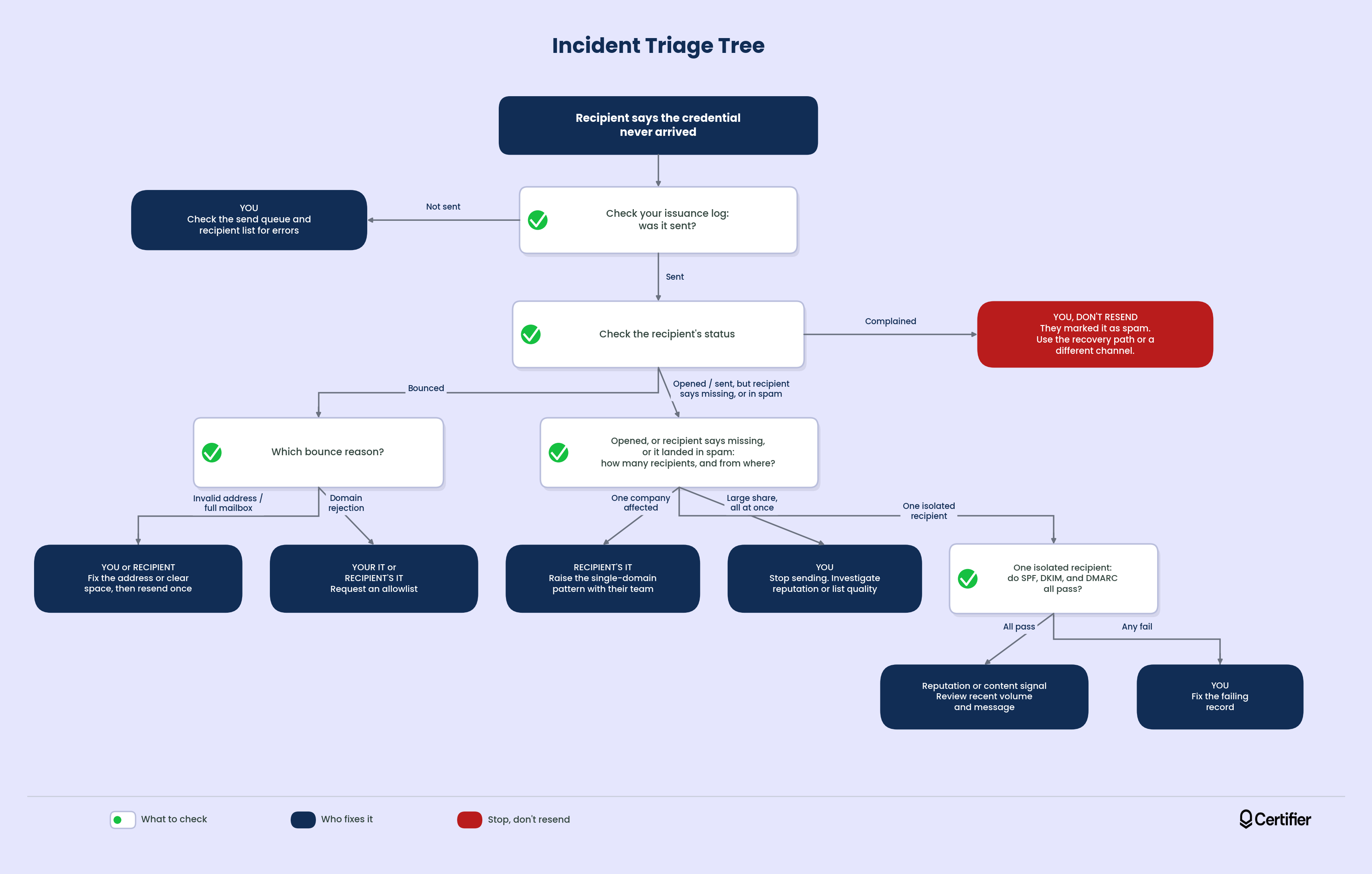
If you’re mid-incident, start from the symptom you can observe:

Nothing was sent → Check your own issuance log first. If it shows sent, this is a delivery problem, not an issuance problem, so go to the next branch. If it shows not sent: you, check your send queue and recipient list for errors.
Sent, but bounced → Check the bounce reason below. Invalid address or full mailbox: you, fix the address or ask the recipient to clear space and resend. Domain rejection: your IT or the recipient's IT, depending on which domain rejected it.
Delivered, but landed in spam → Check authentication headers first. If SPF, DKIM, and DMARC all pass: likely a reputation or content signal; review recent volume and message content. If any fail: you, fix the failing record.
Only one company's recipients affected → The recipient's IT. This is a single-domain pattern (see below). Raise it with that organization's IT team, not with your own setup.
Recipient insists nothing arrived, but status says opened (or sent, not bounced) → The recipient, first. Ask them to check spam or junk and search for the sender name. If truly absent, move to recovery.
A large share bounced at once → You. This usually means a sender-side problem: a broken record, a reputation drop, or a bad list segment. Stop sending and investigate before resending anything.
Status shows Complained → You, but not by resending. The recipient actively marked the message as spam in their own inbox, which is a stronger and different signal than a bounce or a low open rate. Do not resend to this recipient. If they still need the credential, use the recovery path and consider a different delivery channel entirely.
Bounce Reason | What It Means | Who Fixes It |
|---|---|---|
Invalid address | The address doesn't exist or is malformed | You, correct the address at the source (registration form, roster) |
Full mailbox | The recipient's inbox has no space | The recipient, ask them to clear space, then resend |
Domain rejection | The receiving domain refused the message outright | Usually the recipient's IT, may require an allowlist request |
This split does more diagnostic work than almost anything else here. If failures cluster at one recipient domain, the problem is almost always on that domain's side: their IT policy, their filtering, sometimes a stale allowlist.
If failures spread across many unrelated domains, the problem is much more likely on your side: authentication, reputation, or list quality.
A resend is reasonable once, after you've identified and fixed a specific cause, and only after you've checked that the recipient's status isn't Complained.
Resending repeatedly without a diagnosis doesn't just fail to help. It can actively damage your sending reputation, since receiving providers read repeated attempts to the same addresses as a signal.
If a resend doesn't land after one attempt with a confirmed fix, switch to the recovery path instead of trying again.
The actual goal was never "the email arrives." It's that the recipient ends up holding their credential and that's achievable even after the original email is gone for good.
Every issued credential gets its own permanent public page and URL, independent of the delivery email itself, so a lost or filtered email doesn't destroy the credential. What differs by plan is how a recipient gets back to that URL without the original message.
On Certifier's Advanced plan, an Issuer Portal retrieval page lets a recipient look up their credential by email address with no link required. On other plans, getting them back to it means resending the delivery email or sharing the credential's URL directly.
A short, direct message to the recipient works better than an apology:
Hi [name], it looks like your certificate email may have been filtered by your email provider.
A few things to try: check your spam or junk folder for a message from [sender name], add [sender address] to your contacts or safe senders list, or use this link to access your certificate directly: [retrieval link].
If an entire employer's cohort is affected, treat it as one incident, not many individual tickets. The fix is almost always a single allowlist or policy change on their side, so it's worth reaching the right IT contact once.
Delivery failures that turn into a flood of individual "I never got it" tickets cost real time. The alternative is a diagnosable process and a recovery path that doesn't depend on getting the original send right every time.
If you're evaluating credential platforms rather than troubleshooting one you already use, delivery reliability is a fair question to ask.
Question | Certifier | Accredible | Credly |
|---|---|---|---|
Can you send from your own domain and what does it take in DNS? | Yes. Two records, MX and TXT/SPF, on a dedicated subdomain. Existing mail flow untouched. | Yes, three ways. The default needs no DNS but shows "via Accredible". Sender Authentication is the closest match. | Not documented. Public articles cover cosmetic customization and ask recipients to safelist Credly's address. |
Does it give a reason per bounce, or only a status? | Yes. Three named reasons, plus a separate Complained status for spam reports. | Yes, by default. Named reasons in the Credential Info View. Stops working under SMTP Override. | Yes, via export. A "Dropped Email Reason" column in the analytics export rather than the dashboard. |
Can you resend to one recipient without reissuing the batch? | Yes. From the credential's own row. | Yes. Filter the Credentials List, then resend to the selection. | Yes. From Badges > Earners. |
Does the credential stay retrievable once the email is gone? | Yes. Permanent credential URL on every plan, plus self-service lookup on Advanced. | Yes. A Retrieve Credentials Tool emails a recipient every URL issued to their address. | Partially. Accepted badges sit on a public profile. No self-service route to an unaccepted one. |
Can delivery mail and lifecycle mail run as separate streams? | Yes. Per-template sender overrides in Email Settings (Professional plan and above). | Yes, differently. Email Campaigns builds separate automated sends, each with its own template and analytics. | Internally only. The export separates message types, but issuers get no control over the split. |
Does it show you when a whole recipient domain is rejecting? | Indirectly. Per-recipient bounce reasons reveal the pattern if you read down the list. | Not documented. | Yes. An "Issued to Email Domain" column in the analytics export. |
Methodology: Each platform's answer is checked against that vendor's own public documentation, dated to when we checked it (September 2026). Where a competitor's own documentation didn't confirm something, that's stated plainly rather than guessed at.
Here's the full checklist, staged by how far out you are from send day. You can copy it into your own project tracker.
Pre-Send Checklist
T-14 (two weeks out): Domain and record work started. DNS handoff request raised with IT.
T-7 (one week out): Seed test run across all six inbox types. Headers verified pass or fail. Results logged.
T-3 (three days out): Recipient list validated and deduplicated. Test cohort issued to internal addresses.
T-1 (day before): Final message render and link check complete. Sender name confirmed. Reply-to address confirmed monitored.
Send day: Batch size decided. First batch sent and monitored before the rest goes out. Status dashboard watched for the first hour.
No checklist can override a receiving server's decision. What it does is make sure nothing on your side of the three gates is the reason a credential doesn't arrive.
Most of this checklist is work you do once. If you're already issuing through Certifier and still sending from the shared address, moving to your own sending domain is the one item that changes every send after it. Set up a custom sender, then run the seed test above before your next cohort.
If you're comparing platforms, the questions in the table above are the ones worth asking whoever you end up with: a documented DNS path, a reason on every bounce, and a credential URL that outlives the email. You can start free and check all three against Certifier yourself.
The answer is yes. Below 5,000 a day you're outside the strict bulk-sender tier Google and Microsoft publish, but you’re not outside the rules. Google still requires SPF or DKIM, valid forward and reverse DNS, and TLS from every sender at every volume. Authentication still decides whether a receiving server trusts your mail, regardless of how few messages you send.
Check whether the affected recipients share a domain. If failures cluster at one company or institution, it's almost always that organization's own filtering policy and worth raising with their IT team.
If failures spread across unrelated domains, the more likely cause is on your side: an authentication problem, a reputation issue, or a list-quality problem.
No sender and no platform sending on a sender's behalf can override a receiving mail server's filtering decision. What a platform can control is authentication, sending practices, and giving you a way to recover when a message doesn't land.
Not the delivery email itself. A message whose main purpose is delivering a credential the recipient earned counts as transactional, so CAN-SPAM's opt-out rule and Gmail's one-click unsubscribe requirement don't apply.
Anything that follows, such as expiry reminders, renewal nudges, course promotions, newsletters, is marketing and does need a working one-click unsubscribe.
No. A link to a hosted, verifiable credential carries more authority, helps avoid attachment-scanning delays corporate filters add, and keeps the credential reachable even after the original email is gone. Meanwhile, an attachment in a deleted or filtered email is simply lost.

- copywriting
- B2B content marketing
- content strategy
- on-page SEO
- storytelling
Growth Marketer (Freelance)
Anita Coltuneac is a freelance B2B SaaS marketer with 5+ years helping tech companies grow organic visibility, build authority, and support pipeline. She uses storytelling to turn product expertise into useful content.


