Trusted by:
University of Southern California
Warner Bros.
Volvo
Amazon
Stanford University
Updated: October 19, 2026
12 min read
Use a Google Sheets template to track certificate expirations, automate renewal reminders, and route client groups to the right booking pages. For simpler management, dedicated certificate software can embed expiration dates directly into issued credentials. Learn about both approaches in this guide.
Research with AI:
Your first aid and CPR programs may follow different renewal cycles, meaning you could be managing one-, two-, and three-year certificate expiration periods at once. And that’s before accounting for different schedules across multiple cohorts and corporate clients.
With that many dates to track, you might risk missing a follow-up — and potentially a return booking. Automated reminders keep outreach on schedule and funnel trainees back into your program before their certificates expire.
The good news is that you don't need dedicated software to automate the basics. In this guide, we explain how to track upcoming expirations in Google Sheets and send automated renewal emails using a ready-made template.
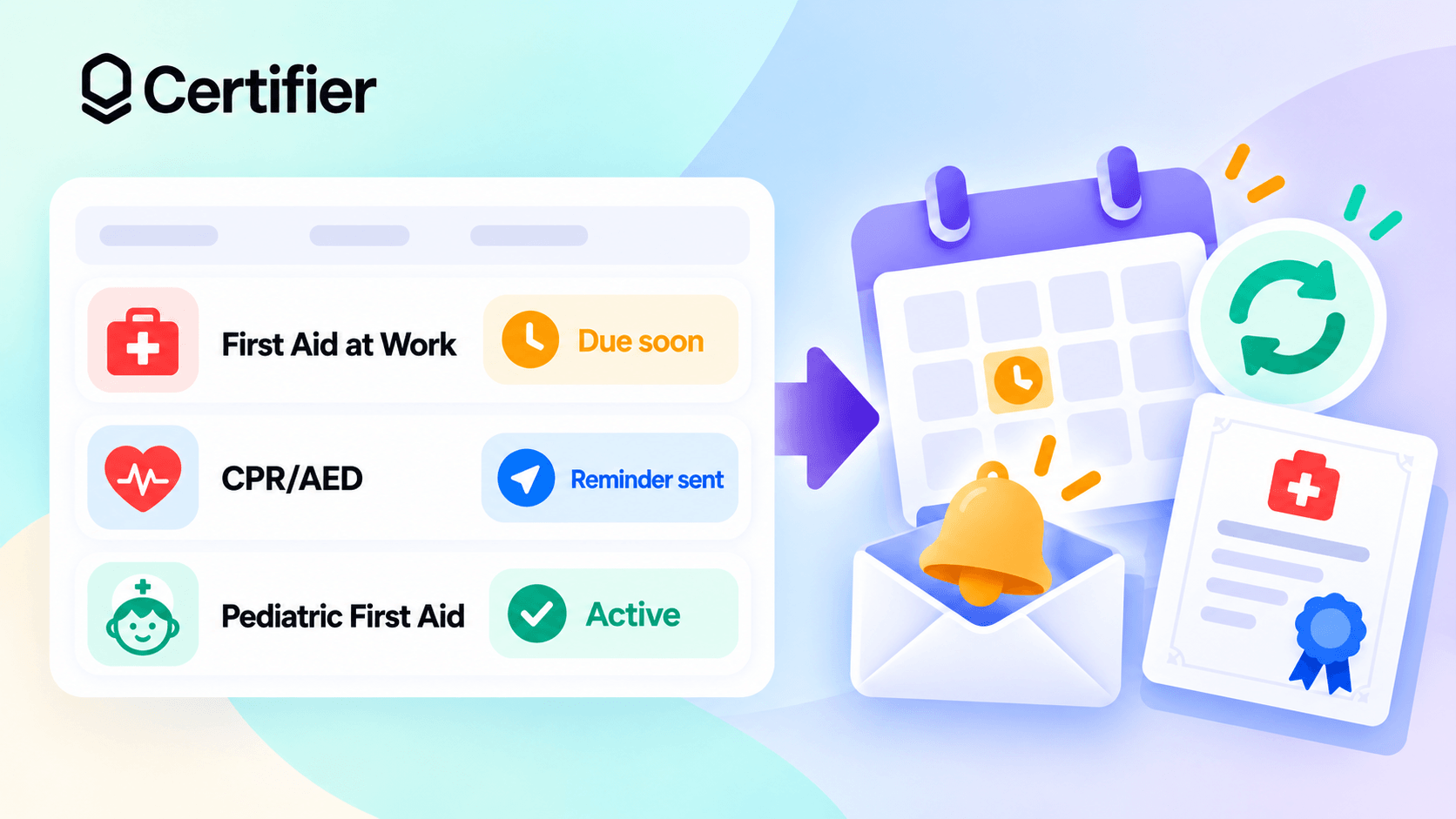
We’ll also cover how Certifier supports the full certificate lifecycle, from issuance and expiry to reminders and email delivery tracking.

Automated reminders rely on three building blocks working together:
a trigger (a specific event that kickstarts the workflow),
an automated response (the reaction to that trigger, i.e., a notification),
an automation rule that connects the two.
In the case of first-aid renewal reminders, the trigger is usually the countdown towards the certificate’s expiration date. You want the automation to count down toward this date and notify the trainee at key milestones — like 30 or 7 days before expiration.
For successful renewals, the notification should mention the certificate’s upcoming expiration date, explain what the trainee needs to do next, and include a direct link to book the relevant course.
A typical renewal workflow from start to finish would look like this:
01A credential goes out with a fixed expiration date. This date is based on your organization's policy and local regulations.
02You record the certificate details in a database. These often include the trainee’s name and email address, the course name, and the certificate's issue and expiration dates.
03A scheduled automation checks the expiration dates. It runs in the background to track exactly how many days remain before each certificate expires, eliminating the need for manual record reviews.
04The reminder threshold is reached. As the expiration date gets closer, a certificate eventually hits one of your pre-defined milestones. This satisfies the automation rule and activates the alert.
05A renewal reminder goes out automatically. The automation pulls the trainee’s information and certificate details from the record, then sends a personalized message with the expiration date and additional information you’ve assigned to that client group.
A reliable first-aid renewal reminder automation should contain enough data to identify the trainee, time the alerts, track sent messages, and reset the cycle after renewal. We recommend starting with a few core details:
Required Field | Role In The Workflow | Example |
|---|---|---|
Trainee name | Identifies the trainee and lets you address the reminder by name | Martin Baker |
Trainee email | Directs the reminder to the trainee’s inbox | martinbaker@example.com |
Client/company | Links the trainee to the relevant client group | Northwind Ltd. |
Client contact email | Sends the reminder to the employer when a company manages renewals for its staff | hr@northwind.com |
Reminder recipient | Tells the automation which email address to use for the reminder | Client contact |
Course name | Identifies which qualification is approaching expiry | First Aid at Work |
Certificate ID | Matches the record to the correct course or certificate | COURSE-FAW-001842 |
Issue date | Records when the current certificate period began | March 31, 2024 |
Expiration date | Provides the date used to schedule reminders | March 31, 2027 |
Days until expiration | Shows how many days remain before the certificate expires | 30 |
Reminder timing | Sets how many days before expiration the reminder goes out | 30 |
Renewal/booking link | Adds the matching renewal link to the reminder email | Course booking page |
Reminder sent | Marks a reminder as sent so the automation skips it on the next check | March 1, 2027 |
If you have both a trainee and client contact email, you can use an extra column (Reminder recipient in this example) to tell the automation which address to use for the reminder.
After renewal, you can refresh the record to begin the next reminder cycle.
This workflow assumes you already store historical credential records in an LMS or another system of record, so updating the current data doesn’t erase past certificate history. See our safety training tracking template for complex tracking and historical recordkeeping.
Google Sheets is a popular choice for organizing records and creating simple, date-based workflows. You can build the tracking logic yourself using basic formulas to flag expirations and trigger emails.
Or you can download our ready-made template.
➡️ Get your first aid renewal reminder automation sheet.

This template comes pre-loaded with all the core database fields, live countdowns, and status logs covered in the previous section.
To tailor the sheet for your workflow, see the instructions below.
The template organizes your records into one row per trainee + certificate, plus a set of columns for the details you need to track renewals.
You get pre-loaded sample data so you can see what a completed record looks like before entering your own information.
To get the sheet ready:

Log training data. Clear the sample values and enter your records — trainees’ names, email addresses, companies, and individual certificate IDs. You’ll also add the issue and expiration dates for each certificate. The expiration date is the date attached to a current certificate; the sheet uses it to time reminders. Finally, replace the renewal link with the registration page you want included in the reminder email.
Configure the dropdown fields (settings tab). Fields like Course name and Reminder recipient use dropdown menus to keep entries consistent. Reminder recipient lets you choose whether the email should go to the trainee or the client contact. For Course name, you can edit the options to match your actual course list, adding the first-aid, CPR, or AED programs you run for different cohorts.
Leave the automation fields blank. The Days until expiration column calculates the live countdown from the expiration date. Reminder sent stays empty until the email goes out. Don’t enter data into these fields, as the sheet updates them for you.
Once you enter all the data, the countdown will update each day by subtracting today’s date from the certificate’s expiration date.
When the countdown reaches your chosen reminder threshold and sends the email, the workflow records a timestamp in the Reminder sent column. That timestamp prevents duplicate emails by telling the background script to skip the record on future checks.
After a trainee renews, you’ll update the issue and expiration dates, add the new certificate ID, then clear the previous timestamps to restart the cycle.
Don’t modify the formula cells or rename the column headers. The script relies on both, so changing them can break the workflow.
The template includes a dedicated Reminder timing column next to the live countdown. Enter here the number of days before expiration when you want the reminder email to go out.
The template uses a default value of 30, meaning the automated reminder fires 30 days before the certificate lapses.
This milestone is fully adjustable; replacing the default number with 14 or 7 shifts the alert 1–2 weeks before the deadline. Entering 0 schedules the email to send exactly on the expiration date.
You can also use different timings for different client groups, depending on how much time employers or HR teams need to organize refresher training.
Remember to only type in numeric values. Text like “30 days” or “2 weeks” will prevent the reminder rule from running correctly.
Create and Send Digital Credentials

With your spreadsheet logic ready, you need a way to send the reminders. The template includes a pre-installed Apps Script that handles this for you. Once authorized, it finds due records and builds reminders from your entries.
Follow these steps to authorize the script and schedule the trigger:
Open your copy of the template and go to Extensions > Apps Script.
Open the function menu next to Debug. Select sendRenewalReminders and click Run. Google will ask you to authorize the script.
Approve the permissions with the Google account that should send the reminder emails. Take your time to review the code and requests. Google flags the script as “unverified,” as it hasn’t gone through public verification.
Expand the left sidebar and open Triggers, then click create a new trigger.
Under Choose which function to run, select sendRenewalReminders.
Leave Choose which deployment should run set to Head. That tells Apps Script to run the current saved version of the script.
Select Time-driven for the event source. The options menu will change.
Choose Day timer under Select type of time based trigger. Then use Select time of day to choose when the daily check should run, like 8am to 9am.
Leave the failure notification setting at your preferred option and click Save.
The automation should now be ready to run on schedule. The reminder email subject and message are already defined in the script, with placeholders that automatically pull live data from each row.
To change the wording, return to Extensions > Apps Script > Editor and find the lines that define the email subject and body text.
Edit the text inside the quotation marks to match your copy. Leave the placeholders intact so the script can insert the trainee and course details.
Apps Script caps at 100 daily email recipients for regular accounts and 1,500 for Google Workspace accounts. Check your quota before using this setup for a large database.
To confirm the workflow is behaving as expected, run this quick test:
Pick one of the rows you already completed in the sheet and temporarily replace the recipient email with your own address.
Set the expiration date to today and enter 0 under Reminder timing so the row qualifies for an immediate reminder.
Make sure no other rows currently show 0 under Days until expiration.
Open Apps Script and run sendRenewalReminders.
Check your inbox to confirm that the reminder email arrived with the correct subject, trainee name, course details, and renewal link.
Return to the sheet and confirm that Reminder sent shows a timestamp.
Run sendRenewalReminders again. You should not receive a second email for that row, confirming that the timestamp prevents duplicate reminders.
When you’re done, restore the trainee’s original row values. Don’t forget to also clear the timestamp from Reminder sent.
Even with built-in alerts, scaling a tracking sheet for multiple clients implies repetitive admin work. You still have to update rows, then check email delivery, verification requests, and credential records across platforms.
A dedicated certificate solution unifies the credential lifecycle into one hub, eliminating the need to stitch together multiple tools.
Certifier is certificate software built for education programs and enterprises. Instead of managing renewals through custom scripts, you can connect the app directly to the LMS or CRM you already use for first-aid training.
The visual interface makes it easy to set up when a certificate should be issued — like after a learner passes a test. You then select a certificate design for your course and define the details that should appear on it. Certifier handles generation and email delivery automatically from there.
Manage first-aid and CPR credentials with Certifier.
Additional features then help you manage expiration, reminders, and renewal.
Every certificate issued through Certifier has its own self-service page, customised with your domain and branding.
Trainees use this page to download or share their certificates online in one click. Employers and other third-party verifiers can also check the issuer, validity, and expiration date without contacting your team.
Issued certificates include a fixed validity period that matches your program. Certifier applies it automatically and calculates the expiration date starting when a certificate goes out, so you don’t need a separate tracking workflow.
If a particular client or trainee needs a different date, you can edit the individual credential and set a custom expiration instead.
Follow-up is also automated. A credential expiration reminder goes out two weeks before expiry, followed by another alert on the due date.
Review Certifier’s certificate expiration guide.
Instead of cross-checking separate platforms, your team can manage issued certificates from Certifier’s dashboard.
Records are filtered by first-aid course template, credential status, expiration date, or email activity to pinpoint who needs attention. The dashboard also shows whether renewal emails were delivered, opened, or bounced, helping you catch issues early and prevent missed bookings.
If you handle training for multiple companies or programs, Certifier isolates your records into dedicated Credential Templates. Each Credential Template uses its own certificate designs, recipient logs, and email rules, allowing you to run distinct contracts out of a single account.
Yes, Google Sheets can send renewal reminders without external automation platforms like Zapier. You can use Google Apps Script to write a custom script that reads your spreadsheet data and sends automated emails through your Google account.
You’d mainly use Zapier with Google Sheets to avoid writing your own code or to connect other business apps you already use.
Yes, you can route renewal reminders to an employer by adding a dedicated column for the employer’s email to your tracking spreadsheet.
Then use a helper column to tell the reminder automation whether to prioritize the trainee or the employer contact.
Yes, you can set a specific reminder period for each record by storing the reminder interval in a dedicated column.
Our first aid certificate renewal spreadsheet does this with a Reminder timing field, where you choose how many days before expiration to send the reminder.
Your automation should run once a day using a time-driven trigger in Google Apps Script. Certificate expiration thresholds change by date, so a daily check is enough to catch newly due reminders without repeatedly scanning the spreadsheet.
Yes, Certifier automates credential issuance by connecting to your LMS or form builder. Once a learner completes retraining or passes the required exam, your LMS or form builder sends the learner’s name, email, and course data to Certifier automatically.
Certifier then generates, logs, and emails the new certificate without manual admin work.

- B2B SaaS marketing
- Digital Credentials
- Content Strategy
- On-page SEO
- Lead Generation
Chief Marketing Officer
Aksen leads marketing at Certifier, bringing 7+ years of experience with global brands to position digital credentialing as a trusted solution for training providers and educational institutions.