

Trusted by:
University of Southern California
Warner Bros.
Volvo
Amazon
Stanford University
Updated: October 19, 2026
13 min read
Microsoft Forms collects responses, but it does not create certificates by itself. This guide shows how to turn Microsoft Forms submissions into personalized certificates with Certifier, Excel/CSV upload, or a Microsoft-native Power Automate workflow.
Research with AI:
Microsoft Forms cannot generate certificates by itself. It collects responses.
To generate certificates from Microsoft Forms, you have to send the form responses to Excel and connect that workbook to a certificate tool like Certifier, export the responses as Excel/CSV and upload them in bulk, or build a Power Automate flow that fills a Word certificate template and emails the file.
The easiest recurring workflow is Microsoft Forms to Excel to Certifier because Microsoft Forms handles intake, Excel organizes the response data, and Certifier handles certificate design, personalization, sending, verification, and tracking. Simple and effortless.
If you’re looking for a way to create or send certificates with Microsoft Forms create you’re in tough luck because most answers point you toward a custom Power Automate flow. That can work, but it is usually more setup than a training admin, event organizer, or L&D coordinator wants to maintain.
And if you'd rather skip Excel and Power Automate altogether, Certifier now offers its own native Forms feature, so you can build the intake form and issue certificates in one place.
A certificate workflow is much more than generating a single file. You need correct recipient data, branded design, delivery, resends, verification, and a way to know whether certificates were actually issued.
Best for One-Off Batches Clean your form responses inside Excel, download the list as a CSV file, and run a bulk upload in Certifier. Done in less than 10 minutes.
Best Recurring Automation Connect your Microsoft Forms response sheet in Excel Online directly to Certifier to issue and email certificates automatically when new rows are added.
Best Microsoft-Only Build Connect Microsoft Forms to Power Automate, configure a Word certificate template using Content Controls, and then send PDFs via Outlook.
Test Before You Run Always submit one test response before connecting automation so the Excel response workbook has the right columns.
Workflow Constraints The Power Automate Word connector requires a premium Microsoft 365 business license. If you are on a personal or family plan, use the direct Certifier integration instead. It’s available on the free plan.

Method | Best For | Output | Automation Level | Main Limitation |
|---|---|---|---|---|
Microsoft Forms ➔ Excel ➔ Certifier | Recurring courses, events, webinars, or corporate training programs | Hosted digital credentials, email delivery, PDFs, and tracking | High | Requires a live Excel Online response workbook and stable columns |
Export Responses and Upload to Certifier | One-off cohorts or batches that need manual review before sending | Digital certificates, email delivery, and PDFs | Medium | Requires a manual CSV export and upload for each cohort |
Power Automate + Word Template + Outlook | Microsoft-native PDF certificate workflows | Static Word or PDF files sent by email | High (Technical) | Complex setup, premium licensing fees, and no built-in verification |
Choose the first method if you want certificates to issue automatically after new Microsoft Forms responses.
Choose the second if you want to review a finished list before sending, and go with the third if your organization requires a Microsoft-only flow and you are comfortable maintaining Power Automate, Word templates, OneDrive or SharePoint files, and Outlook email actions.
Microsoft Forms is the intake layer, not a database or layout designer. It’s useful for collecting names, emails, quiz scores, course selections, attendance confirmations, and approval responses.
While MS Forms can’t work as a credentialing layer, it can be a good database that feeds your certificate engine.
For most certificate workflows, the useful bridge is Excel. In Microsoft Forms, you can open the form, go to View responses, and select Open results in Excel. Microsoft explains that this workbook can be stored in OneDrive for work or school, while group forms can store the workbook in SharePoint.
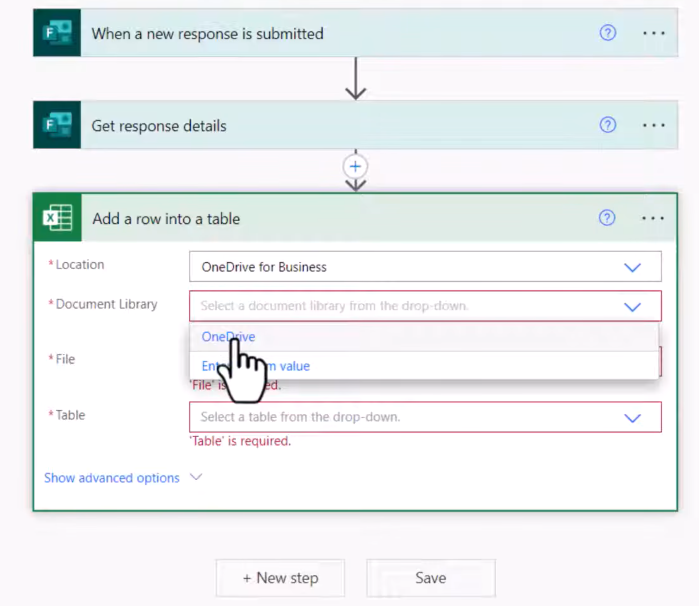
New response data can then appear in that workbook when the live connection is used.That workbook becomes the structured table a certificate generator can read:
01A person submits the Microsoft Form.
02Microsoft Forms stores the response.
03The response appears as a row in the connected Excel workbook.
04A certificate workflow reads the row.
05The workflow generates and sends the credential.
If your data already lives in Excel and you do not need Microsoft Forms as the intake step, use the guide on how to generate certificates from Excel spreadsheets instead. This article is specifically for workflows where Microsoft Forms is the source of the recipient data.
You need to structure your Microsoft Form questions to collect clean data if you haven’t done it already. Here’s how you prevent database mismatches and delivery errors:

Add Required Fields: Make the recipient name and email questions mandatory. If a participant skips these fields, the automation won’t be able to generate or deliver the certificate.
Decide on Optional Fields: Add fields for things like date, score, event title, instructor, or course credits if you want these details to appear on the certificate.
Link Responses to Excel: Go to the Responses tab in Microsoft Forms and click Open in Excel. This creates the linked Excel Online workbook.
Submit One Test Response: Enter a test submission. This populates Row 2 of your Excel sheet and establishes the column headers.
Do Not Rearrange Columns: Do not move, rename, or delete columns in your Excel response sheet after setting up the integration. This breaks the field mapping.
For example:
Microsoft Forms Question | Excel Column Header | Certifier Placeholder |
|---|---|---|
Full Name | Full Name | {recipient.name} |
Email Address | {recipient.email} | |
Course Title | Course | {course.name} |
Completion Date | Completion Date | {issue.date} |
Test Score | Score | {custom.score} |
You can use different column names, but clear names make setup easier. Avoid vague headers like Question 1, Response, or Text. Your future self will thank you when you have to troubleshoot a missing certificate at 4:55 p.m.
The most practical recurring workflow is Certifier's native Microsoft Forms integration path.
This method works well when you run an ongoing training program, webinar series, event, compliance course, or certification process where new people keep submitting the same form.
Instead of exporting a file after each cohort, you connect the live Excel response workbook to Certifier and let new rows trigger credential issuing. Here is the basic workflow:
01Microsoft Forms collects the response.
02The connected Excel workbook receives a new row.
03Certifier monitors the workbook for new rows.
04Certifier issues the selected certificate or badge.
05The recipient receives the credential by email.
06The issued credential remains available in Certifier for verification, PDF download, resends, updates, and tracking.
The reason this workflow is cleaner than a pure Microsoft-native PDF flow is that each tool does the job it is best suited for. Microsoft Forms handles the form. Excel structures the response data. Certifier handles the credential
This setup requires no coding and is available on all Certifier plans.
Create and Send Digital Credentials
Start with the form fields you need. For a simple course completion certificate, that might be:

Full name
Email address
Course name
Completion date
Score or completion status
If you plan to issue certificates automatically, keep the form structure stable. Renaming questions, rearranging questions, or moving columns later can break field mapping in the connected workflow.
We recommend starting with an empty survey for automation. If the survey already contains responses, those rows may be skipped after activation because the automation is designed to process future records, not old rows.
If you already collected a completed cohort, use Method 2 instead. Export that finished list, clean it, and upload it to Certifier as a controlled batch.
Submit one test response using your own name and email. This gives Microsoft Forms enough data to create the response structure in Excel.
This is a small step, but it prevents a common setup problem: trying to map certificate fields before the response workbook has the columns you need.
In Microsoft Forms:
01Open the form.
02Select View responses.
03Select Open results in Excel.
04Confirm the workbook opens and includes the fields you need.
Use the connected workbook, not a downloaded offline copy, when you want automation to keep working for new responses.
Remember: when you download a copy this creates an offline workbook with no relationship to the form, which is fine for one-off batches but not for live automation.
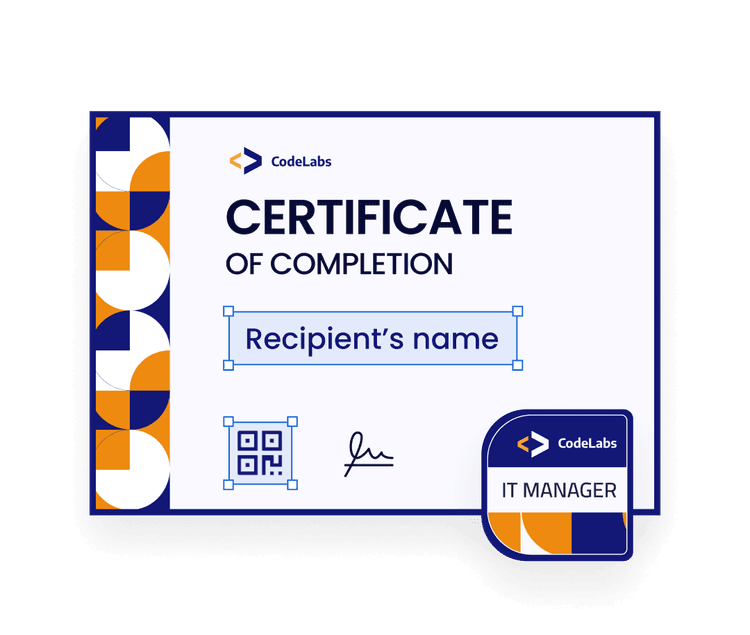
In Certifier, create the certificate or badge design you want to issue. You can start from certificate templates or use your own branded layout.
Make sure the template includes the dynamic fields you plan to personalize, such as:

Recipient name
Course name
Completion date
Instructor
Score
Credential ID or QR code
This is where Certifier differs from a Word template. You are designing a digital credential that can be hosted, verified, shared, downloaded, and tracked, not only a static document attachment.
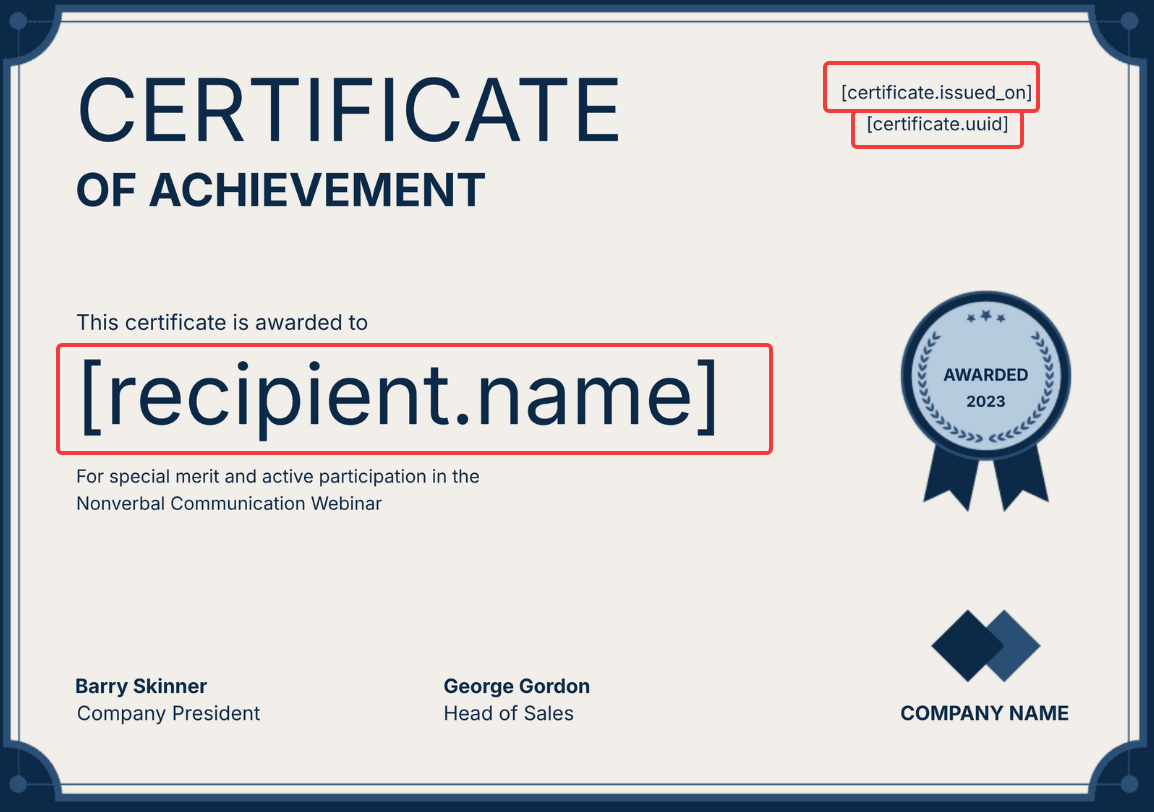
Certifier's help center explains the full setup for how to connect Microsoft Forms to Certifier via Microsoft Excel. Basically, all you have to do is:
01Go to Automations.
02Select Create Automation.
03Choose the Microsoft Forms template.
04Use the Microsoft Excel connection.
05Connect your Microsoft Excel account.
06Select the response workbook and worksheet.
07Configure the Certifier action to issue the credential.
08Map Excel columns to Certifier recipient fields and custom attributes.
09Save, test, and activate.
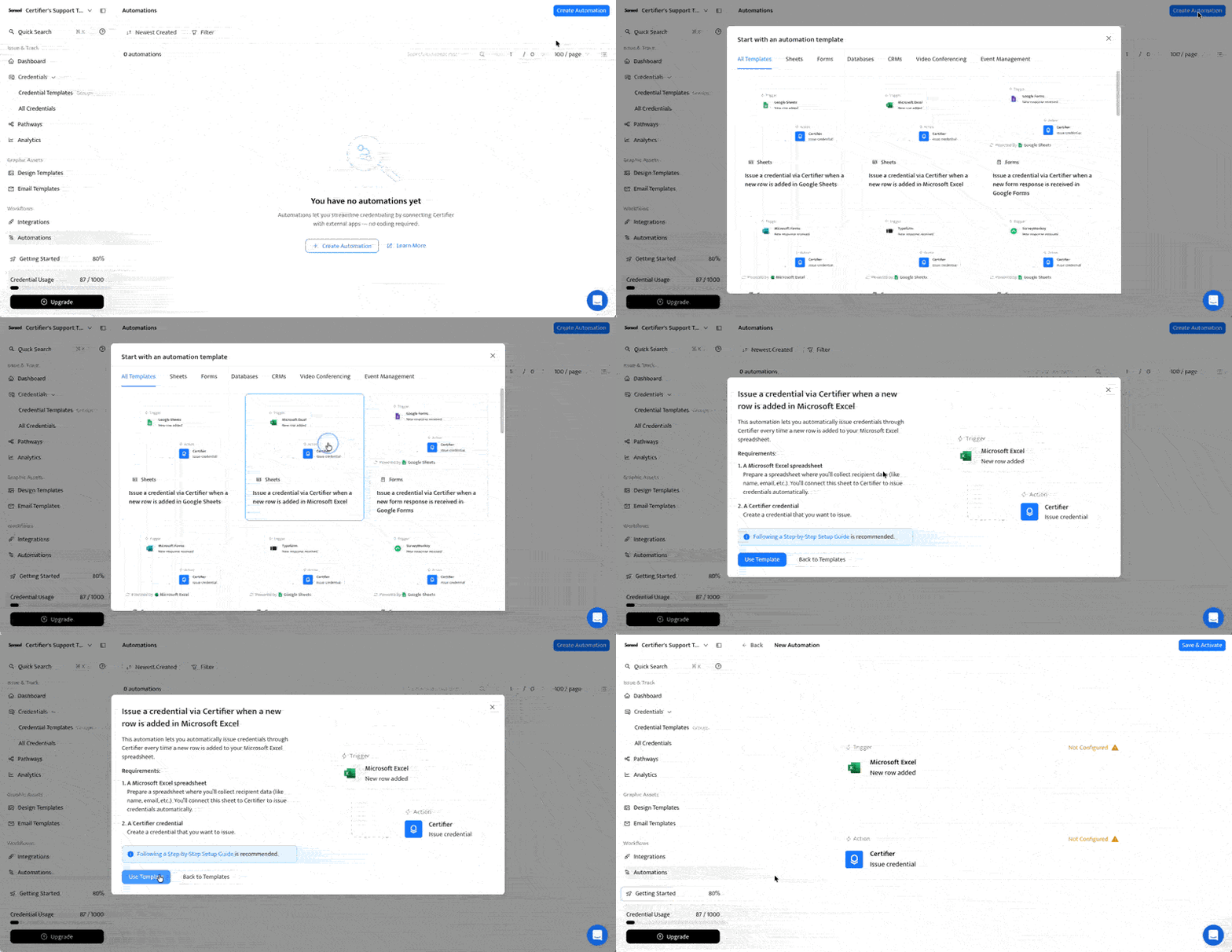
Run the test with your own email first. Check the certificate page, recipient name, email subject, dynamic fields, dates, and PDF download before sharing the form with actual recipients.
This is the part many teams underestimate. Spreadsheet-powered automation depends on stable data structure.
After the automation is active:
Do not rename the Excel file or worksheet tab.
Do not rearrange columns.
Do not reorder Microsoft Forms questions in a way that changes the connected columns.
Do not edit processed rows and expect old credentials to update automatically.
Do not insert new rows above already processed rows.
Keep recipient name and recipient email valid in every row.
Certifier's help center also notes that once an automation is active, it cannot be edited. If you need to change field mapping, custom attributes, or credential settings, you may need to delete the automation and create a new one.
That sounds strict, but it is the tradeoff that makes the flow predictable. Build the form carefully, test it, activate it, and then treat the response workbook as production data.
Use Certifier automation when you receive Microsoft Forms responses continuously and want to issue certificates after each new response.
It’s also useful for anyone who wants branded digital credentials, as opposed to PDF files, that have hosted verification pages attached to them with QR codes.
Recipients will be able to share their certificates on LinkedIn, and you’ll be able to track delivery status, opens, and downloads from your Certifier dashboard without technical knowledge.
In our opinion, this is the strongest method for recurring certificate programs because it removes manual exporting while keeping the certificate experience professional.
Manual upload is the simplest route for one-off cohorts. It’s less automated than Method 1, but it gives you more control before anything is sent.
Use this method when the course, webinar, or event is already finished and you want to manually approve participants before issuing. It’s also useful when you’re testing certificate issuing for the first time and you need to clean names, fix typos, or remove duplicate submissions.
The workflow is pretty easy:
01Open the form in Microsoft Forms.
02Go to View responses.
03Open or export the responses in Excel.
04Clean the file.
05Save the list as XLSX or CSV.
06Upload it to Certifier.
07Map columns to certificate fields.
08Preview a sample certificate.
09Send the batch.
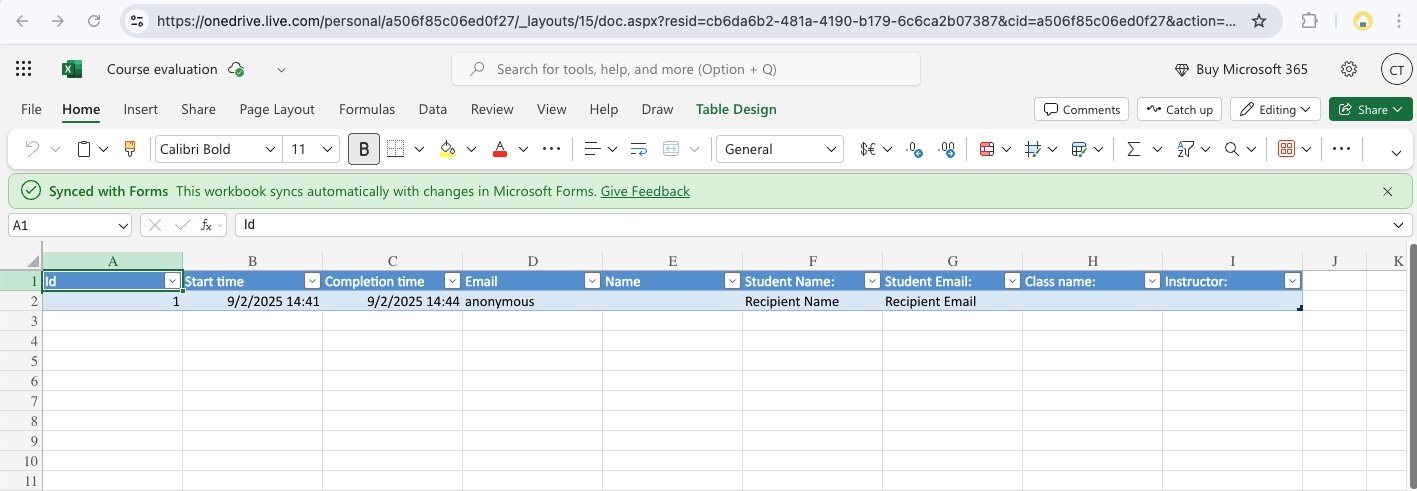
The cleanup step is the important one. Before uploading, check that you have one recipient per row, no blank recipient names, or blank/invalid/duplicate emails. The date format should also be consistent.
Finally, make sure the header matches the fields you want to map.
For example, if your form collected First name, Last name, and Email, decide whether the certificate should use a combined full name field. If your form collected a date as text, standardize it before mapping it to an issue date or completion date. If multiple people submitted the form twice, decide whether the duplicate is valid or should be removed.
This method pairs well with Certifier's bulk certificate generator, especially for training teams that issue certificates after each cohort closes. You still get digital certificate delivery, PDF downloads, hosted verification, and recipient tracking, but you avoid turning every form submission into an instant send.
Use manual export and upload when:
You issue certificates in batches.
Someone must review the list first.
You have a small cohort.
You don’t need real-time issuing.
You want to avoid integration setup.
Your data needs cleanup before sending.
Manual upload is also a good first step before automation. If your first batch goes well, you can later move the same form structure into the Microsoft Forms to Excel to Certifier automation route.
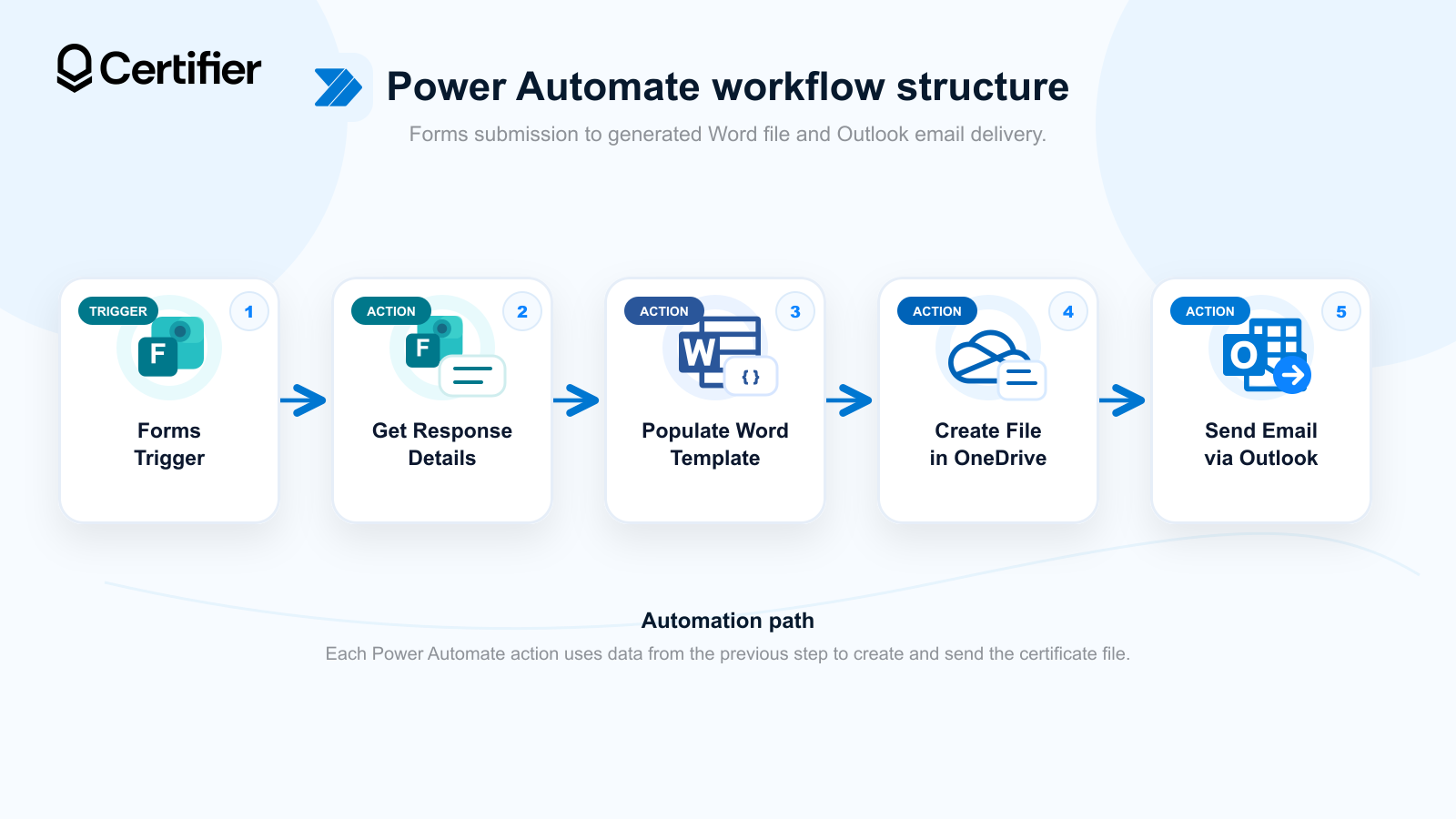
If your organization is restricted to Microsoft-only tools and you have administrative support, you can build a Power Automate flow. This method generates PDF certificates using Microsoft Word and mails them via Outlook.
Open Microsoft Word on your desktop. Go to File > Options > Customize Ribbon and check Developer. Set your page orientation to landscape. Design your certificate template.
Place your cursor where recipient data belongs, go to the Developer tab, and click Plain Text Content Control. Name each control tag (e.g., Name, Date) in the properties panel. Save this file to OneDrive.
Log in to Power Automate. Click Create and select Automated Cloud Flow. Set the trigger to 'When a new response is submitted' (Microsoft Forms).
Add a new action step: 'Get response details' (Microsoft Forms). Map the Response ID from your trigger step to this action.
Add the 'Populate a Microsoft Word template' action. Select the template file stored in your OneDrive. Power Automate will display the Content Control tags you created in Word. Map your Microsoft Forms response details to these fields.
Add the 'Create file' action to save the populated Word document to OneDrive. Next, add the 'Convert file' action to convert the Word document to a PDF.
Finally, add the 'Send an email (V2)' action (Office 365 Outlook) and attach the PDF file to the message.
The ‘Populate a Microsoft Word template’ action requires the Word Online Business connector, which is a premium action. Users on basic Microsoft 365 personal plans cannot use it without upgrading to a paid premium license.
If you make a typo in the Word Content Control tags or rename a file path, the flow fails silently.
And, finally, the flow sends raw PDF attachments, which are frequently flagged by spam filters. As a result, recipients won’t be able to share them to LinkedIn as verified credentials.
Let’s make it painstakingly simple.
If you need:
Automatic issuing for every new eligible Microsoft Forms response, go with Certifier via Excel automation.
A controlled one-off send after reviewing a finished cohort, then export and upload the CSV to Certifier.
A MS-only PDF doc process, then Power Automate plus Word might be a good bet.
Certificates from a workbook that already exists outside MS Forms, go with the Excel certificate workflow.
Certificates for MS Teams meetings or events, the Microsoft Teams certificate workflow.
Badges or certificates for new team members, connect Microsoft Teams to Certifier using Zapier.
A Google Forms intake flow -> generate Google Forms certificate
If you’re choosing for a training team, L&D program, event operation, or education workflow, the best default is usually Certifier via Excel. It keeps Microsoft Forms as the familiar intake tool while moving the actual credential work into a platform built for certificates.
If you’re choosing for a pilot program, start with manual upload. It gives you the safest first send because you can inspect every row before issuing.
If you’re under strict Microsoft-only policy, use Power Automate, but carefully plan the owner, license, template, and troubleshooting process before launch.
Microsoft Forms is a good way to collect course completions, training confirmations, quiz results, and event responses. It is not a certificate generator.
For certificate issuing, think of the workflow in three layers a) Microsoft Forms collects the response, b) Excel structures the response data, and c) Certifier creates, sends, verifies, and tracks the credential.
This gives you a workflow that’s easier to understand and easier to maintain. You don’t need to copy names into a certificate template one by one or to rebuild a long Power Automate flow just to issue a professional certificate. And you certainly don’t need to send static PDFs when recipients would benefit from a polished, verifiable credential page.
Start free with Certifier and issue certificates from Microsoft Forms responses through Excel. For recurring, high-volume, or conditional workflows, book a demo so the setup can match your program rules before you launch.
Not by itself. Microsoft Forms collects responses. To generate certificates, connect those responses to a certificate workflow. The three practical options are Microsoft Forms to Excel to Certifier, export/upload to Certifier, or Power Automate + Word/Outlook.
Use a connected workflow. The recommended recurring setup is Microsoft Forms to Excel to Certifier. A new response appears as a row in the connected Excel workbook, and Certifier uses that row to issue and email the credential.
If you do not need real-time issuing, export the Microsoft Forms responses to Excel or CSV, clean the file, and upload it to Certifier as a batch.
Yes. Power Automate can trigger a flow when a new Microsoft Forms response is submitted, get the response details, populate a Word certificate template, and send or save the generated file.
This method is more technical. It requires a Word template with supported content controls, cloud file storage such as OneDrive for Business or SharePoint, and access to the relevant Power Automate connectors. The Word Online (Business) connector is listed by Microsoft as Premium for Power Automate.
For the Certifier automation route, yes. Excel acts as the bridge between Microsoft Forms and Certifier. The response workbook gives the certificate workflow a stable table of names, emails, and custom fields.
Power Automate can also retrieve response details directly from Microsoft Forms, but Excel is simpler for most operators and easier to audit before issuing.
At minimum, include recipient name and recipient email. Add course name, event name, completion date, score, instructor, cohort, approval status, or attendance status if those fields affect the certificate design or issuing rules.
Make the required fields mandatory. A certificate workflow cannot reliably issue credentials when the name or email is missing.
Yes, but the workflow needs eligibility logic. Add a score, grade, status, or approval field to the Microsoft Form or response workbook. Then issue only the eligible rows.
For manual upload, filter the Excel file before uploading it to Certifier. For automated issuing, test the eligibility workflow carefully before sharing the form with real participants. If the logic is complex, ask product support or your internal automation owner to confirm the best setup.
Microsoft Forms is the intake source. Excel is the response table.
If participants submit a Microsoft Form, this guide applies. If the data already lives in a regular Excel workbook and Microsoft Forms is not part of the workflow, use the guide on how to generate certificates from Excel spreadsheets.
Yes, if Microsoft Forms is collecting registration, attendance, feedback, or completion data for the event. In that case, Microsoft Forms is still the intake source and Excel can still be the bridge.
If the certificate workflow is tied directly to Microsoft Teams meetings, webinars, or event attendance data, use the guide on how to make certificates for Microsoft Teams.

- Content Strategy
- SEO & AEO/GEO strategy
- Conversion Rate Optimization
- Organic Growth
- Buyer Psychology
Head of Content
Vlad Melnic leads content at Certifier, bringing 10+ years of experience in SEO content marketing and conversion-focused content. His focus is turning complex product value into clear benefits.


