

Trusted by:
University of Southern California
Warner Bros.
Volvo
Amazon
Stanford University
Updated: October 19, 2026
15 min read
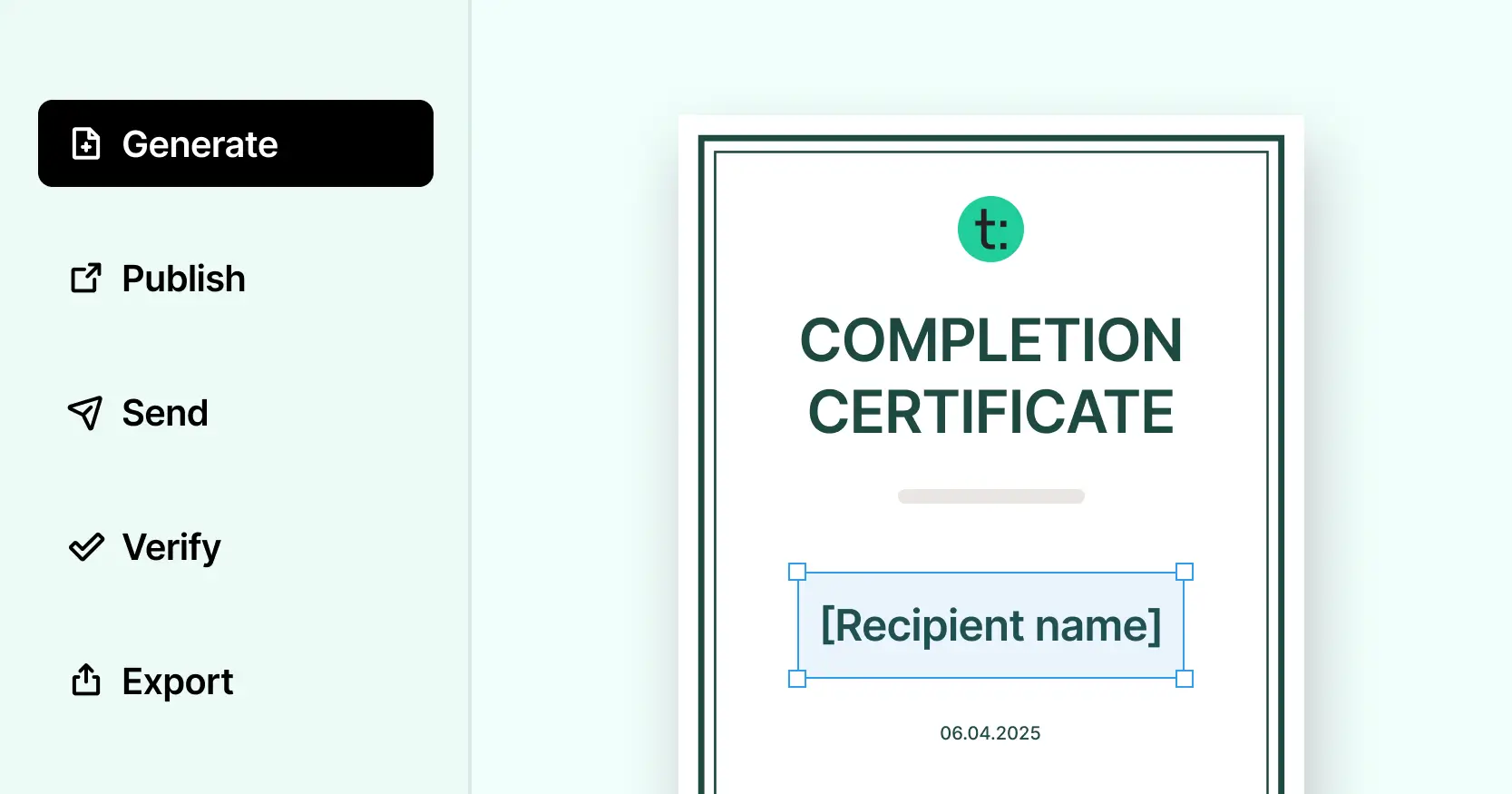
Teachable and Certifier work better together. Teachable runs your course and Certifier makes the certification process automated and smooth. Connect the two and close the gaps—what Teachable doesn’t cover, Certifier does. Read the guide on how to generate Teachable certificates in a snap.
Research with AI:
Teachable is a great platform for running online courses. It gives you everything you need to build, sell and manage learning experiences, but it’s missing one surprisingly important piece: a solid built-in certificate tool that will make your Teachable certificates fully-branded and professional.
Teachable lets you add your logo, colors and issue certificates, but every course creator using the native tool ends up with the same three templates and the same rigid layout. That means your certificate looks just like thousands of others. There’s no design freedom, no verification and no way to scale.
It becomes more than a limitation, it’s a lost opportunity to deliver high-quality branded certificates that set your course apart from the rest.
When connecting Teachable with Certifier, a modern certificate management platform, you don’t have to choose between a powerful course platform and professional certificate automation. You can have both.
In this guide, we’ll show you how to create Teachable certificates using Certifier, so you can decide which approach fits your course and your goals best.
You can generate Teachable certificates, but the built-in credential tool is limited in certificate customization, management and verification.
You can natively integrate Teachable with Certifier, a certificate management platform. Connectors like Zapier, Make, or Pipedream are also available.
With Certifier, you can create branded, professional-looking certificates, issue personalized certificates automatically as soon as students complete their course, analyze the ROI.

Technically, yes. Teachable lets you generate certificates of completion using one of three built-in templates.
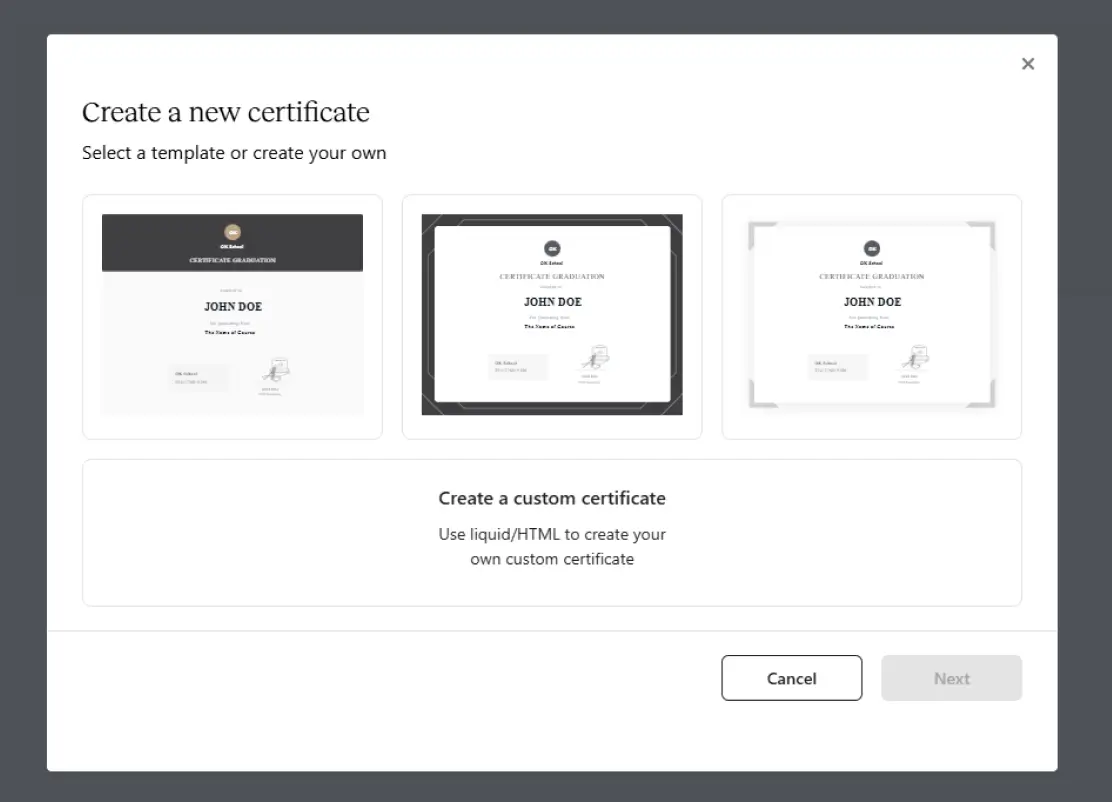
You can access them under your course settings—add a logo, change the text and send automatically once the course is finished.
But here’s the catch: every Teachable course creator is using the same layouts, and there’s no way to redesign them beyond surface-level tweaks.
Even when you upload your logo or change colors, the certificate still looks like every other Teachable certificate template out there.
Want to use custom fonts? You’ll need to know Liquid or HTML. Want to update certificates in bulk, add verification or automate the process for hundreds of students? That’s simply not possible inside Teachable.
The result? Generic, static PDFs that fail to convey your course quality or your brand.
Before opting to create a custom certificate of completion in Teachable, please go through these limitations you may face.
Here’s a brief table for a quick comparison.
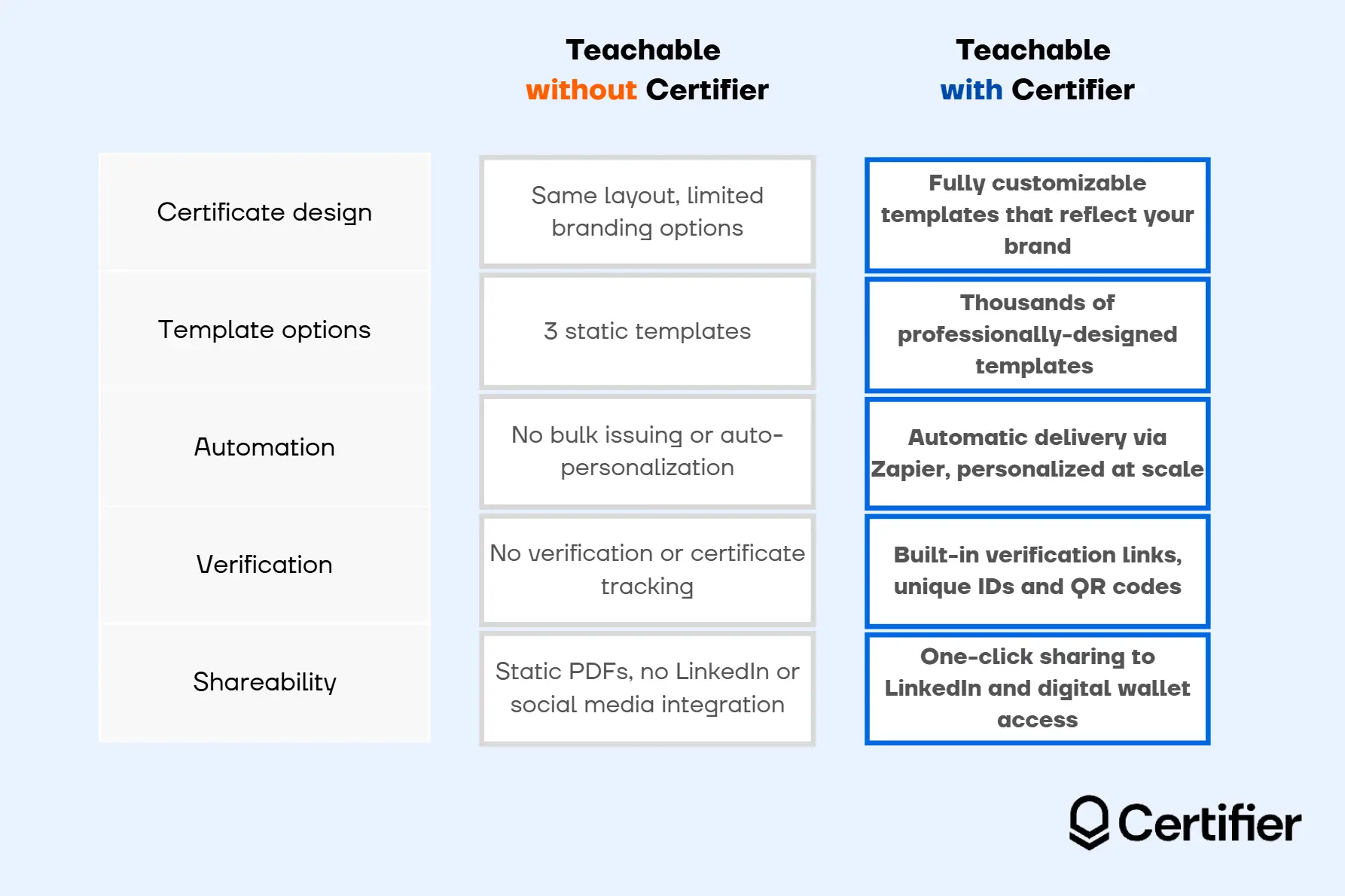
Below are the Teachable gaps that Certifier can bridge:

Only three editable certificate templates → Hundreds of professionally-designed, customizable templates
Rigid layouts and limited branding options → Full creative control over fonts, colors, logos, layout and certificate elements
No verification or QR codes → Certificate ID, verification URL and scannable QR code
No automation or bulk issuing → Seamless automation—set it up once and branded, personalized Teachable certificates will be sent on auto-pilot
No personalization at scale → Dynamic attributes automatically personalize each Teachable certificate PDF with learner data
No dashboard to manage credentials → Certificate dashboard with filters, stats and engagement tracking
Teachable certificate PDFs that students forget about → Digital credentials learners actually share on LinkedIn or other social media
No storage or access after download → Certificates are saved to a secure digital wallet students can access anytime
In short, your students receive a professional-looking credential they can actually use—instantly accessible from their email or digital wallet and ready to share on LinkedIn.
Want to see the difference for yourself?
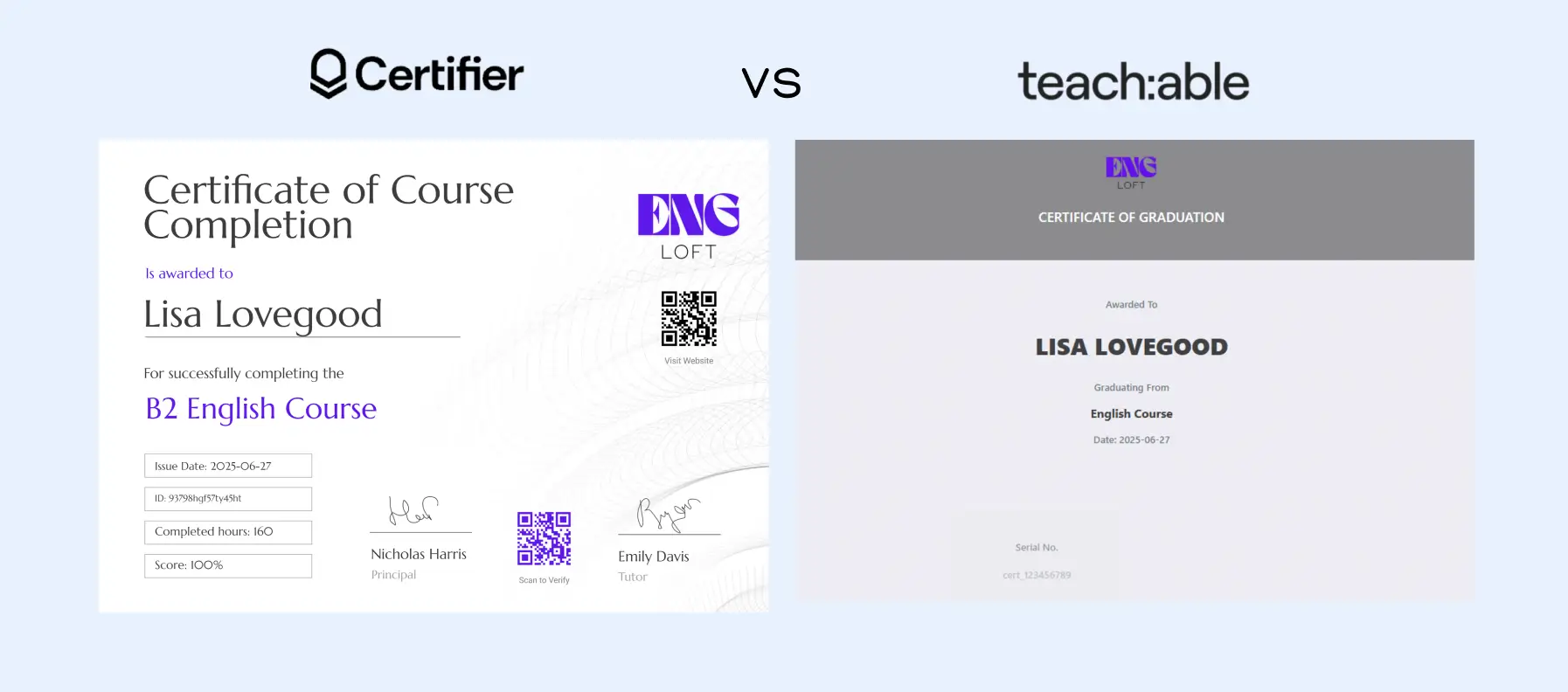
At first glance, both are certificates. But only the Certifier one:
Is truly branded and tailored—the logo is big, the colors are branded and there are course-specific, personalized details
Includes verification option
Looks polished enough for LinkedIn, resumes or sharing online
Reflects the actual quality and professionalism of your course
Would you like to create certificates like the one on the left? The good news is it’s much easier than it looks. In the next sections, we will guide you through the setup and will cover all the most important details.
There are two ways to connect Teachable to Certifier: natively through Certifier’s dashboard (our recommended route), or externally through a third-party connector like Zapier. However, both methods start the same way—with your certificate design.
Unlike Teachable’s built-in tool, which limits your layout and branding options, Certifier gives you complete creative freedom and automation in one place. You’re not stuck with fixed templates or static PDFs.
You get editable designs that match your course branding and a backend system that handles issuing and tracking for you.Here’s what you can do to create custom certificates:
Log in to Certifier or sign up if you don't have an account yet.
Go to the Designs templates and filter templates by category, style, color or the layout.
You can browse the templates in the Certifier certificate templates gallery t’s filled with editable designs suitable for any event and style.
All are free to use and fully customizable. You’ll find options tailored for coaches, educators and course creators of all kinds.
Use Certifier’s drag-and-drop certificate design editor to match the credential to your brand. With our flexible layout, you can adjust the Teachable template however you want it to be:
01Match your branding with ease. Add any image as you want. Upload logo, choose a font or upload a custom one and apply your brand colors. Include the static elements that you want to have on each of your Teachable certificates. Meaning, all the parts that will remain unchanged from one certificate to another (congratulations note, issuer’s info, etc.).
02Personalize your certificates. Include the fields with personalized data, like student name, score details, certificate ID, using certificate dynamic attributes. They work as placeholders that will be automatically filled in with unique details. You add the attribute to the template and Certifier pulls the data from a CSV sheet with the recipient's info. You don’t have to add any personalized info manually for each Teachable certificate, the platform does it for you.
03Make your crednetials verifiable. Add verification elements such as a certificate QR code linking to the verification page and a Teachable certificate ID. Both of them are generated in Certifier automatically and you don’t have to use third-party tools to have a QR code or unique certificate ID. For the ID number, add the dynamic attribute, and for the QR code, just drag and drop it on the Teachable certificate design.
Create your credential template
Your design is ready, but Certifier issues credentials from a credential template, so the last step is to add your design to one. A credential template represents a course or program, and every credential for it is issued from the same template. It’s also what the integration connects to in the next section.

In Certifier, go to Credentials, then Credential Templates, and click Create Credential Template
Name the template after your course, for example “B2 English Course”
Click Add to Credential Template and select the design you just created
Fill in the Info & Appearance section, including the description, so the credential page explains what learners earned
Save the template
With the template in place, you can connect Teachable. Choose one of the methods below.
You can also ask Certifier for personalized template recommendations. To do that, click the Generate with AI button, describe your course, and choose templates from the recommended roster.
This is the most direct way to issue Teachable certificates. Teachable and Certifier connect through Certifier’s Automations, with no connector tool in between. It works in a straightforward way: when a student completes your course, Certifier issues the credential from your template and automatically emails it.
For this integration to work you need to have:

Certificate template ready
Teachable school on the Growth plan or higher.
Now, let’s see how the integration can be set up in under 10 minutes:
Step 1: Create a Teachable API key
Certifier needs permission to see when your students complete a course, and an API key is how Teachable grants it.
01Log in to Teachable as the school owner
02Go to Settings, then API. Some accounts show this as API Keys
03Click Create API Key
04Name the key, for example, “Certifier”, and click Create
05Copy the key and keep it private
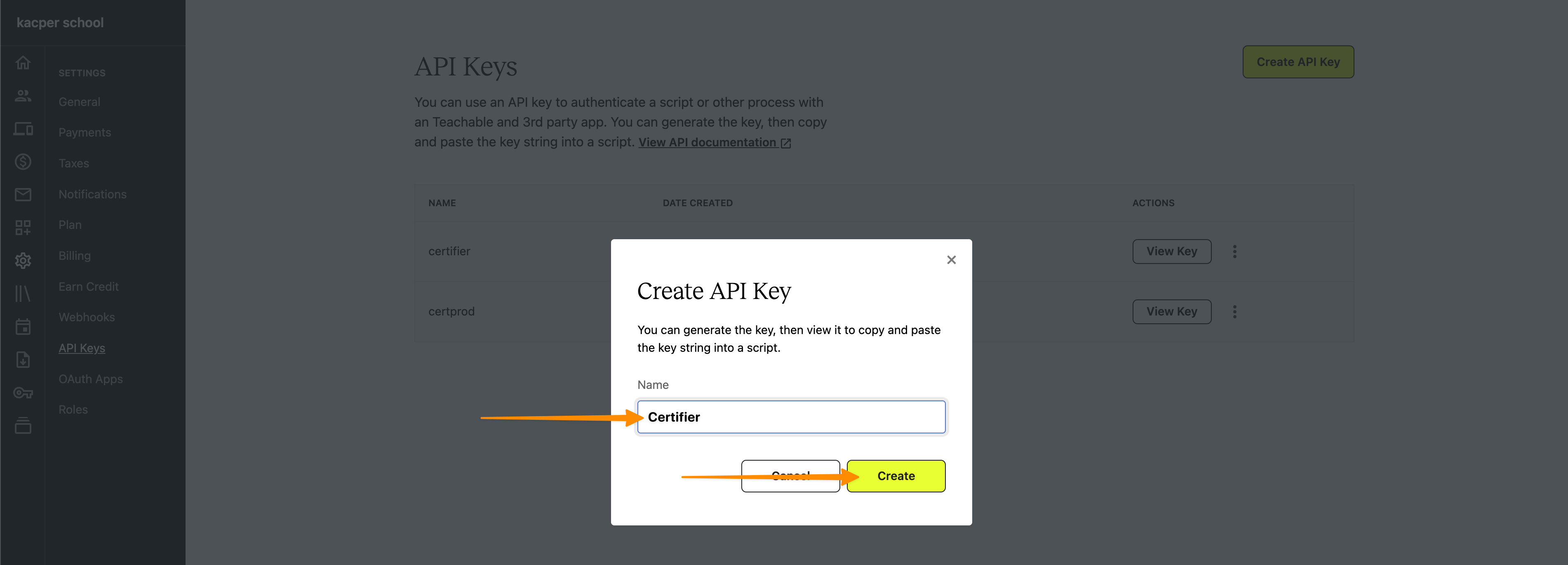
Step 2: Create the automation in Certifier
Now switch to Certifier. The Teachable template does most of the setup for you.
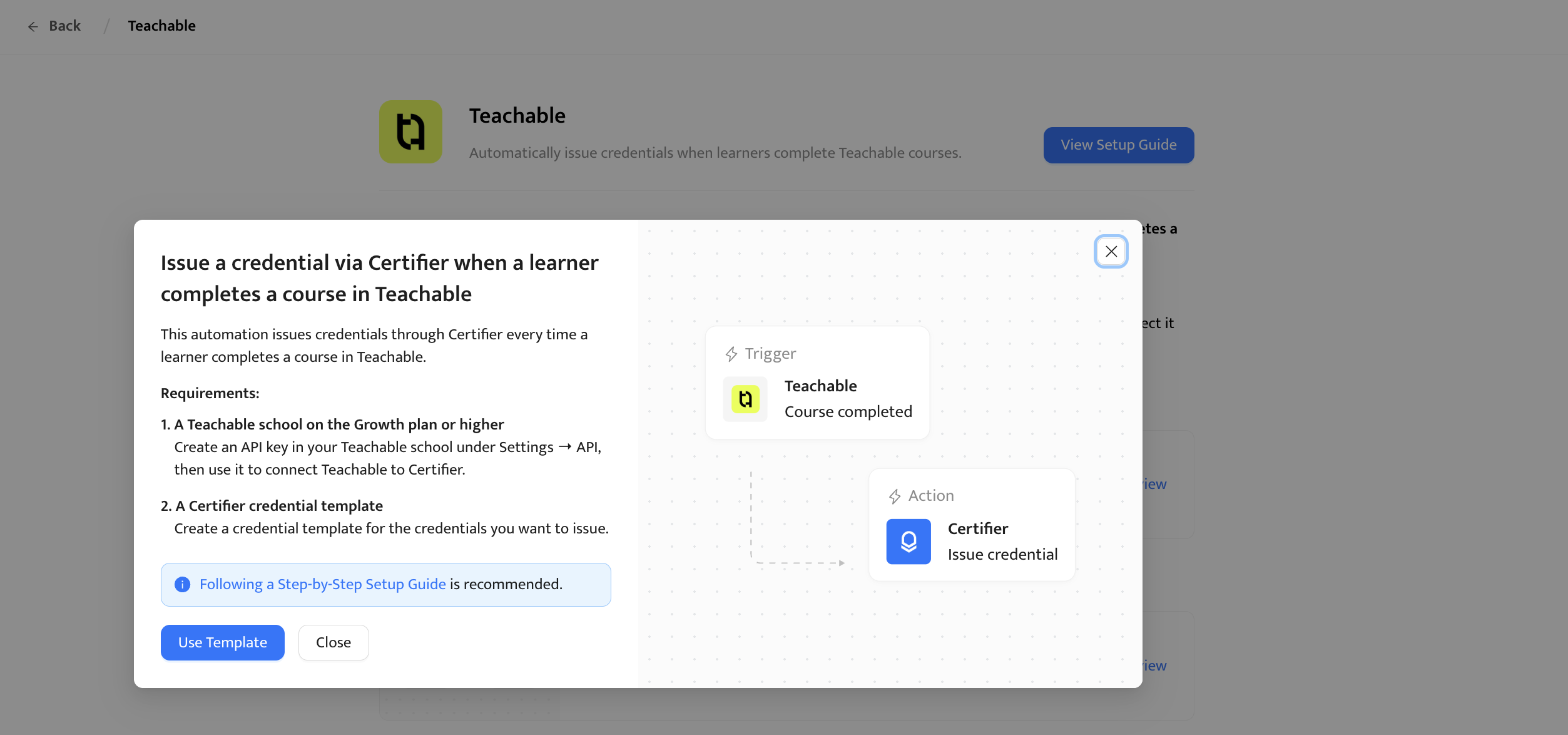
01Open Automations and click Create Automation
02Choose the Teachable template and click Use Template
03Click the Trigger card. Teachable and the Course completed event should already be selected
04Click Continue
Step 3: Connect Teachable and choose your course
This step links your Teachable account and tells Certifier which course to watch. Each automation monitors one course, so you’ll repeat the setup for every course you issue credentials for.
01In the Account field, click Connect New Account
02Paste your API key and click Connect
03In the Course field, choose the course you want to monitor
04Click Save & Continue
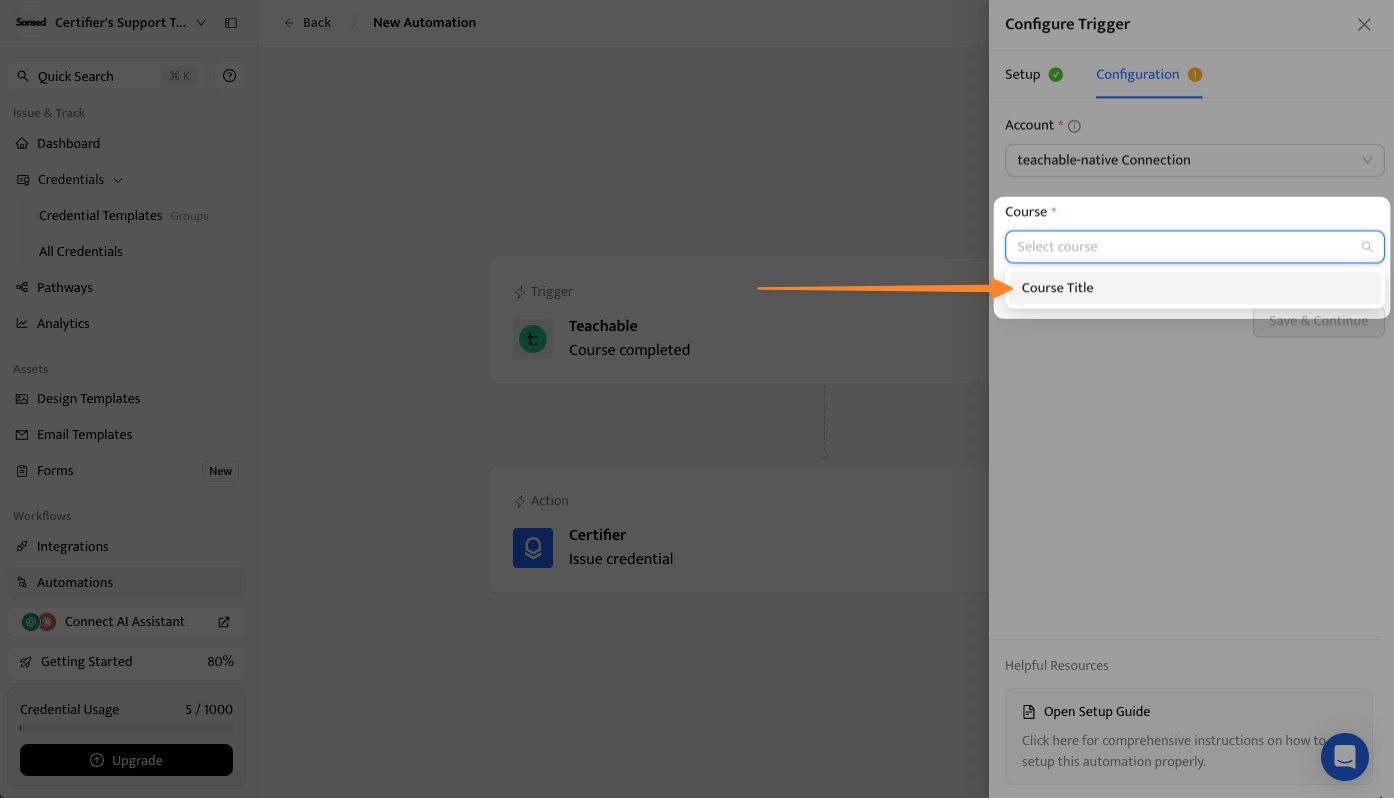
Step 4: Set up the credential
Next, decide what each student receives and how it reaches them. Leave the issue date empty. Certifier will use the date it processes the completion, which avoids a mismatch, because Teachable sends a date with a time and this field accepts only a date.
01Open the Issue Credential action and select your credential template
02Map the recipient’s name to the student’s name in Teachable
03Map the recipient’s email to the student’s email
04Leave the issue date empty
05Optional: map extra Teachable data, such as the course name or completion percentage, to custom attributes
06Turn on both issuing and sending, so students receive their credential by email
Step 5: Activate the automation
Once you activate the automation, it runs on its own.
Click Save & Activate
Give the automation a name you’ll recognize later
Click Confirm & Activate
From then on, Certifier checks Teachable for new completions about every 15 minutes. When it finds one, it creates the credential from your template and emails it to the student. Learners can access the Teachable certificate online via the certificate credential portal. It’s a secure, cloud-based place to store credentials.
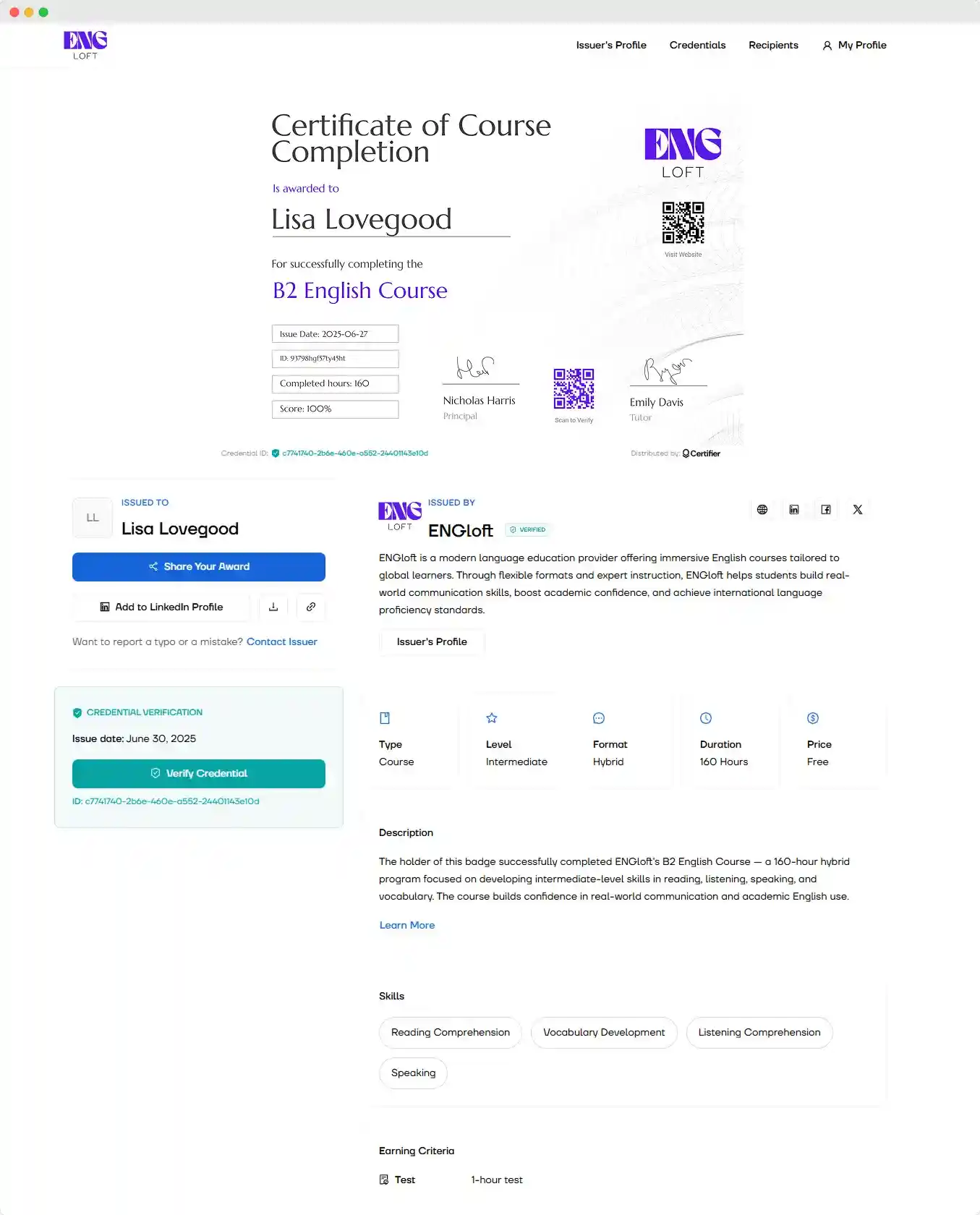
Both email sending and the credential portal support your branding. You can include your logo, use your brand colors, and customize the email text to match the tone of your course.
And anyone can verify the Teachable certificate online by scanning the QR code or using the one-click verification feature in the digital wallet.
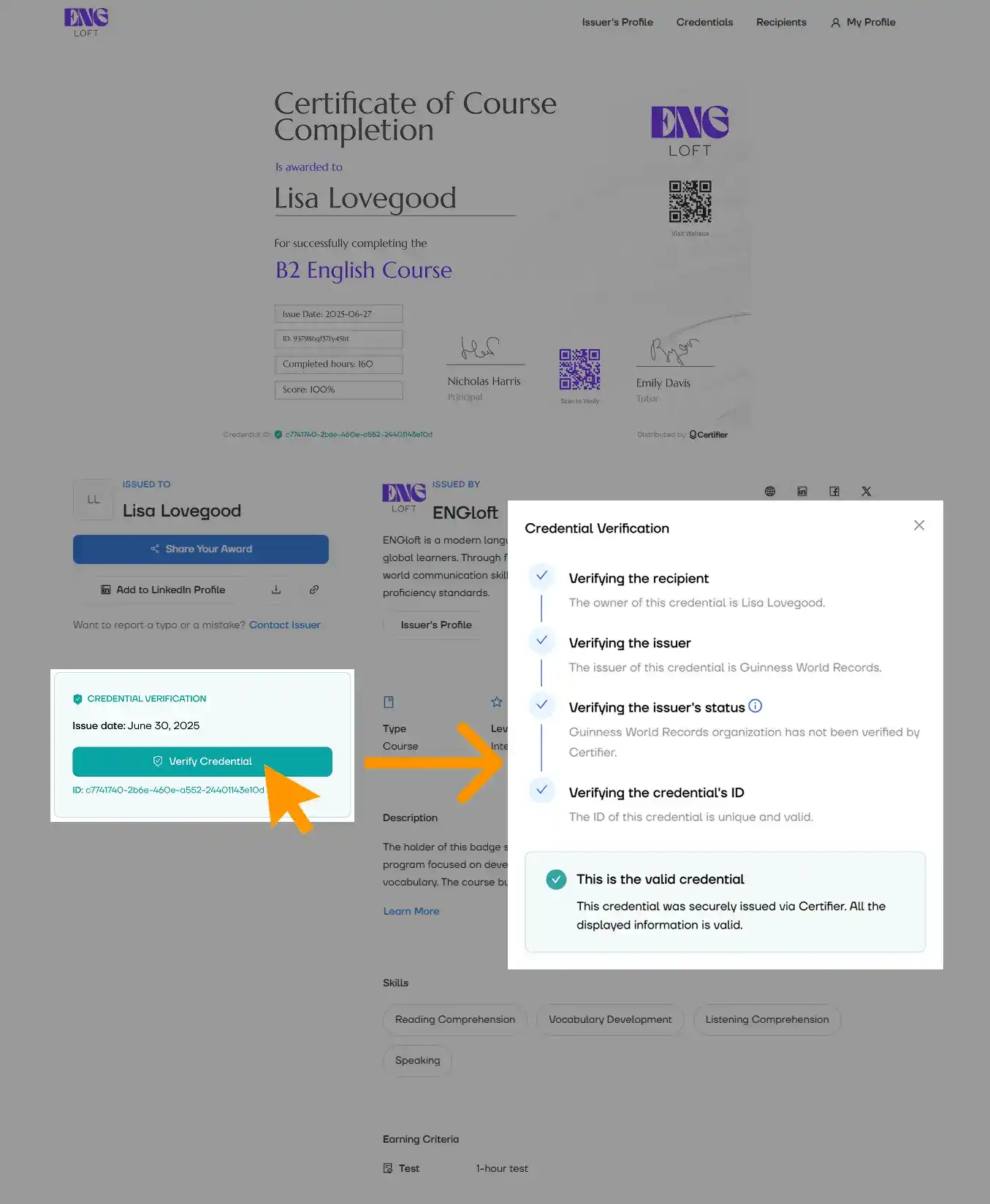
Learners can also share their Teachable certificate of completion directly to LinkedIn and other social media. It’s a promotional opportunity. Every share on social media increases visibility for your course and attracts new sign-ups without paid ads.
Zapier is a good fit if you already run your automations there, or want certificates to be one step in a larger workflow. It works as a connector, so you’ll need a Zapier account alongside Teachable and Certifier. If you’d rather skip the extra tool, Method 1 connects the two directly.
The video below shows how Certifier connects with Teachable through Zapier, from designing the certificate to the moment a student receives it. It also covers the student’s point of view, so you know what lands in their inbox.
Prefer to read? With your certificate design ready, the setup takes five steps.
1. Create a new Zap in Zapier
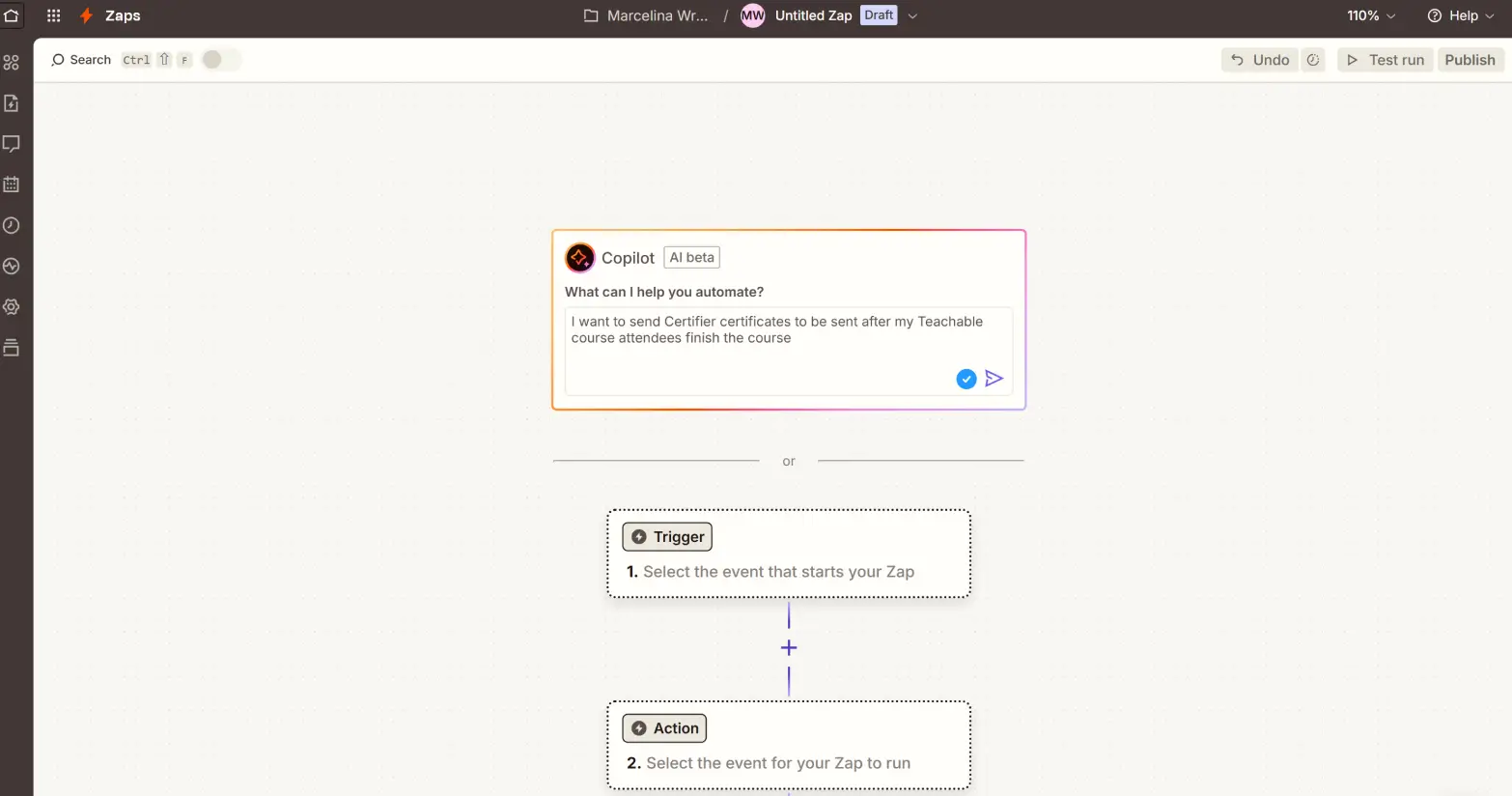
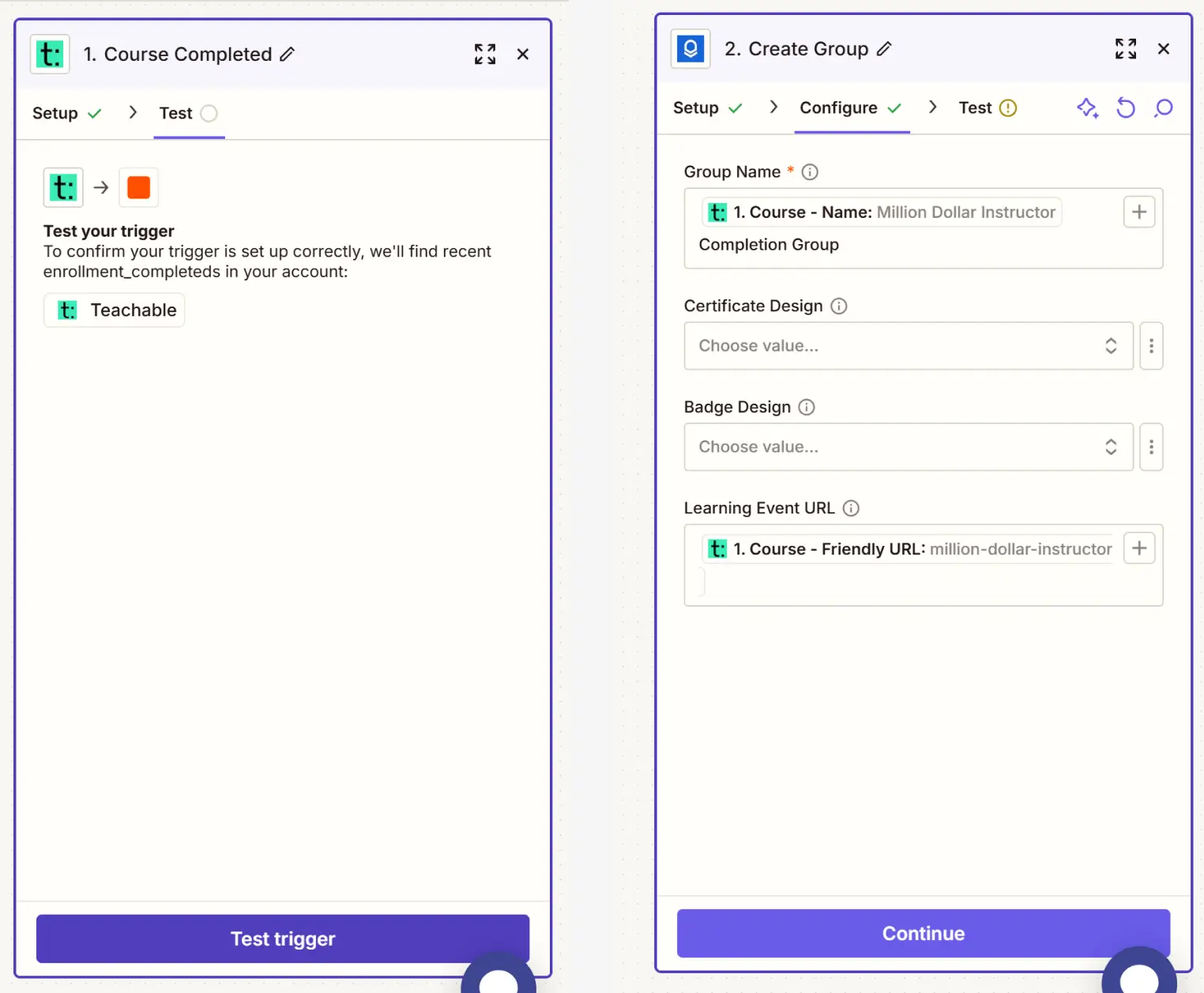
Head to Zapier and click Create Zap. Use the AI Copilot to describe your goal—e.g., “Send Certifier certificates after Teachable course completion.”
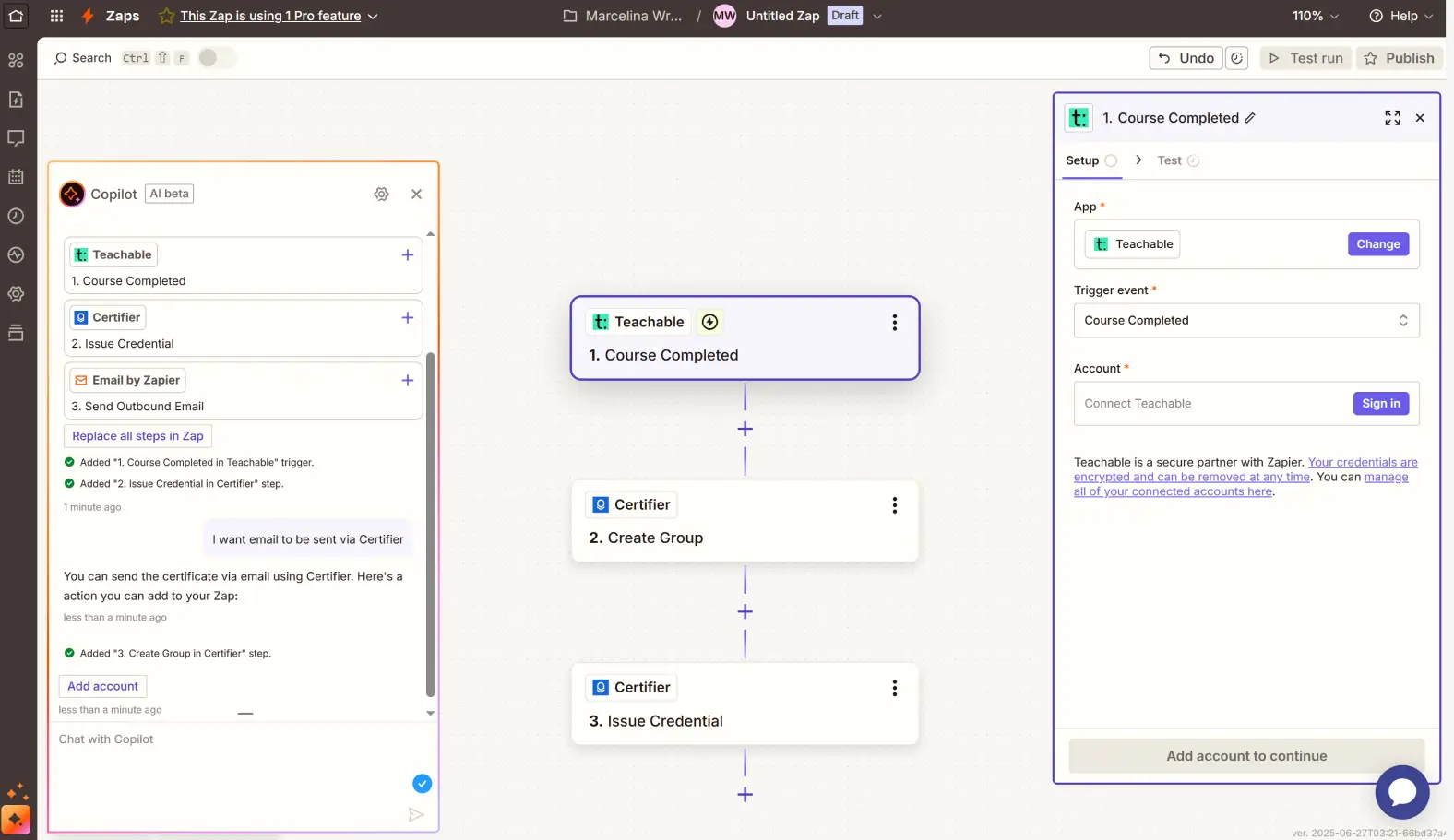
2. Choose Teachable as the trigger app
Set the trigger event to Course Completed and connect your Teachable account.
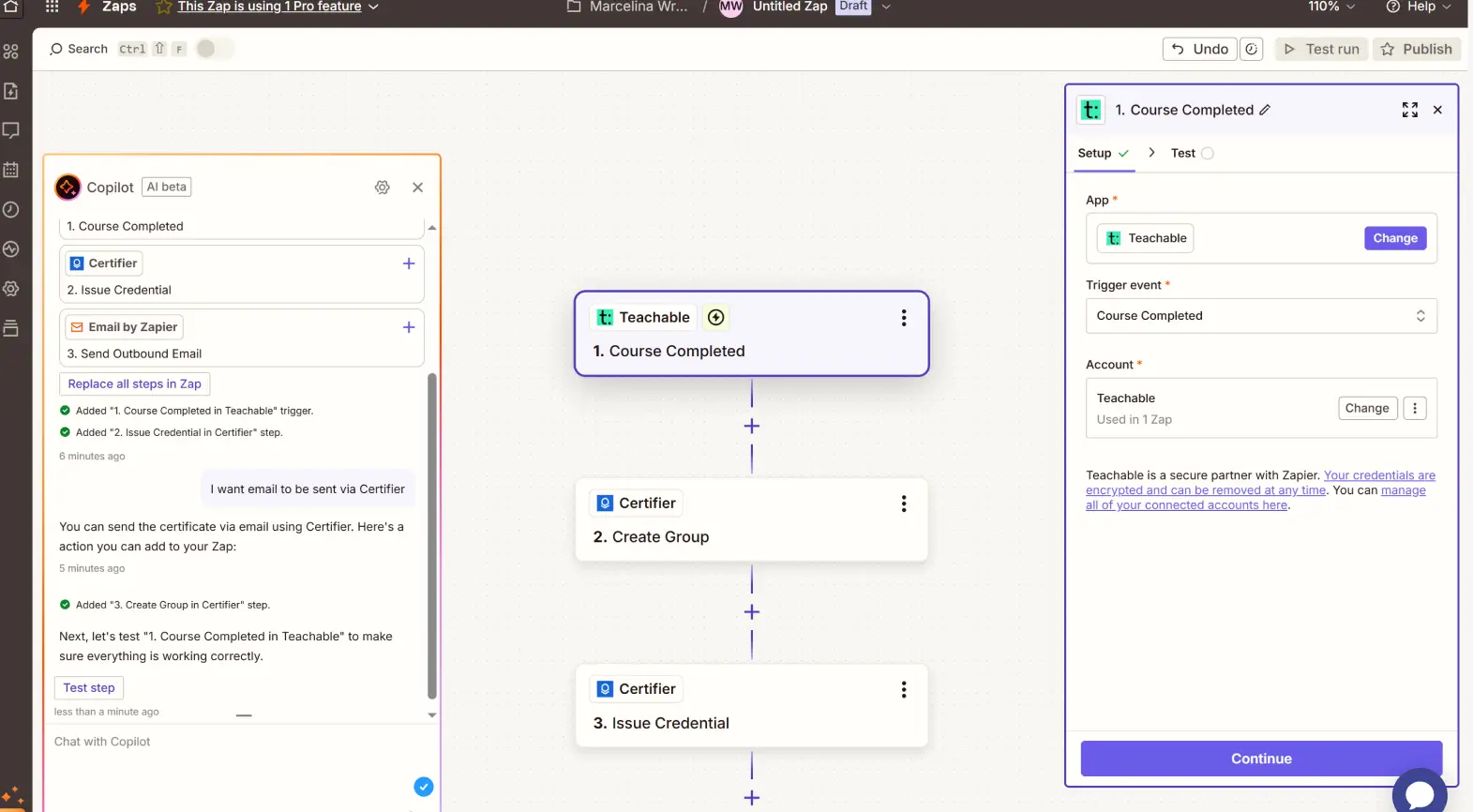
3. Set Certifier as the action
Search for Certifier and choose the Create Group and Issue Credential actions. You’ll be able to assign a certificate template and add a unique Learning Event URL.
4. Customize your certificate settings
In the Certifier setup, choose:
Group Name (it's the same as the Credential Template name)
Certificate Design (pick from your Certifier library)
Learning Event URL (auto-filled from Teachable course info)
5. Test and publish your Zap
Zapier will walk you through a test. Once everything’s working, click Publish and you’re done.
Want to explore other integrations? Certifier also connects with Google Forms, Typeform, Kajabi and webinar tools like Zoom and GoToWebinar. See the complete integration list here. If you can’t see the tool you use, you can always connect through Zapier, just like you did with Teachable.
If you’re ok with all the limitations that Teachable offers, you can create and issue a Teachable certificate of completion directly from your course settings. Here’s how to set it up in a few steps:
1. Go to your course
Open your course in the Teachable dashboard. In the left-hand menu, click Certificates.
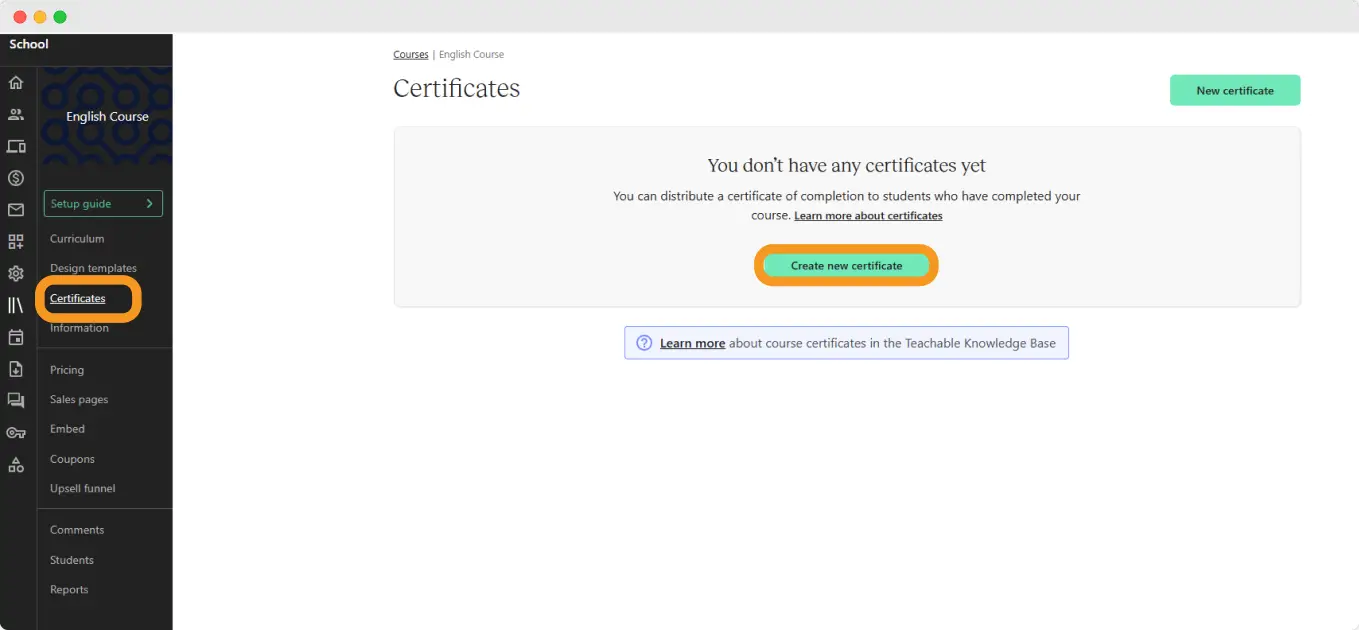
If it’s your first time, you’ll see a message saying “You don’t have any certificates yet.”
Click the green button to start.
Please note: Teachable certificates are only available on Pro plans and above.
2. Choose a template
Pick one of Teachable’s default templates or select “Create a custom certificate” if you know Liquid/HTML. Click Next to continue.
3. Customize your Teachable certificate template
Add your logo, edit the certificate title, add the recipient’s name, date, course name and signature. Teachable’s editor gives you a basic layout. Once you're done with editing a Teachable certificate template, hit Finish in the top right.
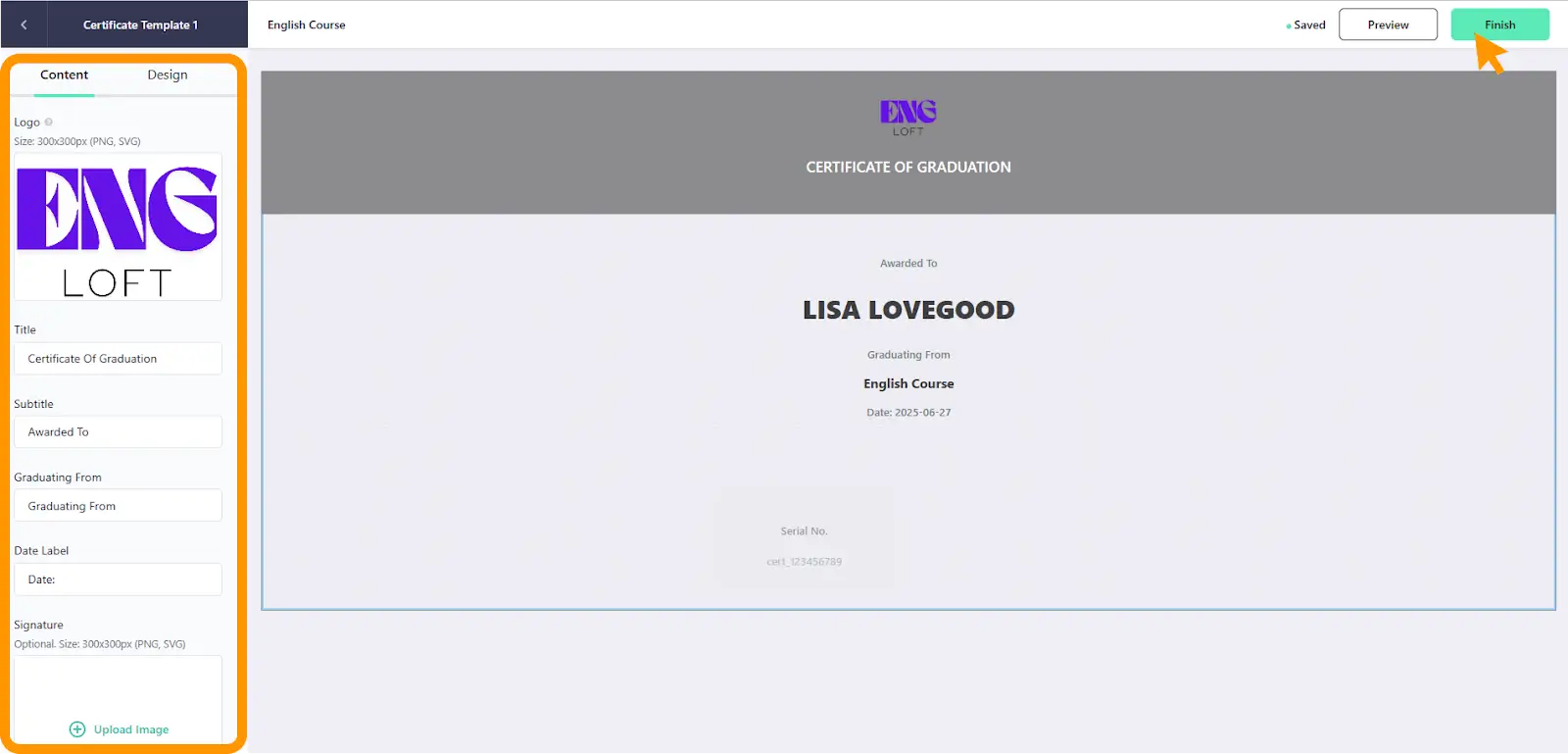
Your Teachable certificate of completion will now be automatically sent to students once they complete your course.
4. Manage your teachable certificate sample
In the certificate dashboard, you can view all the certificates you’ve created and issued for a course in one place.
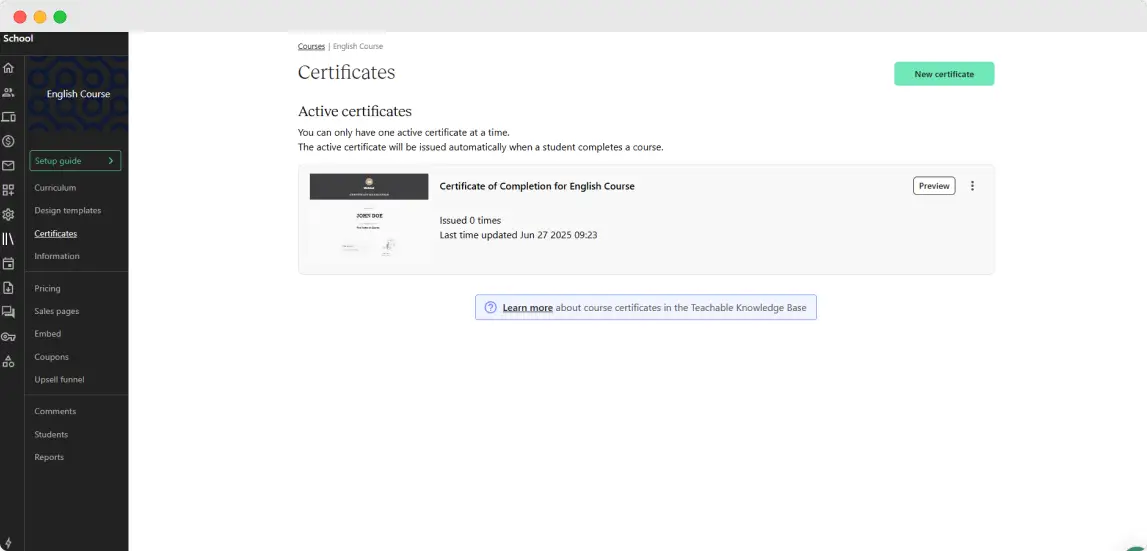
Use the three-dot menu next to any certificate to edit, deactivate or delete it as needed. Unfortunately, the certificate management features end here.
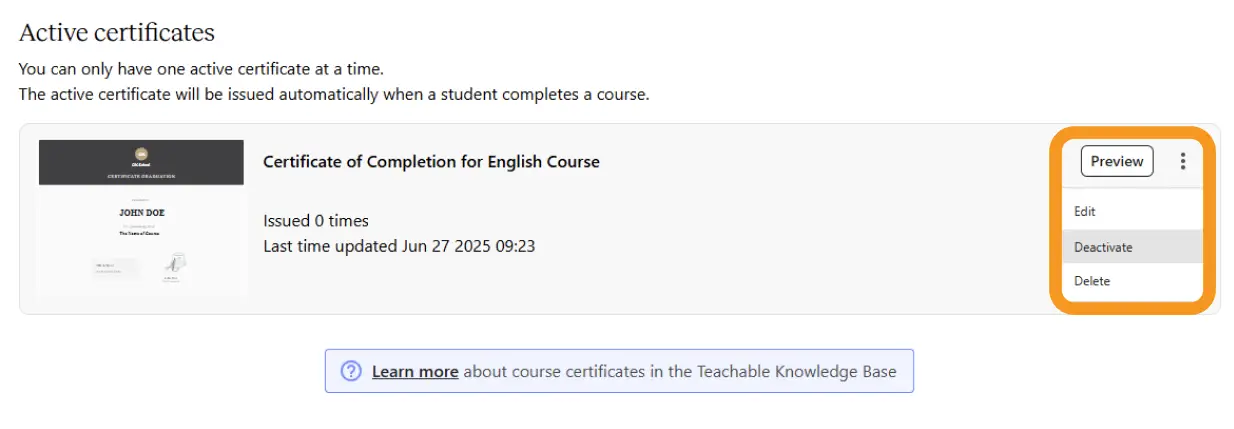
The process may seem fast and simple, but the reality is that Teachable doesn’t offer a professional, branded certificate experience.
If your course has hundreds of students, managing tasks like adding expiration dates, verification elements and sending branded certificate for Teachable can take not even hours, but business days.
You can generate Teachable certificates using the platform’s native tool, but with one simple step, you can do much more. Teachable and Certifier work as a powerful duo, giving you everything you need to deliver branded, professional certificates that are true to the value of your course.
Through the Teachable integration, Certifier helps you turn a standard course completion into a standout post-course experience. You can automate delivery, track engagement, add your branding across email and wallet views and turn every certificate into a promotional tool through LinkedIn and social sharing.
The setup takes minutes—the benefits last much longer. Sign up for Certifier and start generating Teachable certificates.
Let’s learn more about generating Teachable certificate online.
Yes, you can create certificates using a Teachable certificate template, but customization is limited. To issue your own certificate with full branding, automation and certificate verification, connect your Teachable school with Certifier to unlock professional features.
To automate and send certificates after course completion with Zapier:
Trigger: Course completed certificate
Action: Create and issue credential
Auto-fill date label and student info
Deliver via email or wallet
Track opens and shares
This setup fits any online courses workflow.
Teachable certificate samples are static PDFs and not easily shareable. With Certifier, students receive Teachable certificate online credentials they can post to LinkedIn or social media.
The default Teachable certificate PDF lacks built-in certificate verification. Certifier fixes that by adding a unique ID, verification URL and optional QR code. Viewers can confirm authenticity directly from the student’s profile or via the public certificate sample page.
Use Certifier to create certificates that look like a natural extension of your brand. No need for custom code—just start with a Teachable certificate free template, customize it and make it available as part of your Teachable digital downloads or automated flow.

- Product Management
- Customer Research
- Digital Credentials
- Product Strategy
- Design Systems
Product Manager
Uliana leads product management at Certifier, using her UI/UX background to explain platform features and help organizations maximize their credentialing capabilities.


