
Trusted by:
University of Southern California
Warner Bros.
Volvo
Amazon
Stanford University
Updated: July 03, 2026
9 min read
Moodle’s certificate plugins can be powerful but also limited. Connect Certifier to your Moodle workflow and issue on-brand certificates of completion, without installing a single plugin.
Research with AI:
If you’ve ever tried to create certificates directly in Moodle, you know how quickly the workflow can turn into template troubleshooting. Install a certificate plugin. Configure completion rules. Adjust the PDF layout. Generate a test certificate. Fix the spacing. Repeat.
Moodle is an excellent LMS for building courses, managing learners, and tracking progress. The harder part is turning that progress into branded, verifiable credentials learners can receive, share, and prove outside the LMS.
Certifier now gives Moodle teams a native integration for that job. Install the Certifier plugin in Moodle, connect it to your Certifier workspace with an API token, and choose when credentials should be issued: after full course completion or after a selected activity, such as passing a key quiz with a minimum grade.
From there, Moodle remains the source of truth for learner progress, while Certifier handles the certificate design, issuing, delivery, verification, and ongoing credential management.
Whether you’re running corporate training, continuing education, university courses, or a solo learning program, you can connect Moodle to Certifier directly instead of relying on CSV exports, Zapier workflows, or basic certificate templates.
Note: the Zapier Moodle Certifier integration path is still possible, we just have a better, direct route now that completely skips the need for a connector like Zapier.
Moodle doesn’t have built-in certificates–it relies on community plugins (Custom Certificate is the popular one) that are difficult to configure.
Certifier works alongside Moodle without a plugin–export a CSV from Moodle’s completion report and upload it, or connect via Zapier for fully automated issuance.
Every Moodle certificate issued through Certifier includes a unique ID, QR code and public verification page–no login required for learners or employers.
Design in a drag-and-drop editor with live preview, thousands of templates and full brand customization–all on the free plan (250 credentials/year).

Before introducing anything new, let’s take an honest look at where Moodle stands with certificates. This isn’t about bashing the platform–Moodle is great for teaching.
But its certificate ecosystem has a few limitations worth knowing about. Understanding these gaps will help you decide which path makes sense for your courses and generate training certificates better suited to your workflow.
Moodle doesn’t ship with certificate functionality. To issue a Moodle certificate of completion, you need to install a community plugin.
Most commonly, the Moodle custom certificate plugin (mod_customcert). It’s free and widely used, but it’s a community-maintained add-on, not an official Moodle feature.
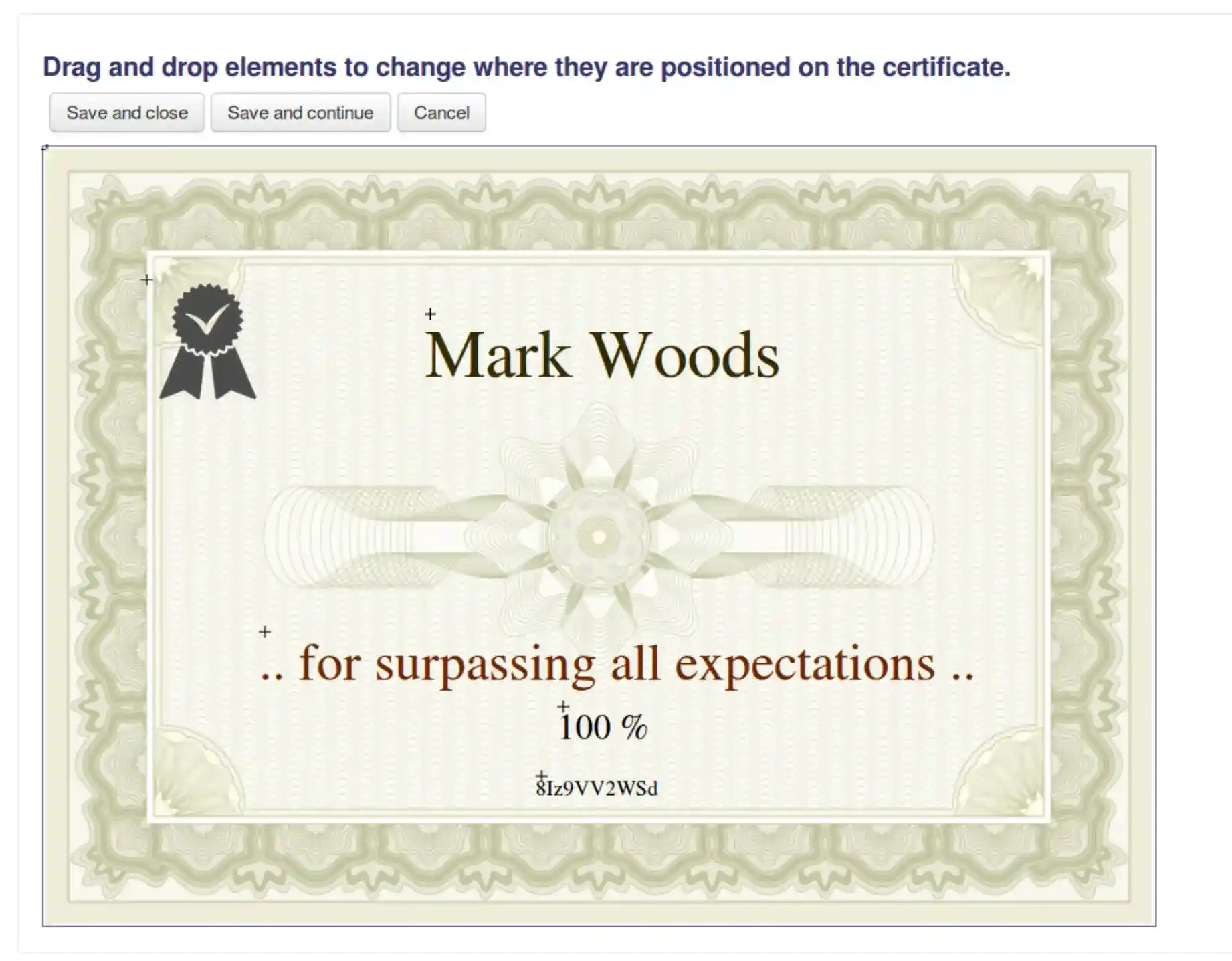
The Custom Certificate plugin gives you a canvas where you place text elements, images and date fields. But there’s no live preview. Every change requires saving the template, generating a PDF and checking if it looks right.
Font options are limited and adding custom fonts means uploading files to the server, which many hosted Moodle users can’t do. If you’ve ever searched for how to adjust text in a Moodle certificate, you know the frustration.
The plugin community consistently reports issues:

Moodle certificates that download as blank pages
Completion dates that appear in preview but vanish for actual learners
Special characters rendering as question marks
Templates that won’t connect to course activities without finding a buried setting
Native Moodle plugins can display a verification code on the certificate, but checking it requires navigating to a specific URL and sometimes logging in.
There’s no QR code, no public verification page and no way for an employer to confirm authenticity without jumping through hoops.
Each learner must individually navigate to their course and click “View Certificate” to trigger generation.
There’s no way to issue all certificates at once. The bulk download option times out with a few hundred learners. For large certification programs, this turns certificate delivery into a multi-day project.
Now that the landscape is clear, let’s look at what changes when you add Certifier.
Think of it as a powerful duo: Moodle handles the learning, while Certifier, an online course certificate maker, handles the credential.
No plugin installation, no server-side changes, no risk to your existing setup. Here’s the full picture of your Moodle course certificate workflow with Certifier connected.
Certifier’s drag-and-drop certificate builder shows you exactly what the certificate will look like as you build it. Upload your logo, set brand colors and fonts, arrange elements–and see the result in real time. No more generate-check-adjust-repeat.
Every Moodle custom certificate template in Certifier’s library is fully editable and available on the free plan.
Don’t want to start from scratch? Browse Certifier’s library of certificate of completion templates and pick one that fits your program. Customize it to match your institution’s or organization’s branding and you’re ready to issue.
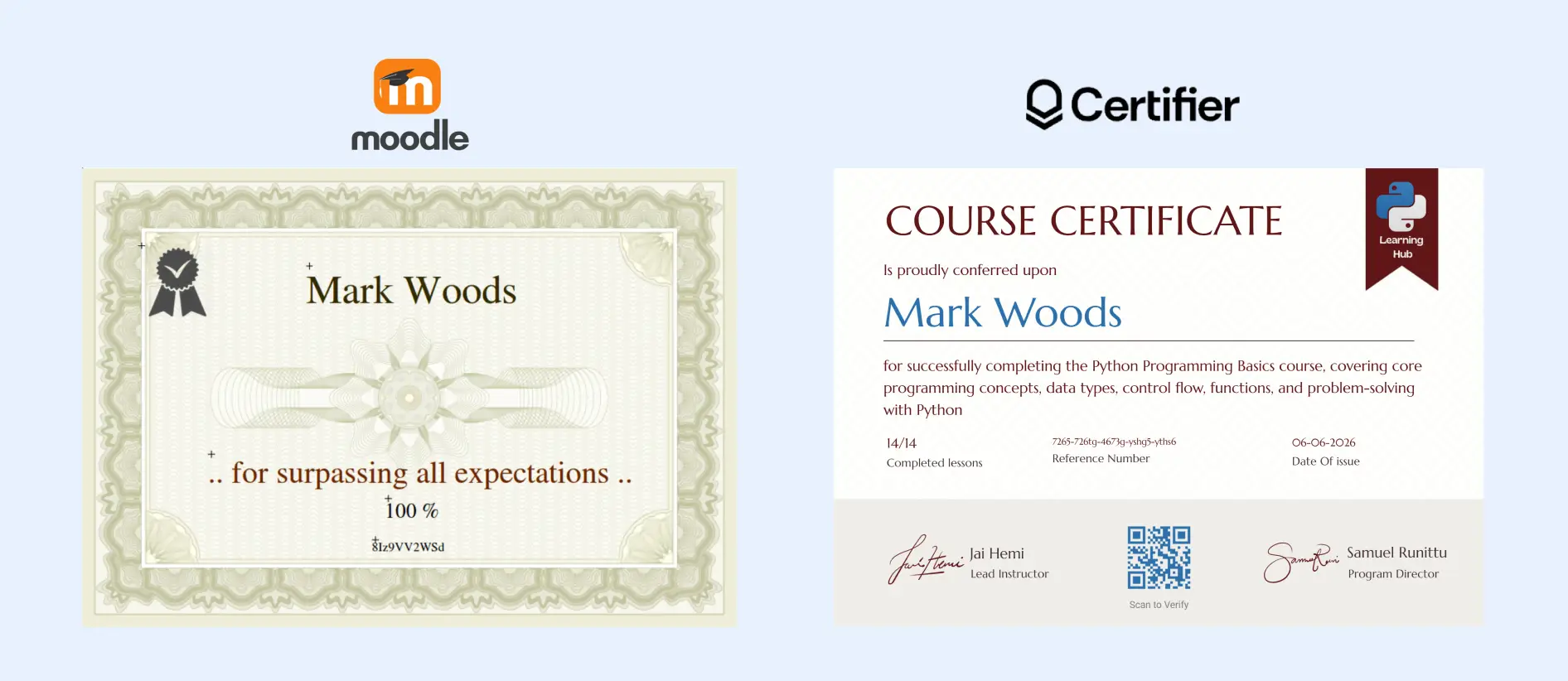
There’s no plugin to install, no PHP and no server access needed. Choose whichever approach fits your workflow:
CSV upload: Export your completion report from Moodle, upload it to Certifier and issue hundreds of Moodle certificates in minutes.

Zapier/Make automation: Connect Moodle to Certifier through Zapier or Make. Certificates are issued automatically every time a learner completes a course.
Every certificate includes a unique ID, QR code certificate verification and a public verification page. Employers, regulators or anyone else can confirm authenticity with a single click or scan.
Certifier gives you automated delivery of digital certificate options. It means certificates are emailed directly to learners from your custom sending domain. No more waiting for learners to log into Moodle and click “View Certificate.”
They receive a branded email with a link to their digital wallet, where they can download, verify and share their credential.
Certifier’s dashboard tracks who received, opened, downloaded and shared their certificates. You get data on which courses generate the most credential engagement – insight Moodle’s basic analytics don’t provide.
With either path active, let’s look at the experience from the learner’s side. This matters because the biggest frustration with native Moodle plugins is that learners have to log in, find the course and click to view their certificate. Certifier removes all of that friction.
Learners receive a professional email from your custom sending domain with a link to their certificate. No need to log into Moodle, navigate to the course or remember a password. The credential is accessible immediately.
Every learner gets access to a digital wallet where their credentials live. From there, they can download the certificate as a PDF, view the verification page or share it directly.
Learners can share their Moodle certificate to LinkedIn with a single click. Every share includes a link to the verification page, which means their network can confirm the credential is authentic and your course or institution gets organic visibility.
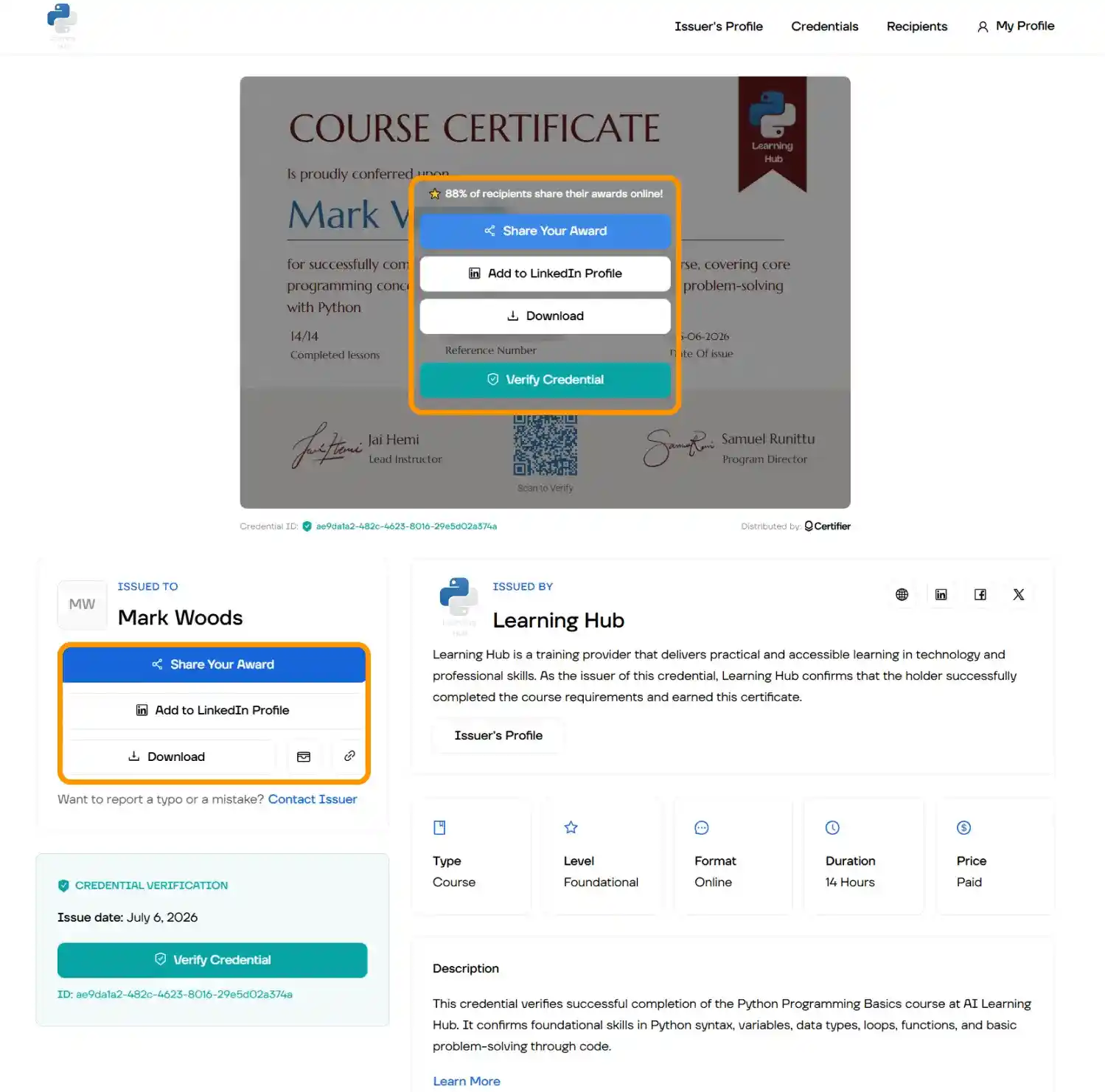
Ready to create professional, branded certificates for your course participants? The process consists of two parts:
Building your certificate in Certifier using a template and a user-friendly template editor
Connecting Certifier with the Moodle platform–there are two ways to do it and you can choose the path that fits your workflow
Let’s start with the first part.
Before connecting anything to Moodle, let’s create the certificate your learners will actually receive. This section walks through Certifier’s design tools–from picking a template to adding the dynamic fields that personalize each credential automatically.
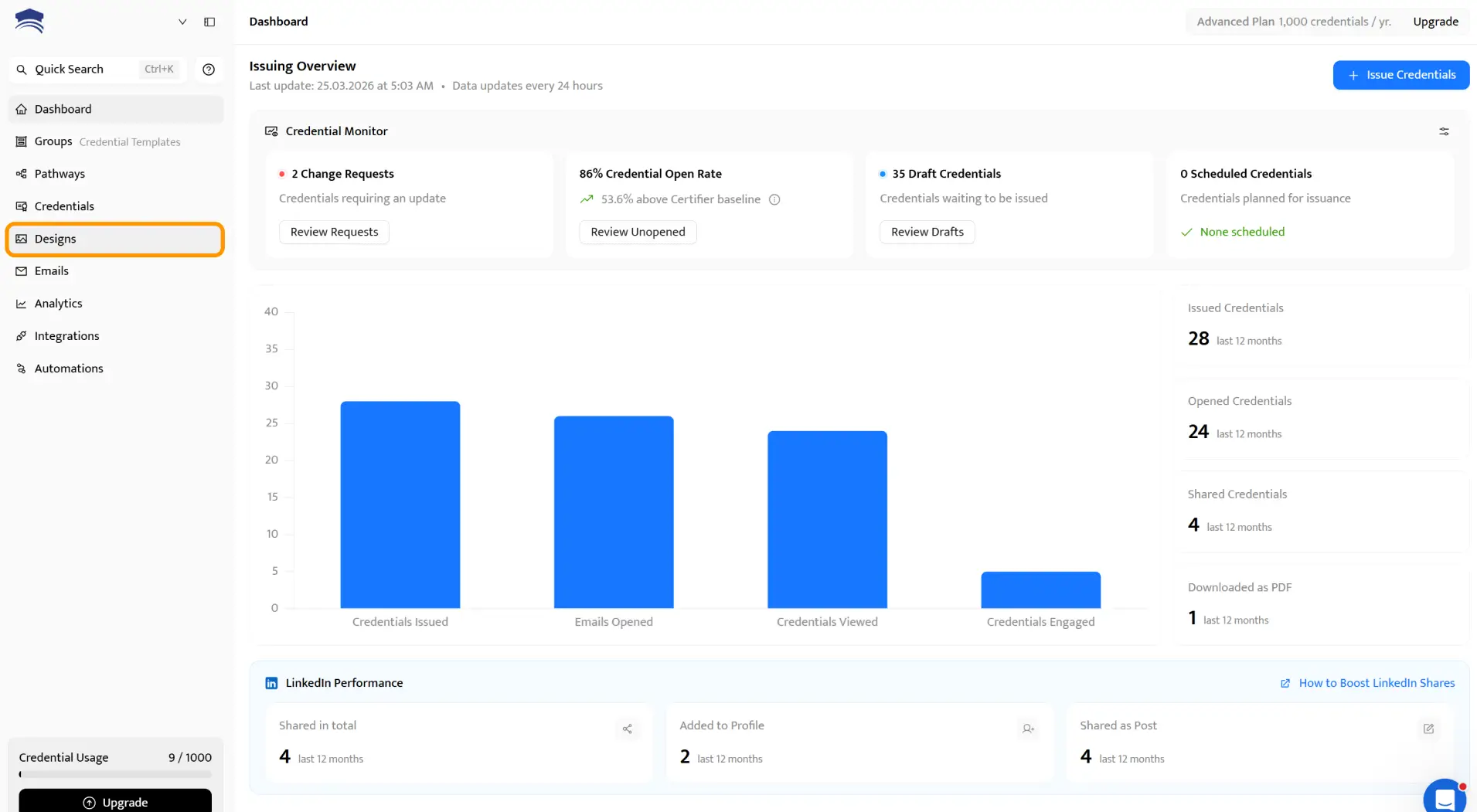
Head to Certifier and sign up for free – it takes about a minute. Once inside, navigate to the Designs tab.
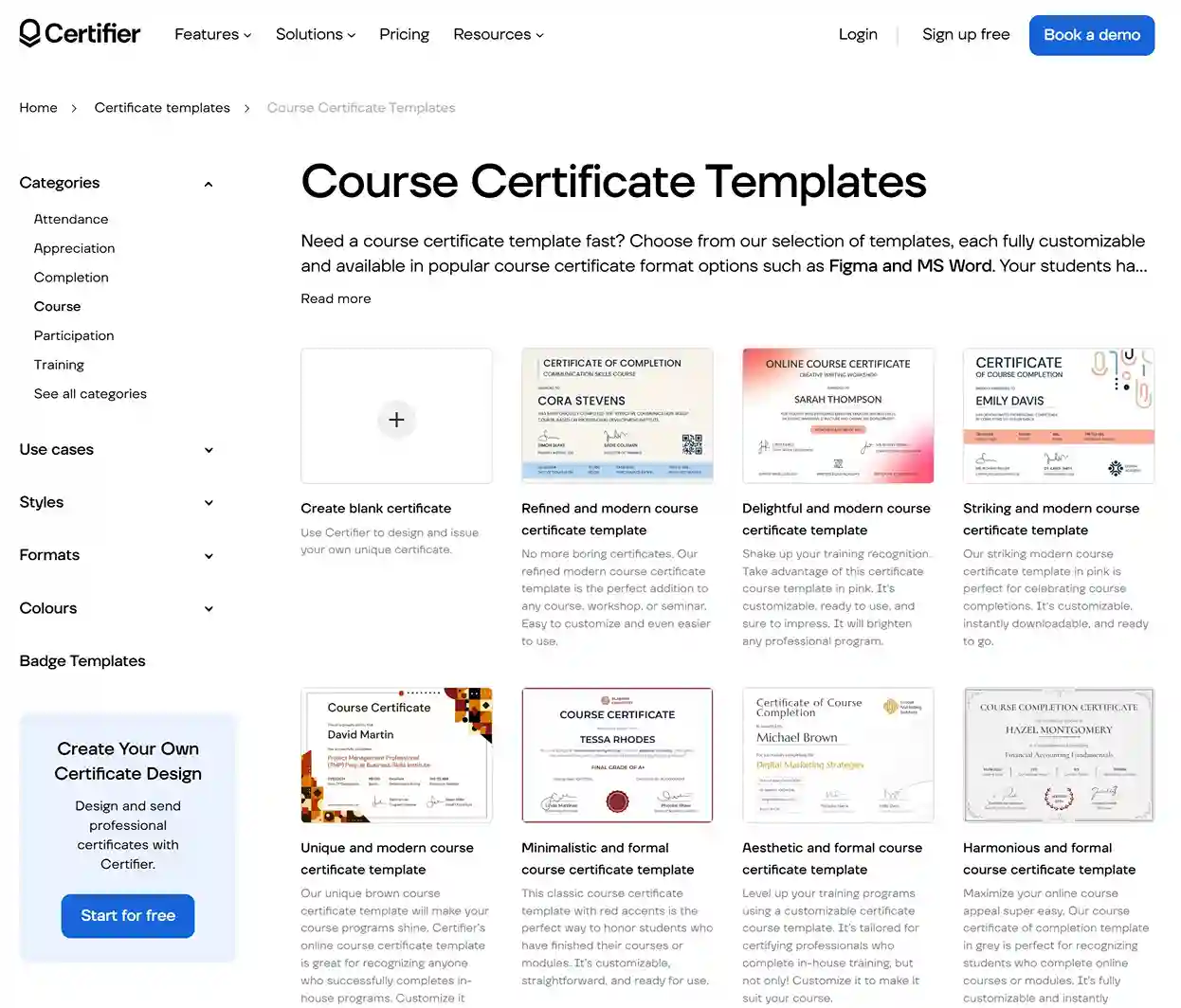
Check out the completion certificate templates collection or browse the certificate template library, where you can access thousands of templates.
However, you can also see the credential templates in the template editor. Filter them by category–course completion, training, webinar and more. They’re all fully editable and available on the free plan.
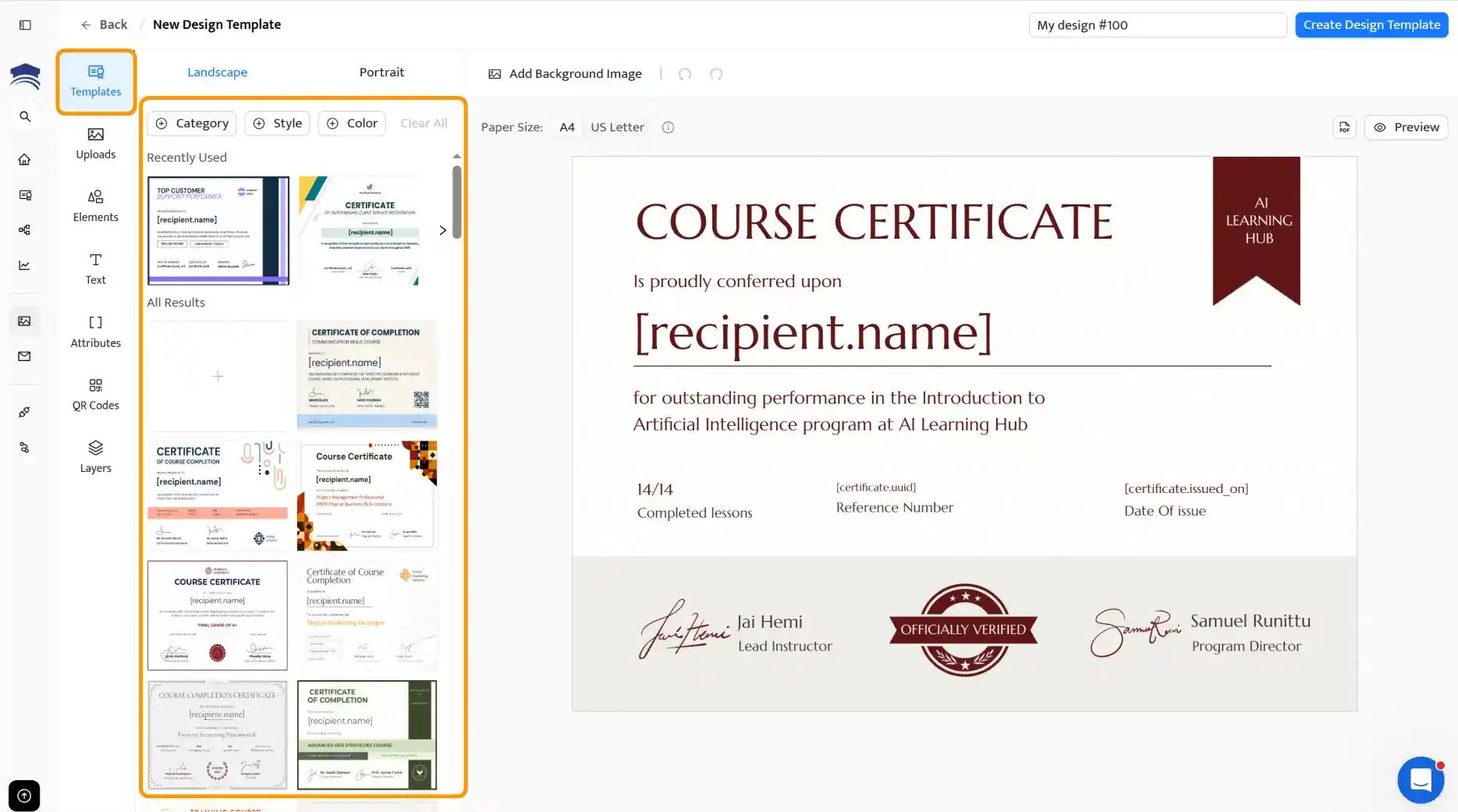
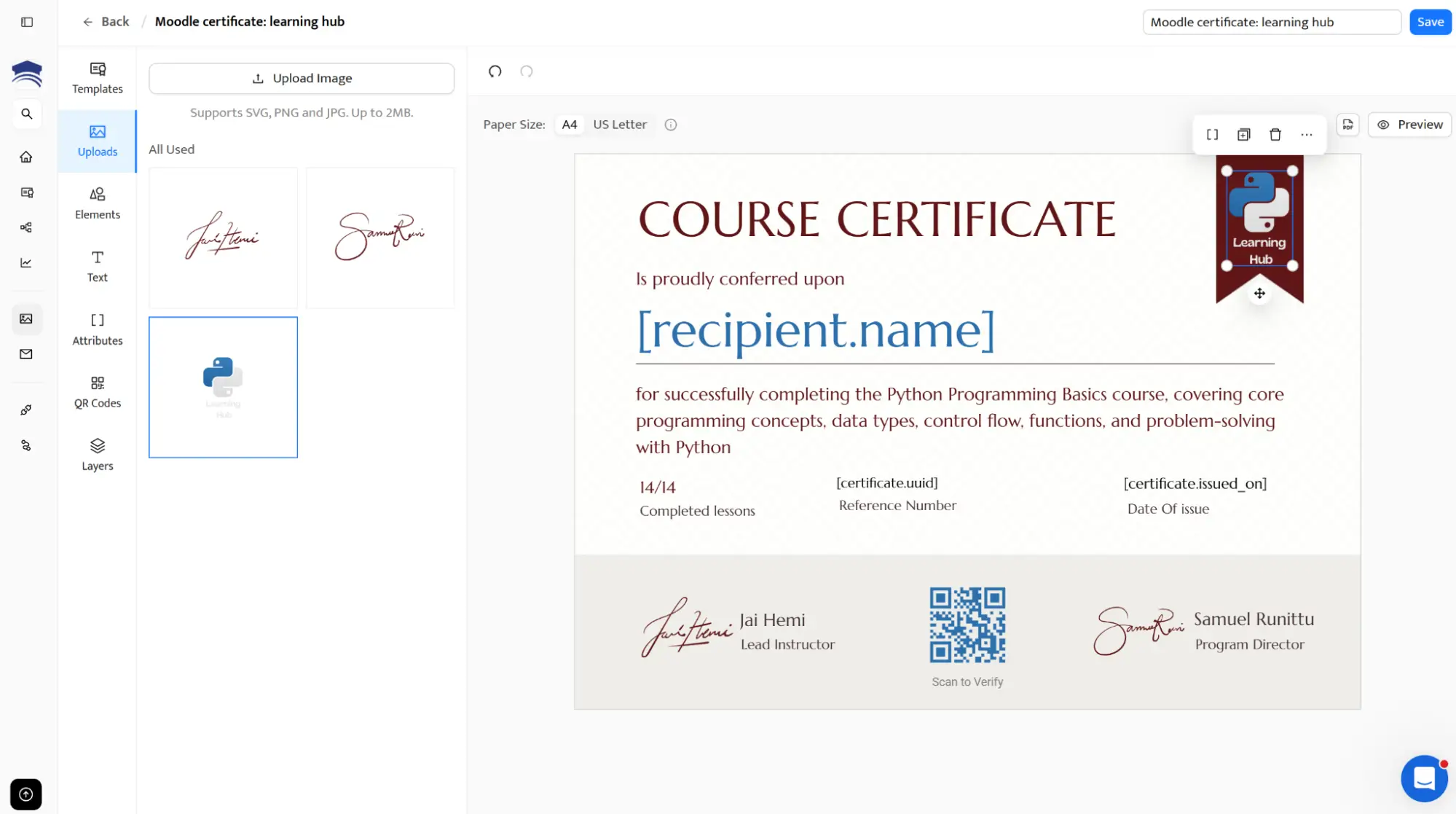
Open your Moodle custom certificate template in the drag-and-drop editor. From here you can:
Upload your logo and position it anywhere on the certificate
Set brand colors and fonts–no server uploads needed
Edit text blocks–certificate title, subtitle, issuer details and custom copy
Add visual elements like backgrounds, stamps, signature
Every change appears in real time. No more generating a PDF just to check if the text is aligned correctly.
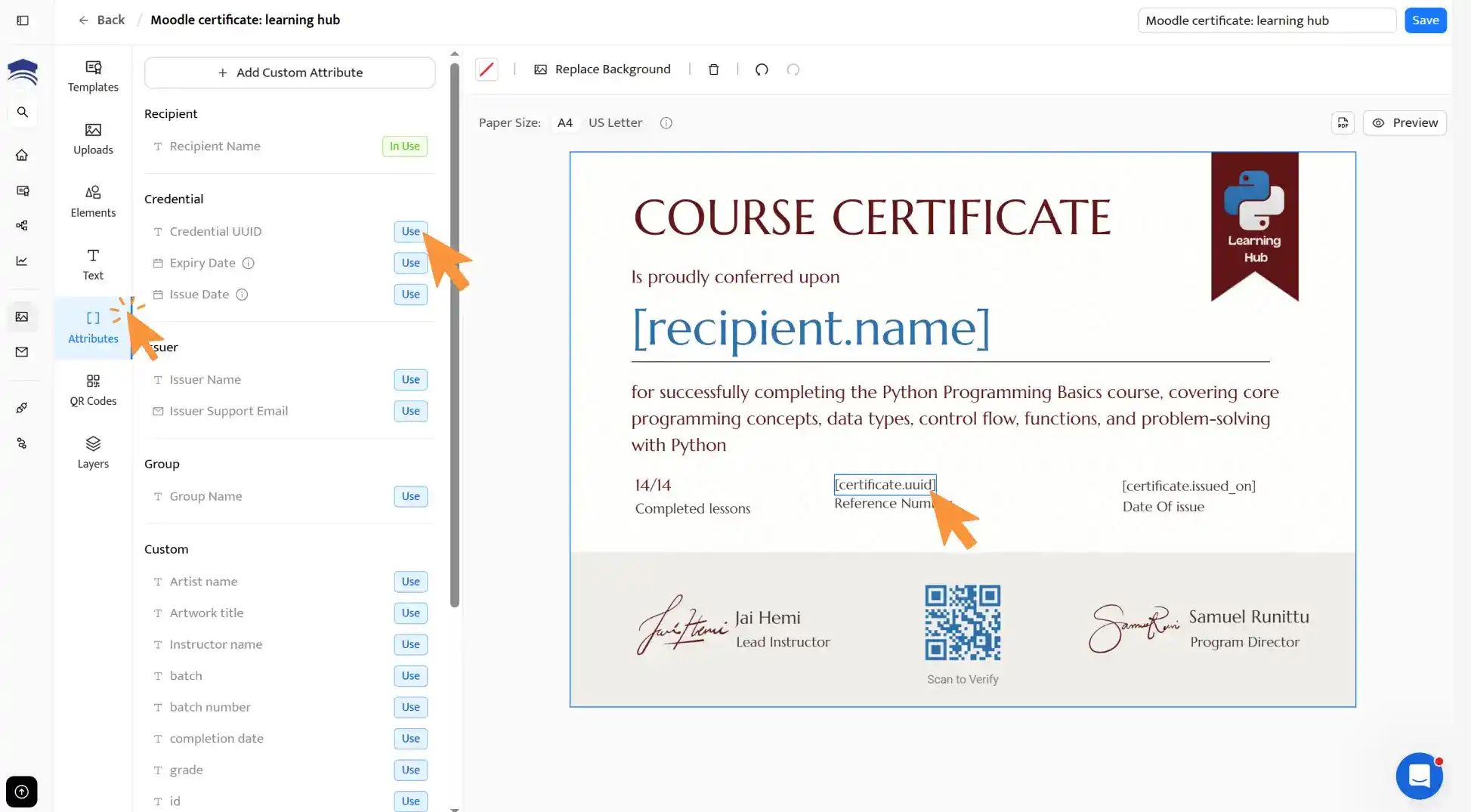
Dynamic attributes are placeholders that auto-fill with each learner’s data when the certificate is issued. Insert fields for the recipient’s name, issue date, unique certificate ID–whatever you need.
When you upload a CSV or connect Moodle via Zapier, these fields populate automatically.
Learn more about dynamic attributes in certificates.
Save your design and create a credential group in the Credential Templates tab (formerly Groups). A group links your certificate template to a specific issuance workflow–you’ll reference it when uploading your CSV or setting up automation.
Once your certificate design is ready in Certifier, the next step is to send it to learners. There are two ways to do that and both work without adding a Moodle plugin.
You can upload a CSV file from Moodle and issue certificates in bulk or connect Moodle to Certifier through Zapier for automatic delivery after course completion.
The right option depends on how often you run courses and how hands-off you want the process to be.
This is the quickest way to start issuing Moodle certificates of completion through Certifier. It works for any Moodle setup: self-hosted, MoodleCloud or managed hosting and doesn’t require any integration or automation tool.
If you run courses on a semester- or cohort-based schedule, this method fits naturally into your end-of-course workflow.
For more ways to connect Certifier with your existing tools, explore the full Certifier integrations library.
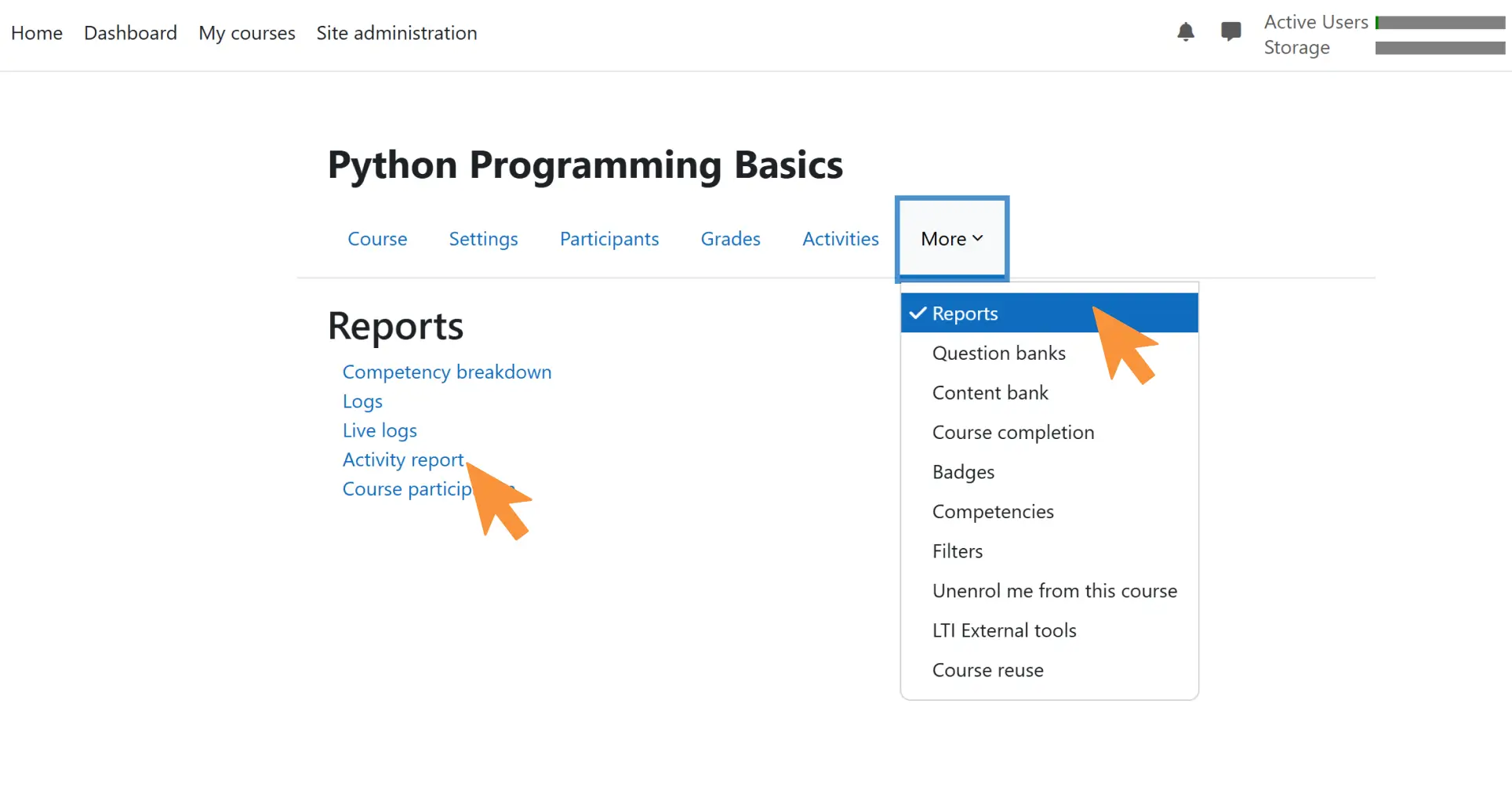
Step 1: Export your completion report from Moodle
Log in to your Moodle instance and navigate to the course you want to issue certificates for
Go to Reports → Activity report (or Course completion, depending on your Moodle version)
Filter for learners who have completed the course
Click Download and save the file as a CSV
The CSV should include at a minimum the learner’s name and email address. If you want to personalize certificates with the course title, completion date or other data, include those columns as well.
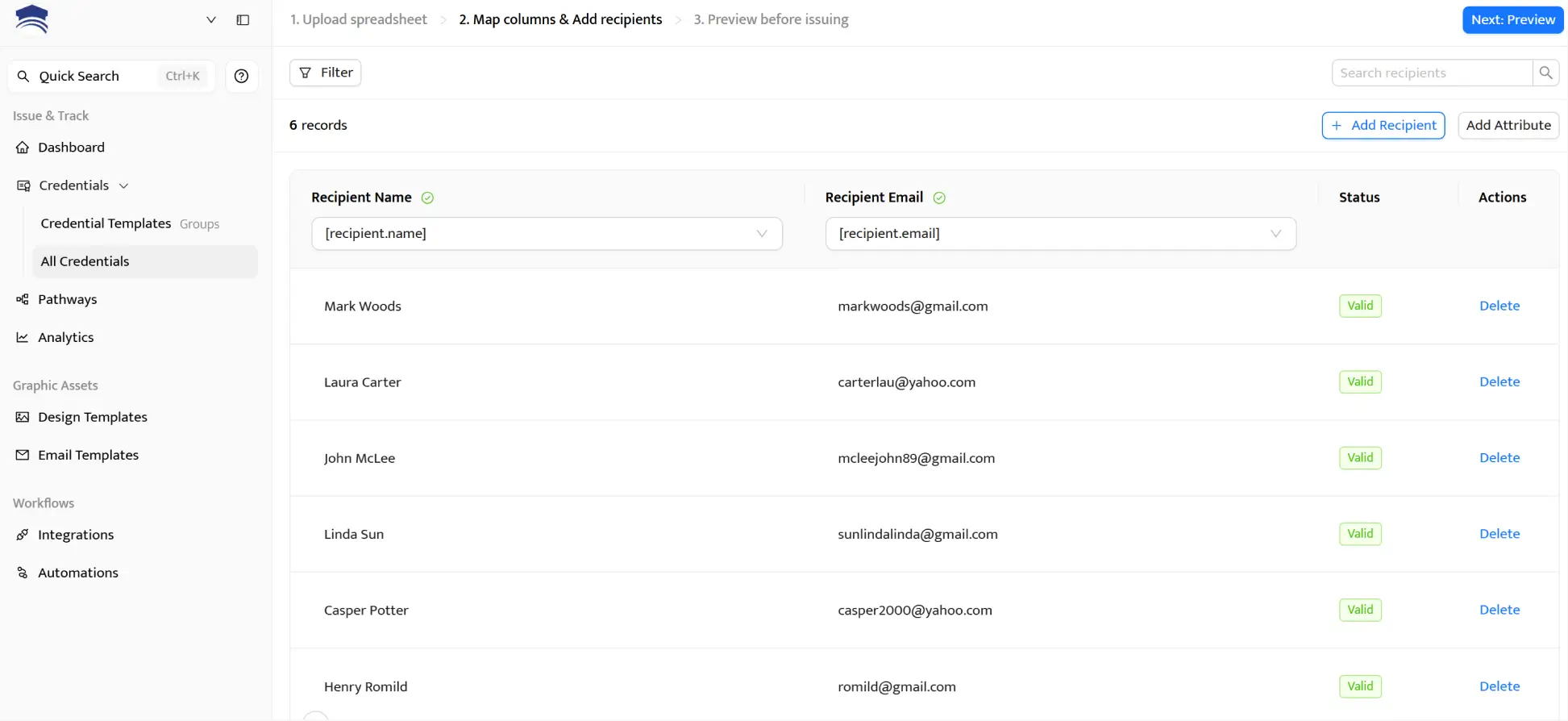
Step 2: Upload the CSV to Certifier
In Certifier, navigate to the credential group you created during the design phase
Click Issue Credentials and select Upload via spreadsheets
Map your CSV columns to the corresponding dynamic attributes on your certificate (name, email, course title, date)
Step 3: Review and issue
Certifier shows you a preview of the first few certificates before sending. Check that the dynamic fields are populated correctly and the design looks right. Then hit Issue Credentials.
Certifier generates every certificate, emails each learner a branded notification with a link to their digital wallet and records the issuance in your dashboard.
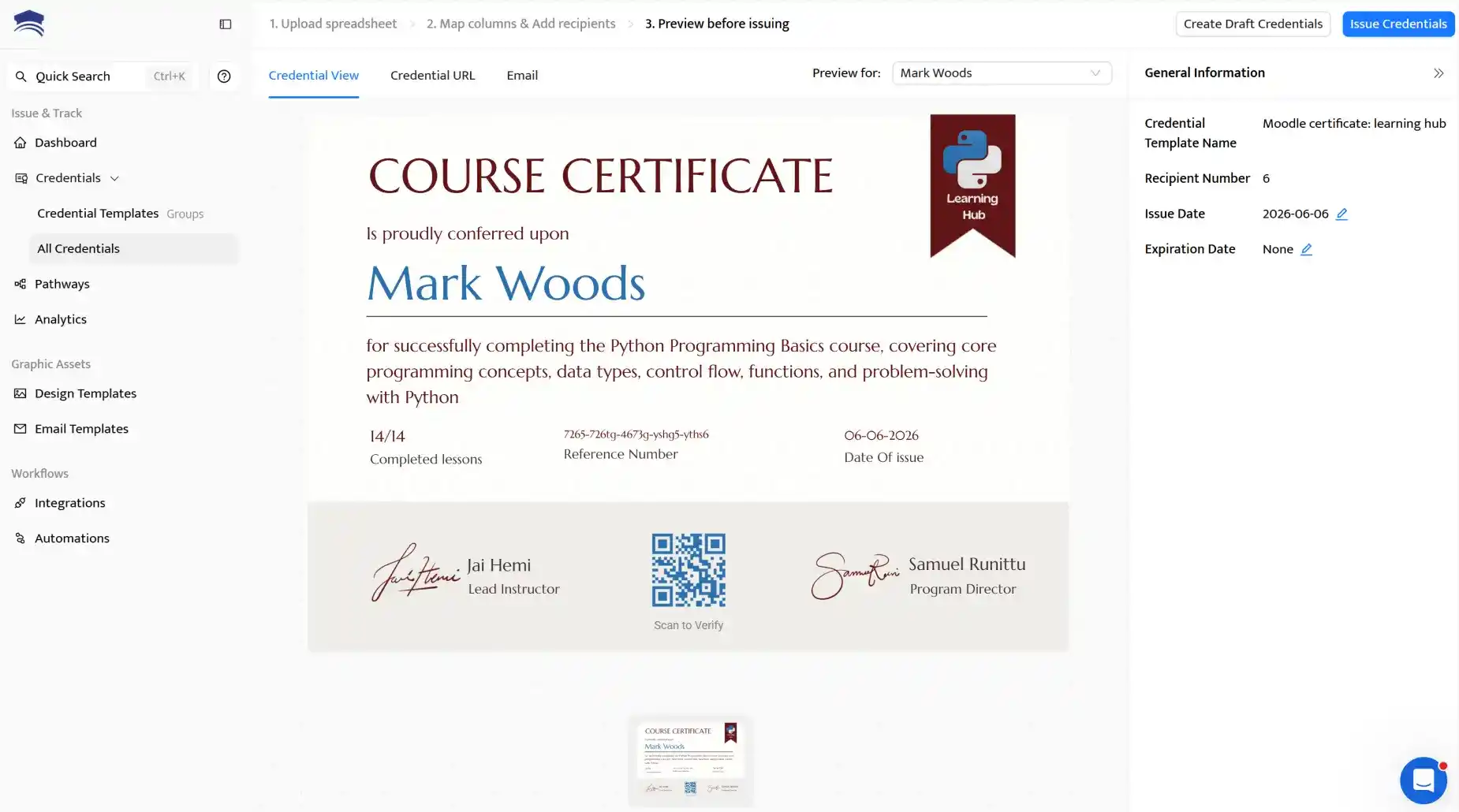
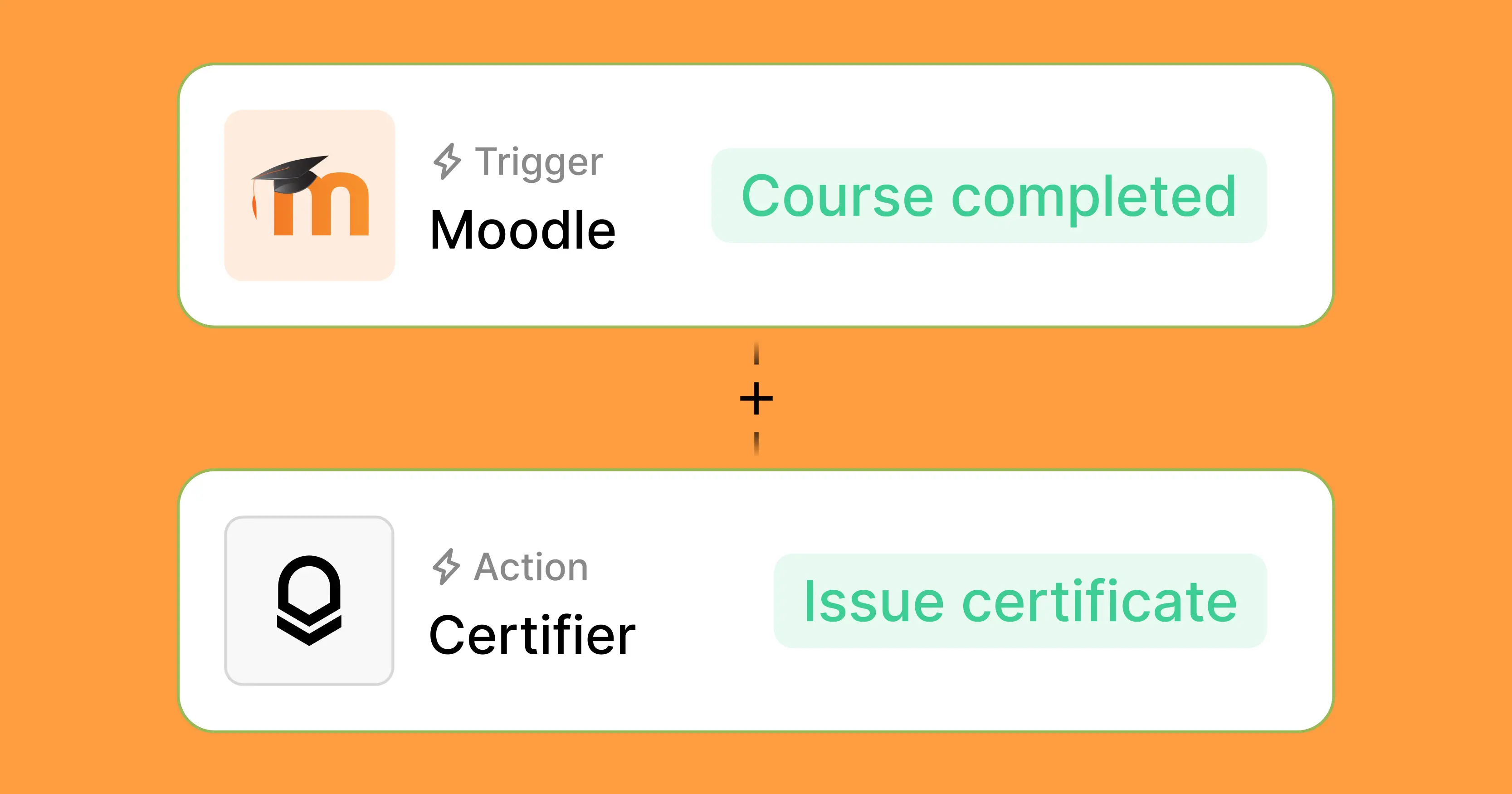
If you want certificates to fire automatically every time a learner completes a course, connect Moodle to Certifier through Certifier’s Zapier integration.
This is a set-it-and-forget-it approach. Once configured, every course completion triggers a certificate without any manual steps. Make is also supported as an alternative.
If you prefer watching over reading, see the video tutorial on how to connect tools using Zapier:
Step 1: Create a new Zap
Go to zapier.com and log in
Click + Create and then Zaps
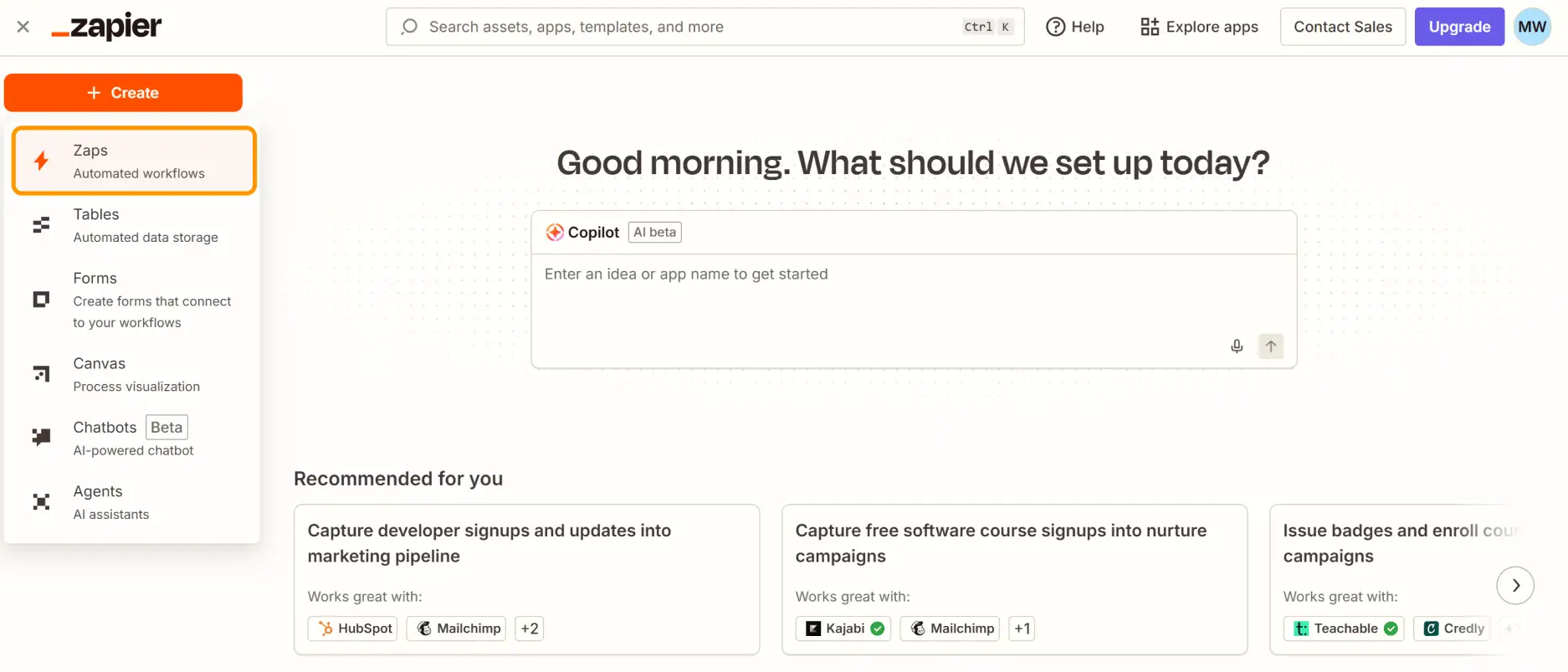
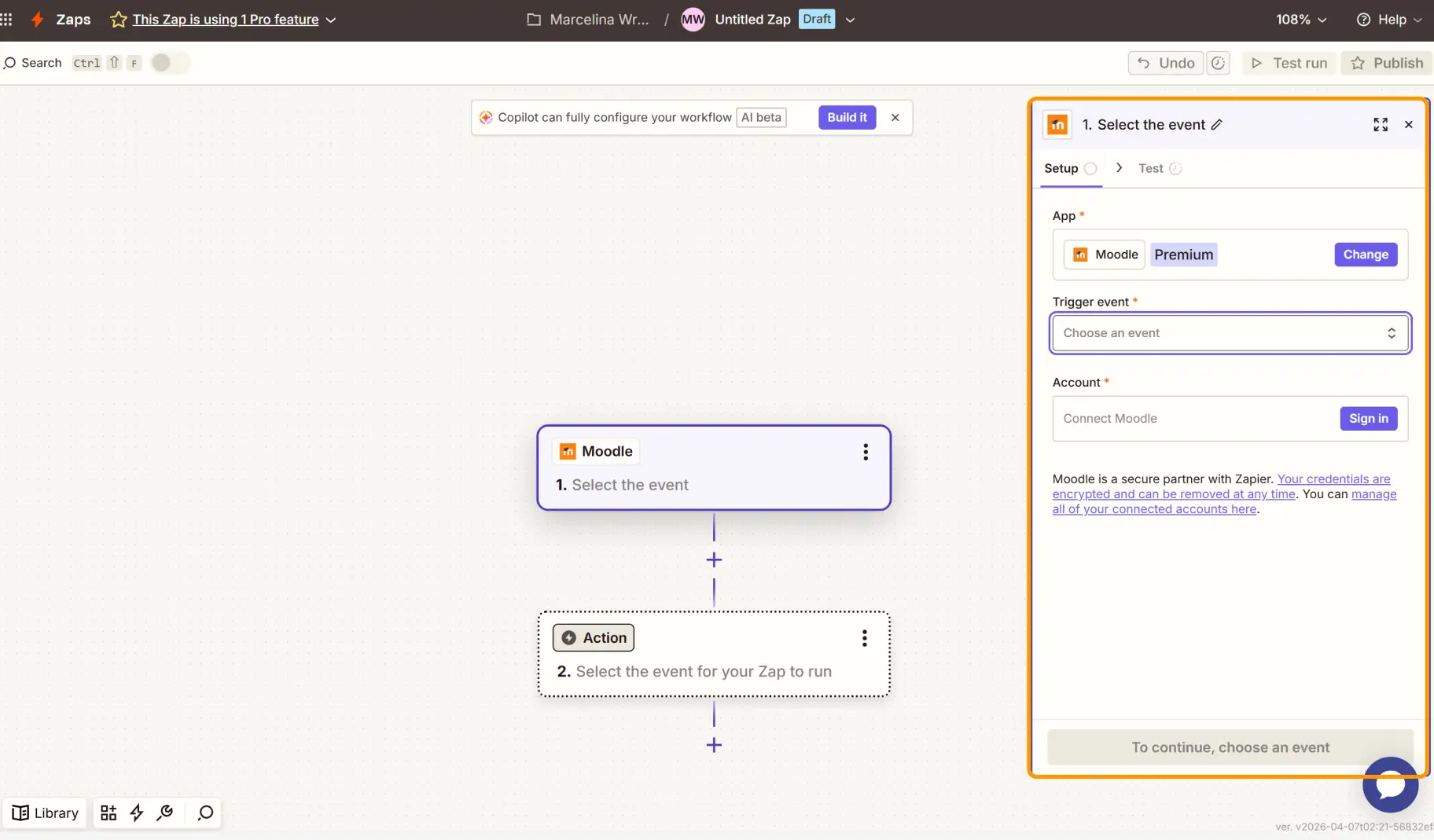
Step 2: Set Moodle as the trigger
Search for Moodle as the trigger app and connect your Moodle account. Please complete the CAPTCHA if prompted
Choose the trigger event: Course Completed (or the equivalent completion event in your Moodle-Zapier setup)
Connect your Moodle instance when prompted and select the course
This tells Zapier to monitor completions for that specific course. Every time a learner finishes, the Zap fires.
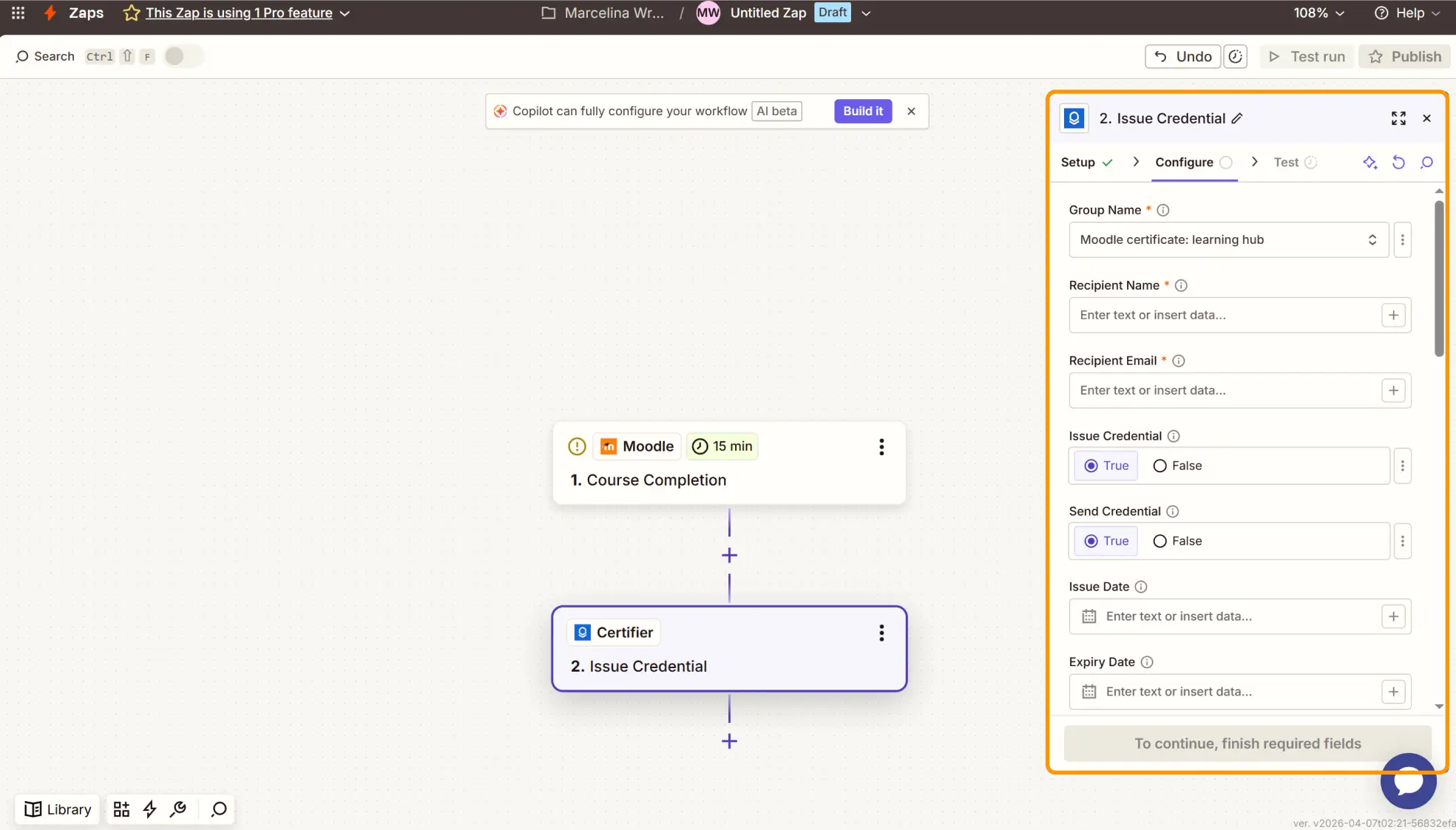
Step 3: Set Certifier as the action
Search for Certifier as the action app
Choose the action: Issue Credential
Connect your Certifier account and select the credential group
Step 4: Map the data fields
Match the Moodle data to Certifier’s certificate fields:
Recipient Name: map to the learner’s name from Moodle
Recipient Email: map to the learner’s email
Additional attributes: completion date and any other fields you added to your certificate design
Set both Issue Credential and Send Credentials to true.
Step 5: Test and activate
Complete the course yourself (or use a test account in Moodle). Zapier pulls the completion data and sends it to Certifier. Check your inbox–you should receive a fully branded, personalized Moodle certificate of completion within moments.
If the design looks right and the verification link works, turn on the Zap. Every future course completion triggers an automatic certificate.
Your workflow is set up and learners are receiving credentials. Here are a few ways to maximize the value and create the best possible experience.
The more polished and branded your certificate looks, the more likely learners are to post it on LinkedIn. Use your organization’s logo, color palette and a clean layout. Every share is free visibility for your courses.
Create separate credential groups in Certifier for each course or program. A compliance certificate should look different from a creative writing certificate. Each group can have its own template, automation and branding.
For professional development, compliance or industry certifications, set expiration dates on credentials. Learners get automatic reminders before their certificate expires, making re-enrolment frictionless.
Use Certifier’s analytics to see which courses generate the most certificate downloads and LinkedIn shares. This data helps you understand where to invest in content and promotion.
Add a line to your course descriptions: “Receive a verified, shareable certificate of completion.” For many learners, this alone can tip the decision to enroll.
Your Moodle courses deliver real learning outcomes. The certificates your learners receive should reflect that quality – not the limitations of a plugin editor.
Certifier works alongside Moodle without adding complexity. No plugin to install, no server changes, no PHP. Just design your certificate, connect your Moodle data and let Certifier handle generation, delivery and verification. Your first 250 credentials are free–create your account and get started.
Here are the questions we hear most from Moodle administrators, instructors and course creators.
Natively, you need to install the Custom Certificate plugin (mod_customcert), configure activity completion, design the template in a basic editor and link it to your course.
With Certifier, you skip all of that: design in a visual editor with live preview, upload a CSV or connect via Zapier and issue Moodle course certificates without installing a plugin.
Not out of the box. Moodle requires a community plugin for certificate generation. The most popular option is the Moodle custom certificate plugin, which is free but limited in design, verification and scalability.
Certifier provides a more professional alternative that works alongside Moodle without modifying it.
With the native plugin, each learner must log into Moodle, navigate to the course and click “View Certificate” to trigger generation.
With Certifier, Moodle course certificates are either issued in bulk via CSV upload or sent automatically via Zapier when a learner completes the course.
The native Moodle custom certificate plugin displays a verification code, but checking it requires a specific URL and sometimes a login.
Certifier provides a public verification page, unique credential ID and scannable QR code on every certificate. Anyone can verify authenticity with a single click or scan.
No. Certifier is entirely cloud-based. You connect it to your Moodle data either by exporting a CSV from Moodle’s completion report or by setting up a Zapier automation. Nothing gets installed on your Moodle server.
Yes. Certifier’s free Starter plan includes 250 credentials per year with full access to design tools, verification, social sharing and the Zapier integration. If your program grows beyond that volume, paid plans scale smooth
Open the Custom Certificate activity, go to Edit custom certificate, click the text element and change the wording, size, font or alignment. To move the text, use Reposition elements and drag it where you want. There’s no live preview, so every change requires generating a new PDF to check the result.

- SaaS Growth
- Digital Credentials
- APIs
- Product Marketing
- Company Operations
CEO and Co-Founder
Sergey is CEO and Co-Founder of Certifier, a Forbes 30 Under 30 honoree building digital credential infrastructure for 2,000+ organizations worldwide and shaping the future of credentialing.