

Trusted by:
University of Southern California
Warner Bros.
Volvo
Amazon
Stanford University
Updated: October 19, 2026
8 min read
SurveySparrow scores your quizzes but can’t issue certificates. Connect Certifier via Google Sheets and automatically send branded, verifiable credentials to every respondent.
Research with AI:
SurveySparrow is excellent at what it does: collecting responses and scoring quizzes. But when a respondent completes your assessment, their experience stops at a Thank You page. There’s no built-in way to generate a SurveySparrow certificate of completion and send it to the respondent.
For course creators, that’s a missed opportunity. A professional certificate turns a quiz result into tangible proof of achievement, something the respondent can showcase publicly and drive more attention to your program.
Certifier is an accessible, simple solution for this. You can easily integrate SurveySparrow with Certifier via Google Sheets.
Follow along this guide to explore the full setup–from designing your certificate to automating delivery. No Zapier subscription, no custom code, no middleware needed.
Prefer an even simpler setup? Certifier now offers its own native Forms feature, so you can build the form and issue the certificate without connecting SurveySparrow at all.
SurveySparrow can’t generate or send certificates natively–quiz results stay on a Thank You page with no credential attached.
Certifier connects and delivers certificates in minutes via Google Sheets–SurveySparrow sends responses to a sheet → Certifier monitors the sheet → certificates are issued automatically.
Every certificate includes a unique ID, QR code and verification page–recipients can verify, download and share credentials on LinkedIn.
The free plan includes 250 credentials per year with full access to design tools, verification, social sharing and automation.

SurveySparrow works well for collecting responses, scoring quizzes and exporting results. But when it comes to certificates, there is still a gap. SurveySparrow doesn’t provide a native certificate solution.
For most users, this gap creates a manual bottleneck. If you want to issue certificates, you’re often forced to manually copy-paste data into templates or use complex workarounds that are either too pricey or fail to produce the professional, share-worthy credential you aim for.
Here is where SurveySparrow falls short for certificate workflows:

No automated certificate issuance: quiz completions stay in SurveySparrow unless you move the data somewhere else
No built-in credential delivery flow: respondents do not receive a certificate in their inbox
No simple end-to-end process: alternative certificate issuance methods often rely on manual design edits, document tools or paid automation layers that still do not create a proper digital credential
So, instead of wasting hours (and money) on administrative tasks, you can provide participants with a professional SurveySparrow quiz results certificate automatically.
The moment a user completes your module, Certifier triggers the workflow to issue and send the credential.
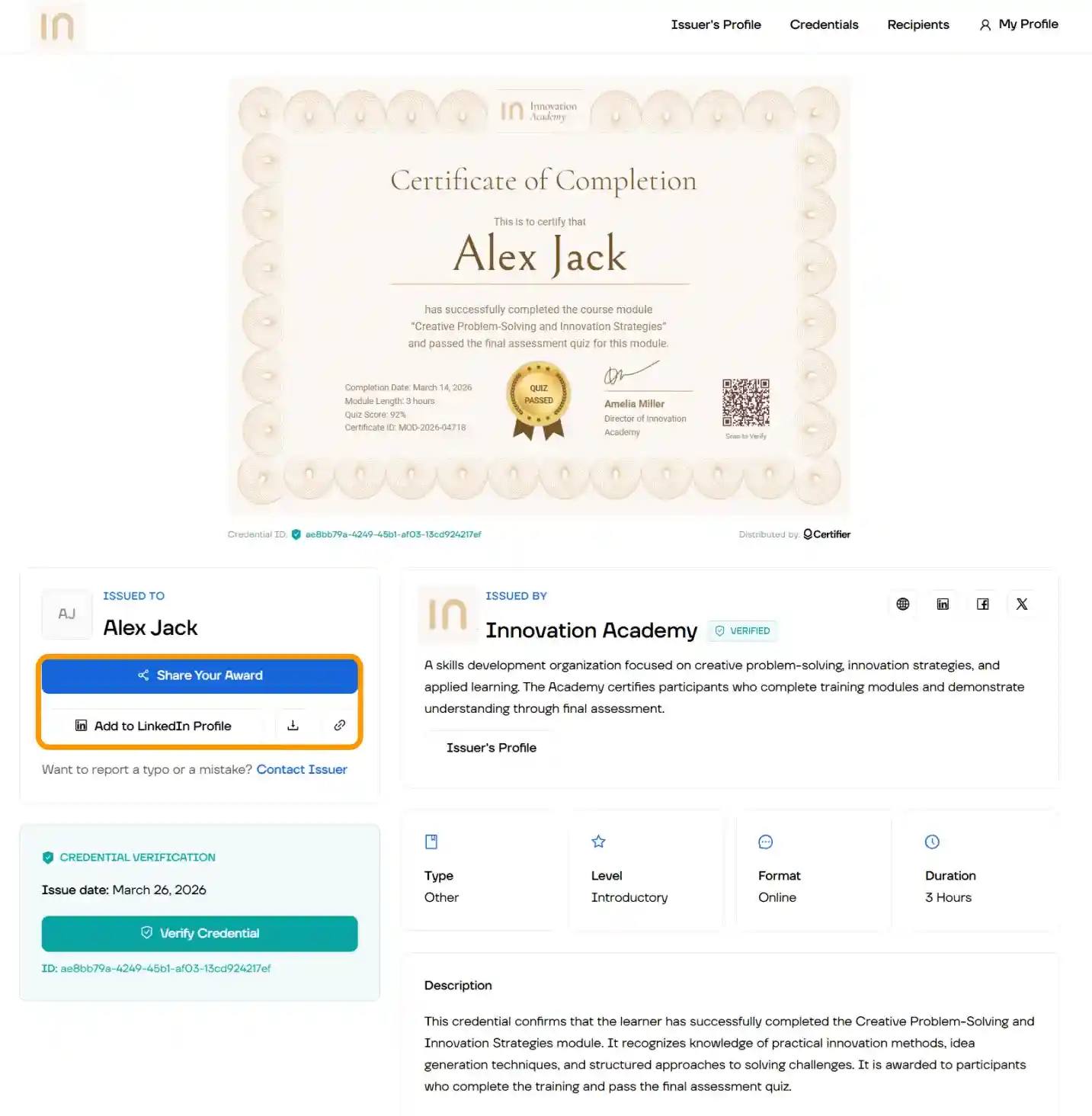
Take a look:
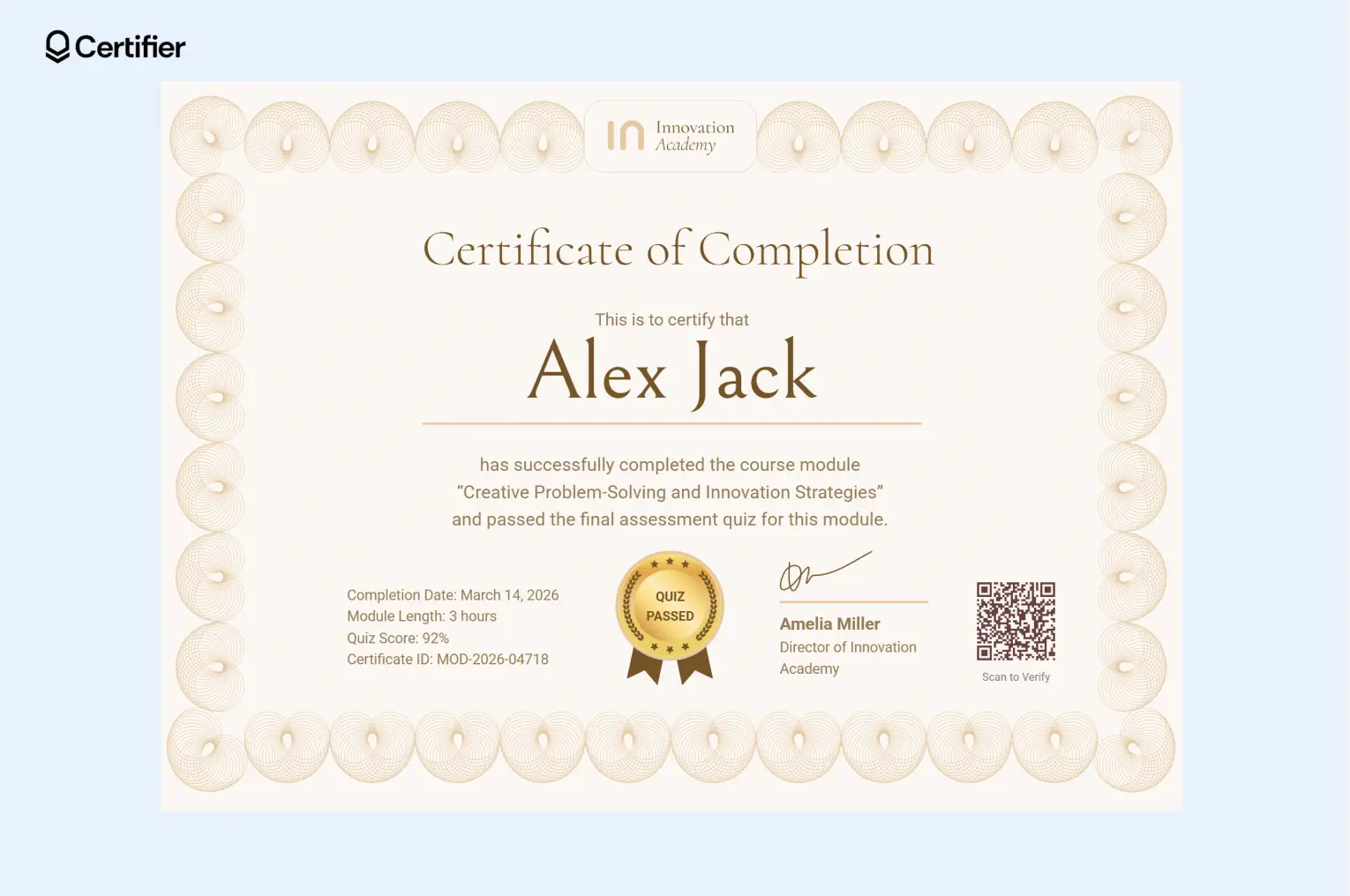
A certificate like this is a great way to provide quiz completion value, as a branded credential serves as proof of achievement that respondents can keep and proudly share on their professional platforms.
This setup is simple because it uses Google Sheets as the bridge between both tools. SurveySparrow sends each new response to a connected spreadsheet and Certifier monitors that sheet for new rows.
When a new row appears, Certifier issues the credential automatically. That is the core of the workflow.
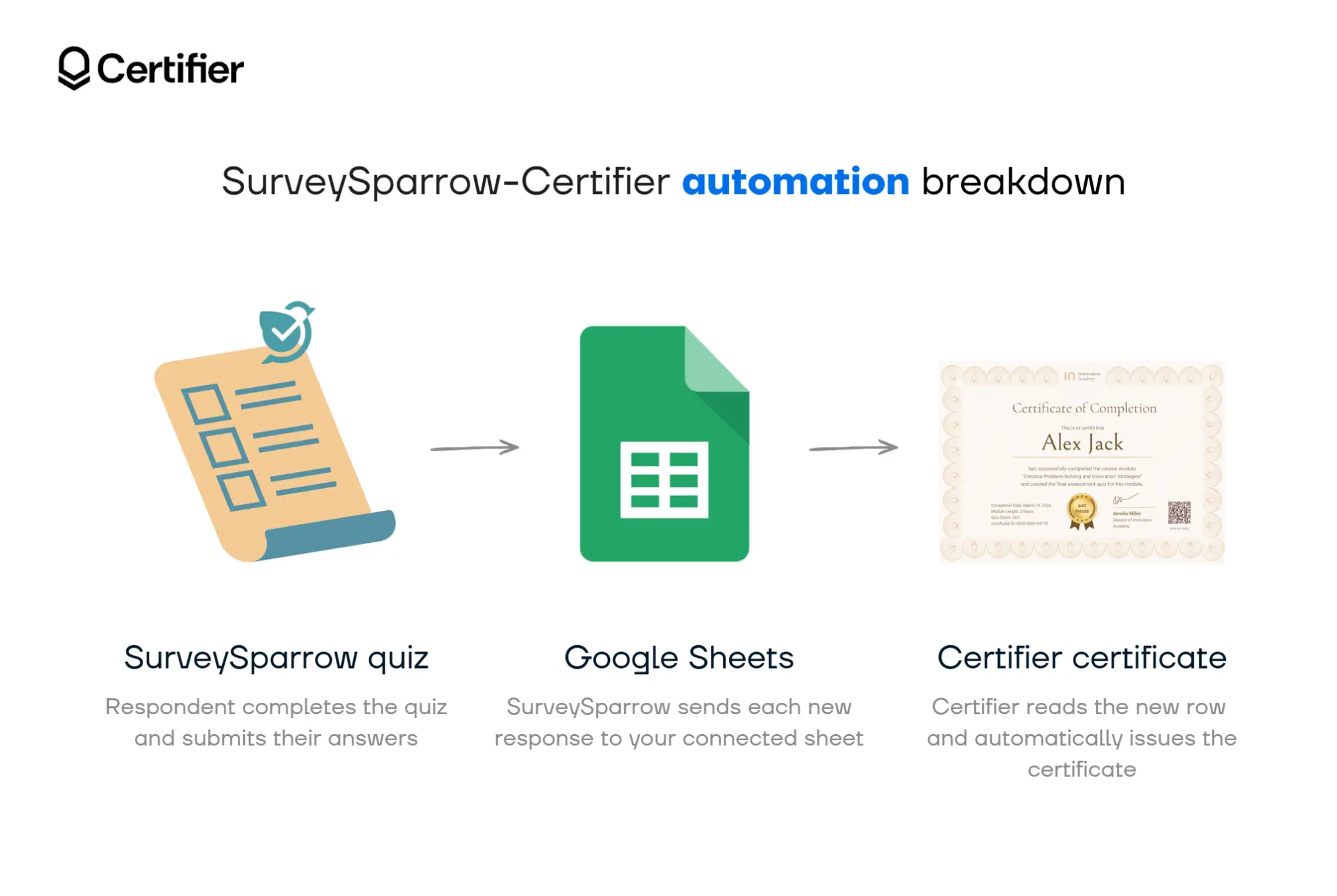
The process looks like this:
A respondent completes your SurveySparrow quiz or survey
SurveySparrow sends the response data to Google Sheets
Certifier detects the new row and issues a certificate using the mapped fields
That is why this integration is easy to maintain. You do not need custom code and Certifier describes its automations as a built-in flow that works through spreadsheets such as Google Sheets.
Now that you see how our simple yet effective integration works, end, let’s look at what actually changes when you connect Certifier:

Automated certificate issuance and distribution. Every SurveySparrow integration sends new quiz responses to Google Sheets, where Certifier automatically creates and emails a personalized SurveySparrow quiz results certificate.
Professional, branded design. Use Certifier’s drag-and-drop visual editor to customize every SurveySparrow certificate of completion template with your logo, brand colors, fonts and layout.
Built-in verification. Each SurveySparrow certificate online includes a unique credential ID, QR code and verification page so anyone can confirm it is authentic.
White-label email delivery. Every SurveySparrow certificate is sent from your branded email domain, creating a seamless and professional recipient experience.
Analytics and engagement tracking. Certifier shows who received, opened, downloaded and shared each certificate, helping you improve your SurveySparrow certificate workflow.
Before connecting SurveySparrow to anything, let’s create the certificate your respondents will receive.
Certifier is certification management software equipped with design tools. They’re super intuitive, so don’t worry if you’ve never designed a certificate before. You’ll have a polished, branded SurveySparrow certificate sample ready in minutes.
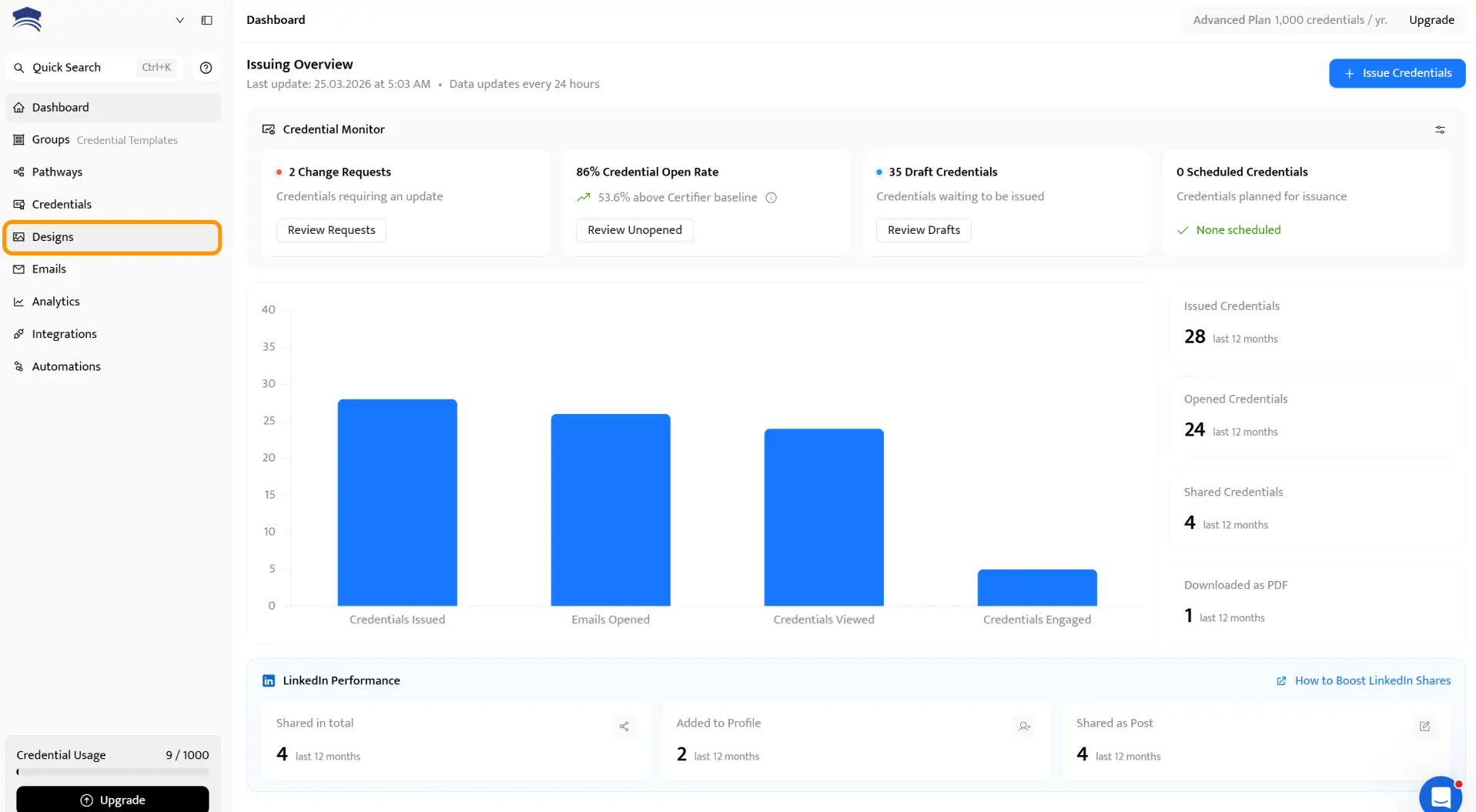
Head to Certifier and sign up for free, it takes about a minute. Once inside, navigate to the Designs tab.
Browse the template library and filter by category: course completion, training, achievement and more.
Every template is fully editable and available on the free plan. You’ll find styles that work for compliance certificates, quiz achievements, event attendance and more.
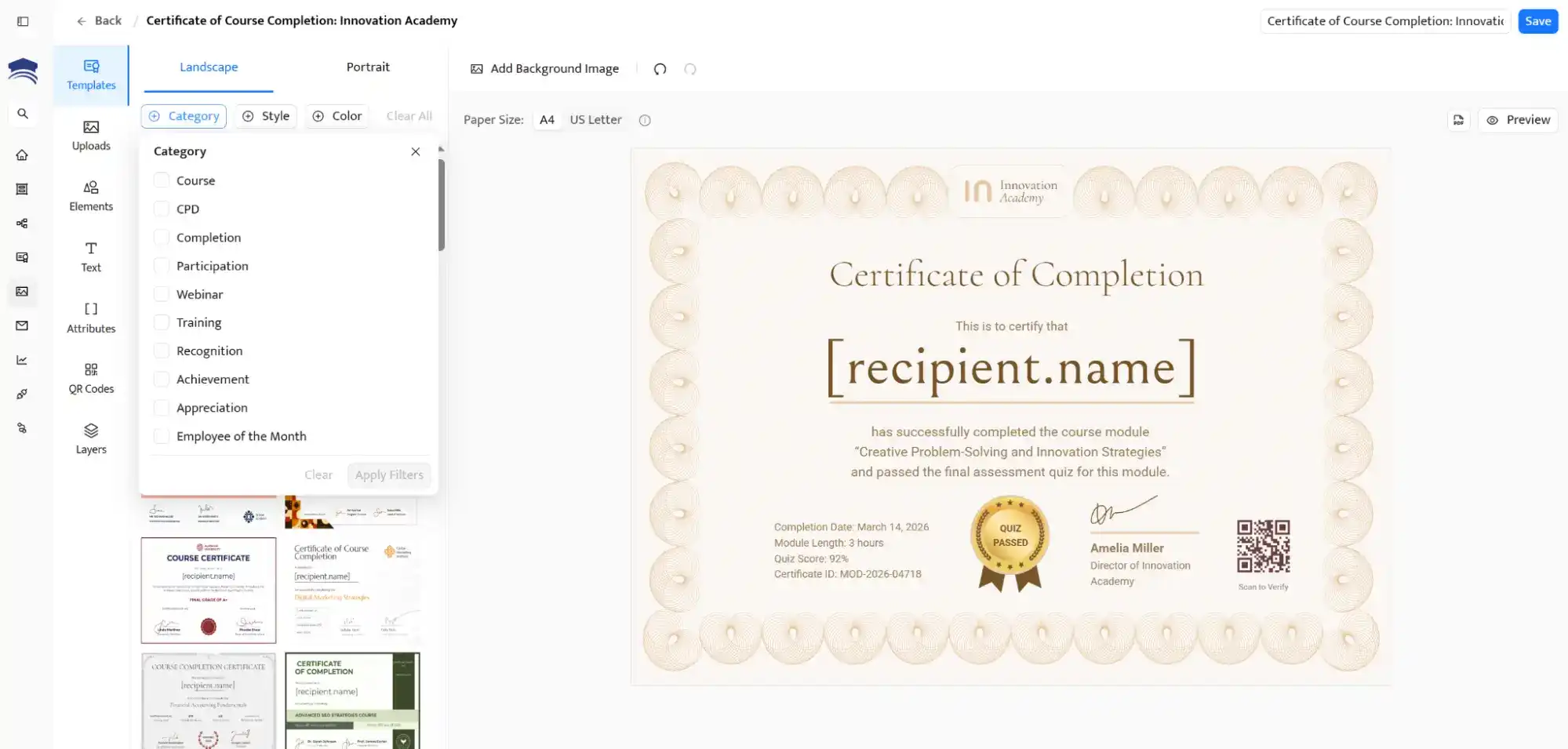
Open your template in the drag-and-drop editor:
Upload your logo and position it wherever you like
Set brand colours and fonts to match your organization’s identity
Edit text blocks: certificate title, subtitle, issuer details
Add visual and verification elements like QR code, certificate ID, stamps or signature images
Dynamic attributes are placeholders that auto-fill with each respondent’s data when the certificate is issued. Insert fields for the recipient’s name, quiz title, score, completion date and unique certificate ID.
When SurveySparrow data flows through Google Sheets, these fields populate automatically.
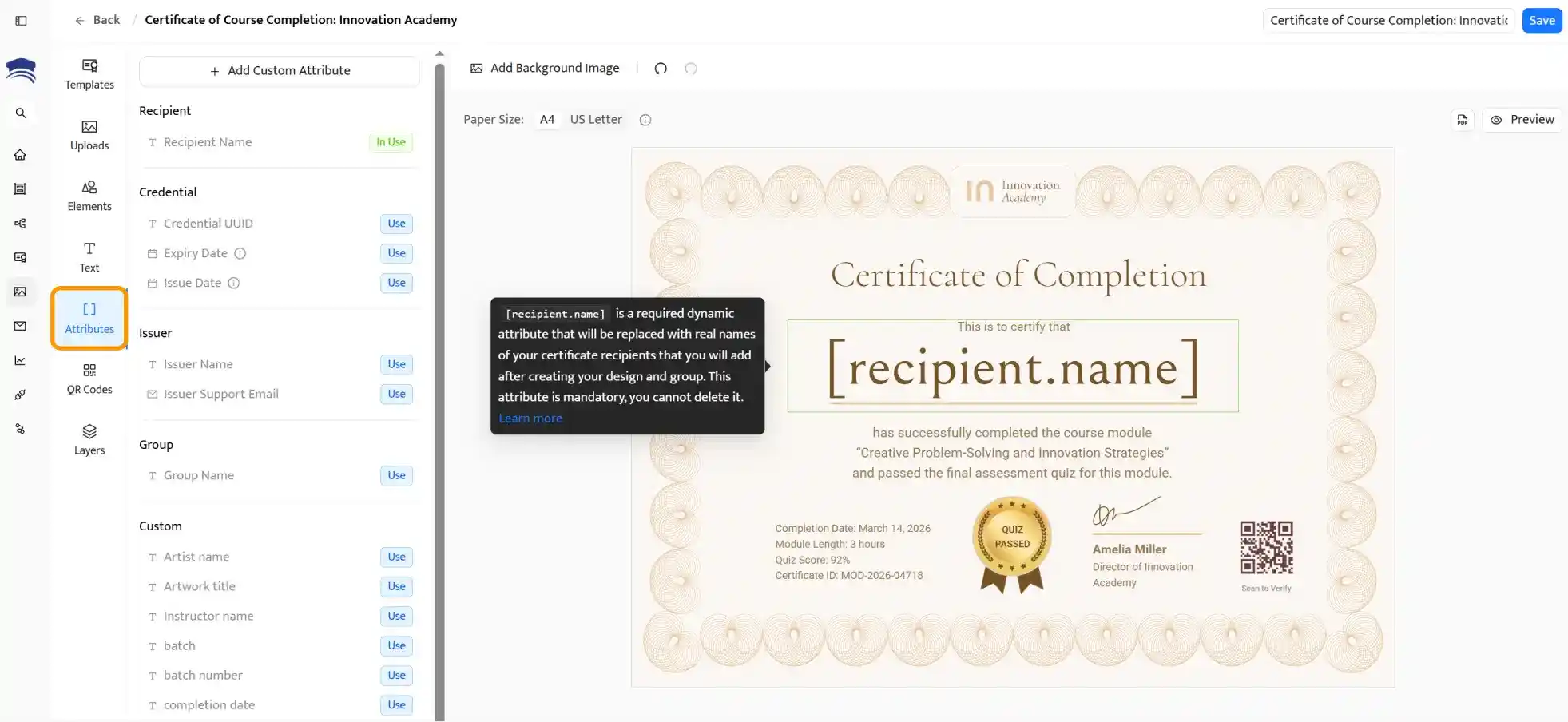
Save your design and create a credential group. This links your certificate template to a specific automation–you’ll reference it when setting up the Google Sheets connection in the next section.
Need more details? Read our guide on how to create a digital certificate.
This is where it all comes together. The automation runs through Google Sheets, a tool SurveySparrow already integrates with natively.
If you’re already sending responses to a spreadsheet, you’re halfway there. Certifier’s Sheets-powered automation monitors the sheet and issues certificates for every new row. No middleware, no code.
We've also recorded a video tutorial for those who prefer watching over reading:
But we'd suggest staying right here — the process below will take you from setup to your first automated certificate in just a few steps:

Open your SurveySparrow quiz and go to Integrate → Integrations
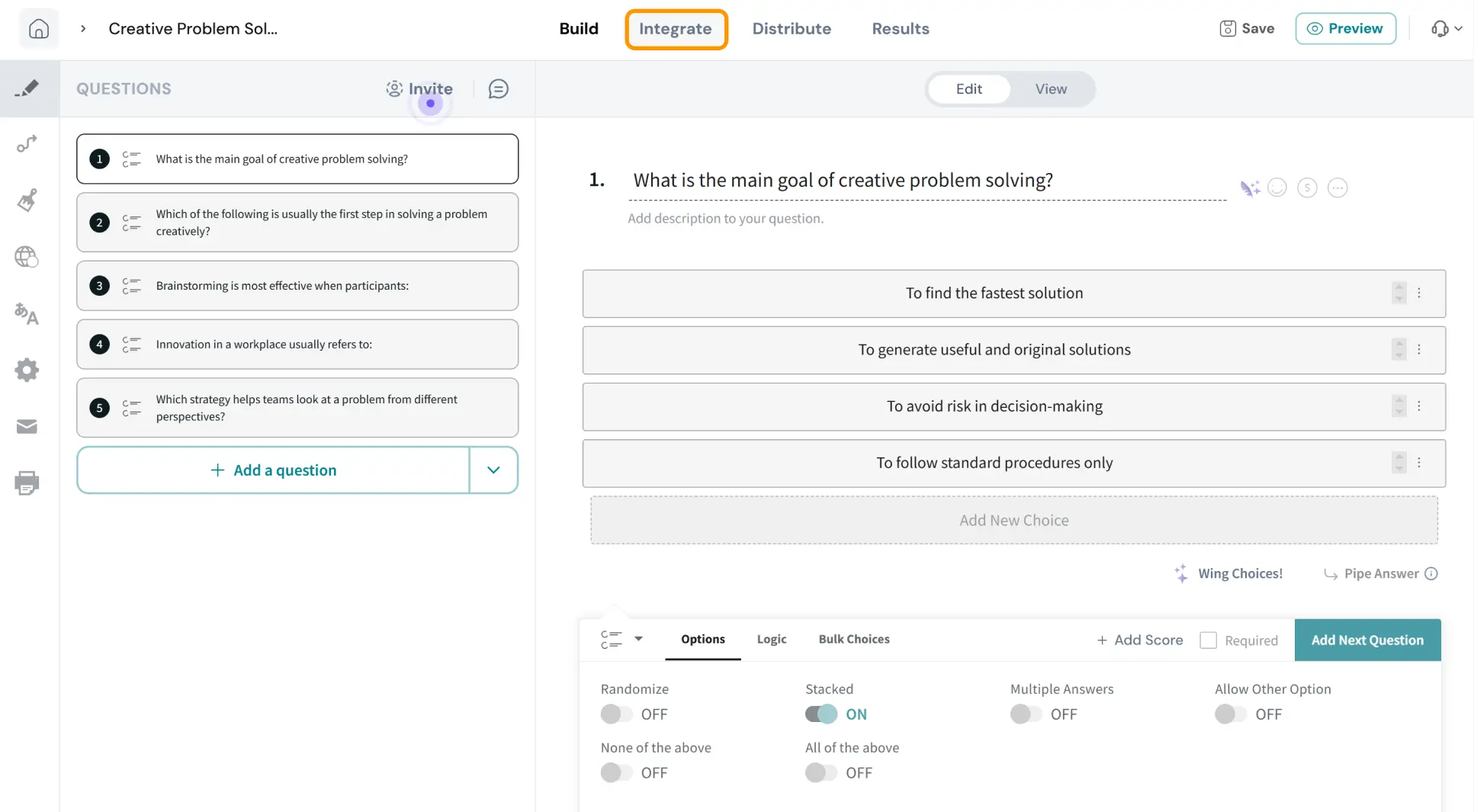
Find and select the Google Sheets integration
Authorize your Google account when prompted
Choose Create New Sheet and give it a name
Toggle Response Import Settings on and set it to only import responses from today forward
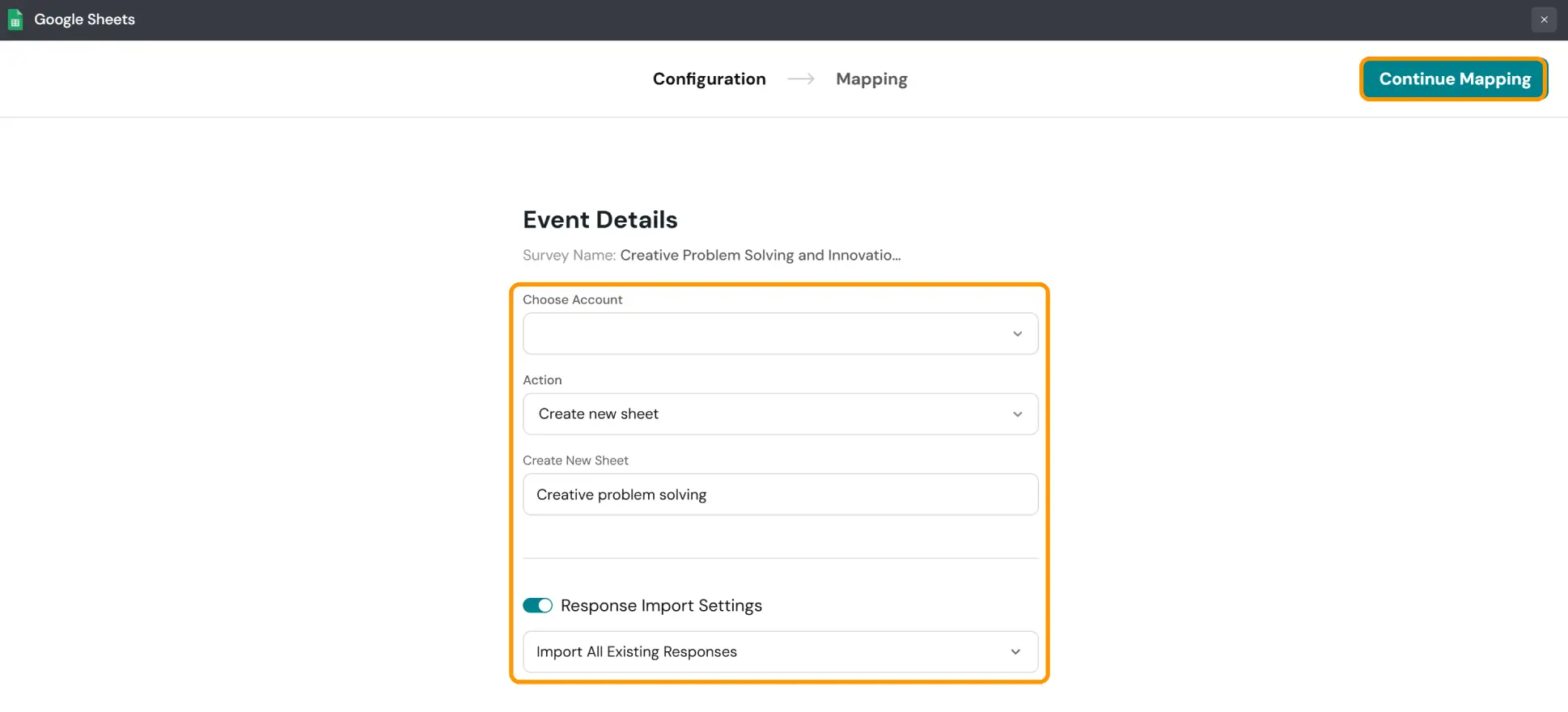
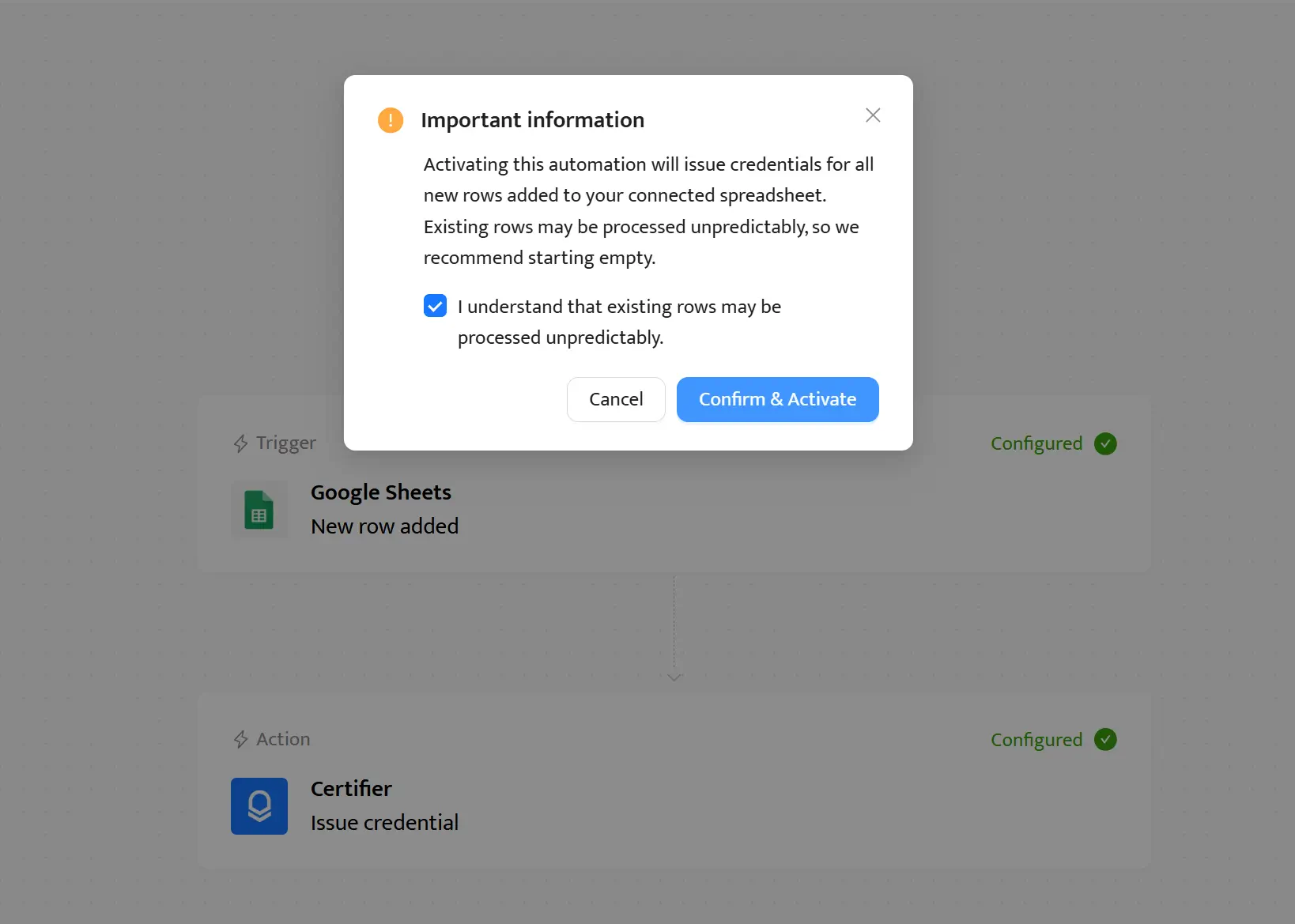
Important: If your quiz already has responses, set the import start date to avoid processing old data. Certifier will issue certificates for every row that appears in the sheet after activation.
SurveySparrow will ask which fields to send to the Google Sheet. At minimum, include the respondent’s name and email. If you want to personalize certificates with quiz title, score or completion date, map those fields as well.
Click Continue Mapping
Select the data fields you want to send to Google Sheets
Press Save Mapping to activate the connection
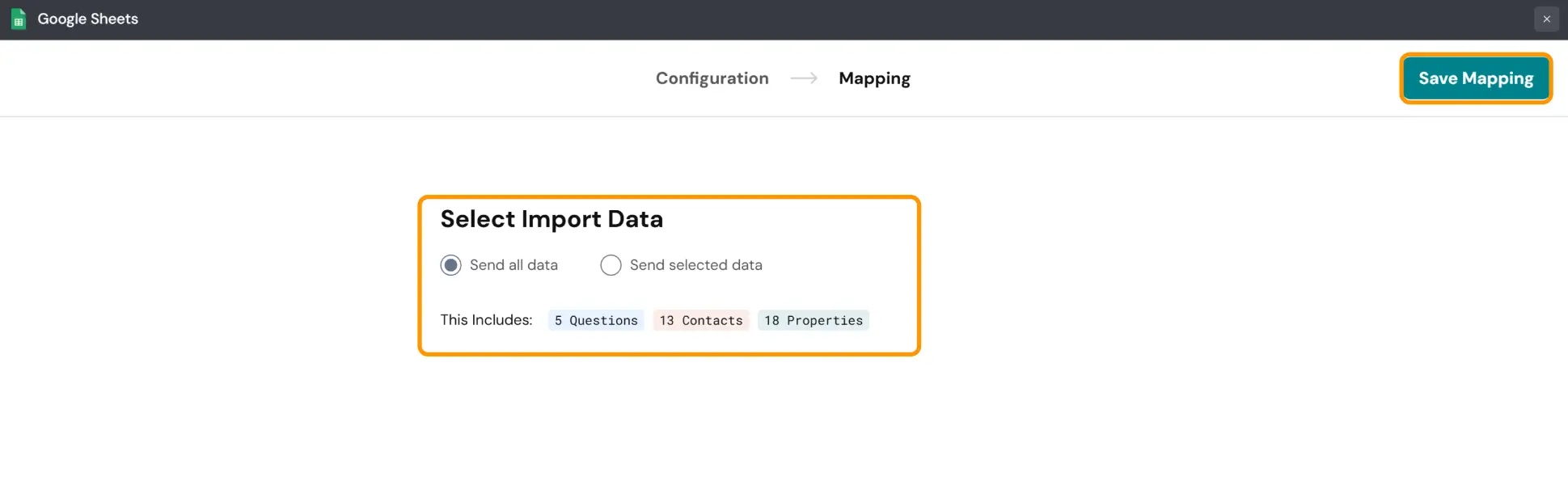
At this point, every new quiz submission will create a row in your Google Sheet automatically.
Now connect Certifier to the same Google Sheet. In your Certifier dashboard, go to Automations → + Create Automation and select the SurveySparrow template. For a full walkthrough of Certifier’s automation system, see the guide to automations.
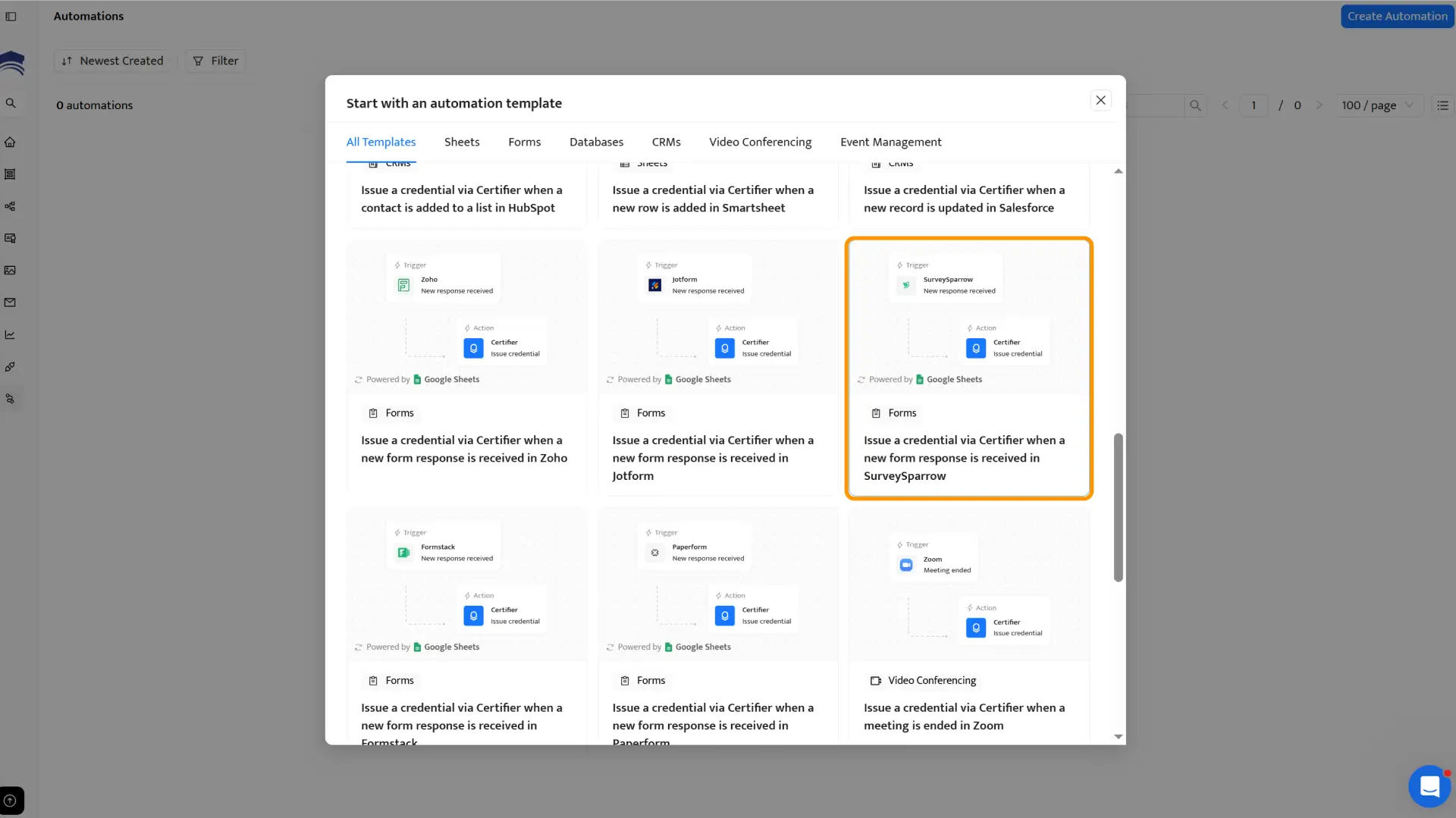
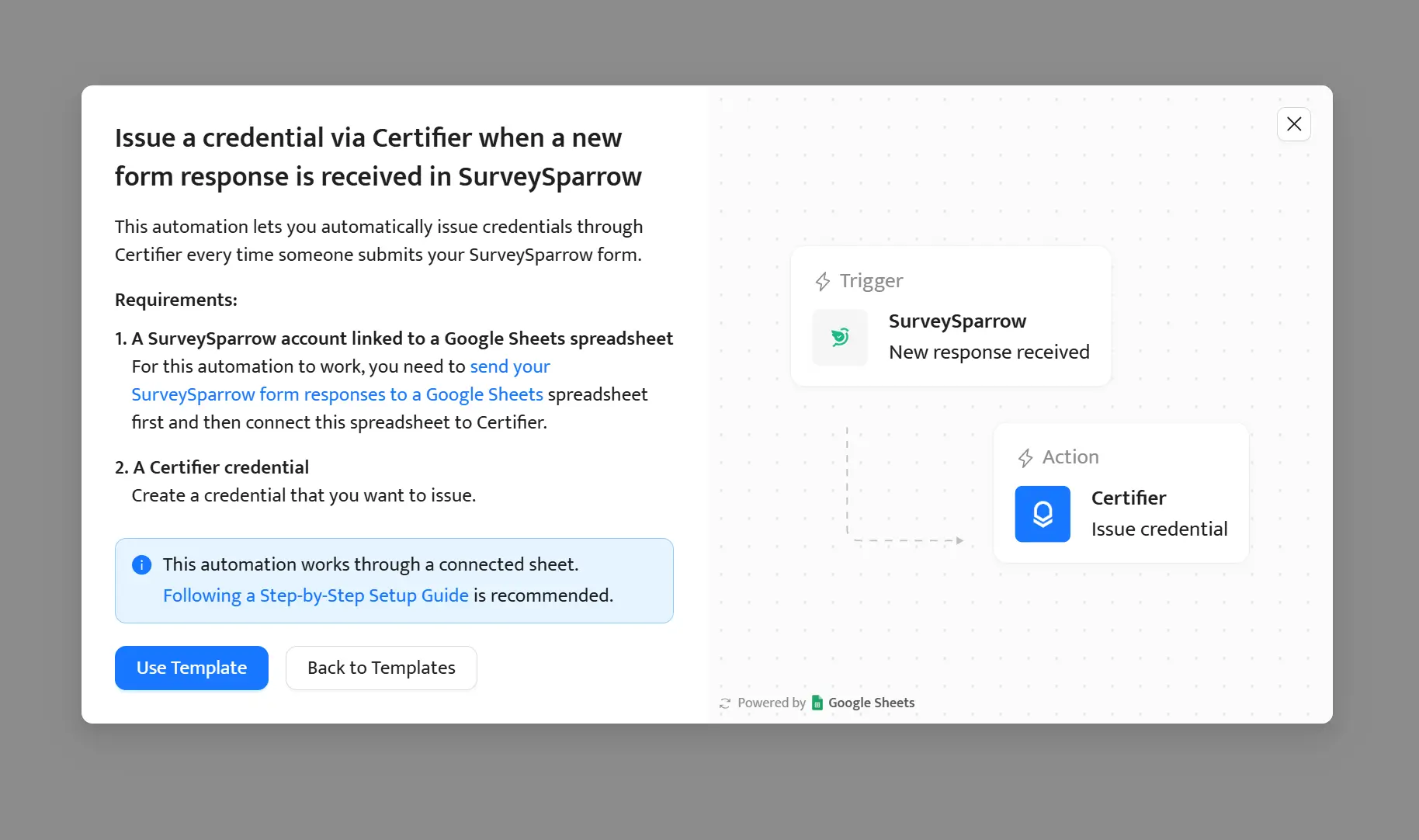
Click Use Template
Configure Google Sheets when prompted and click Submit
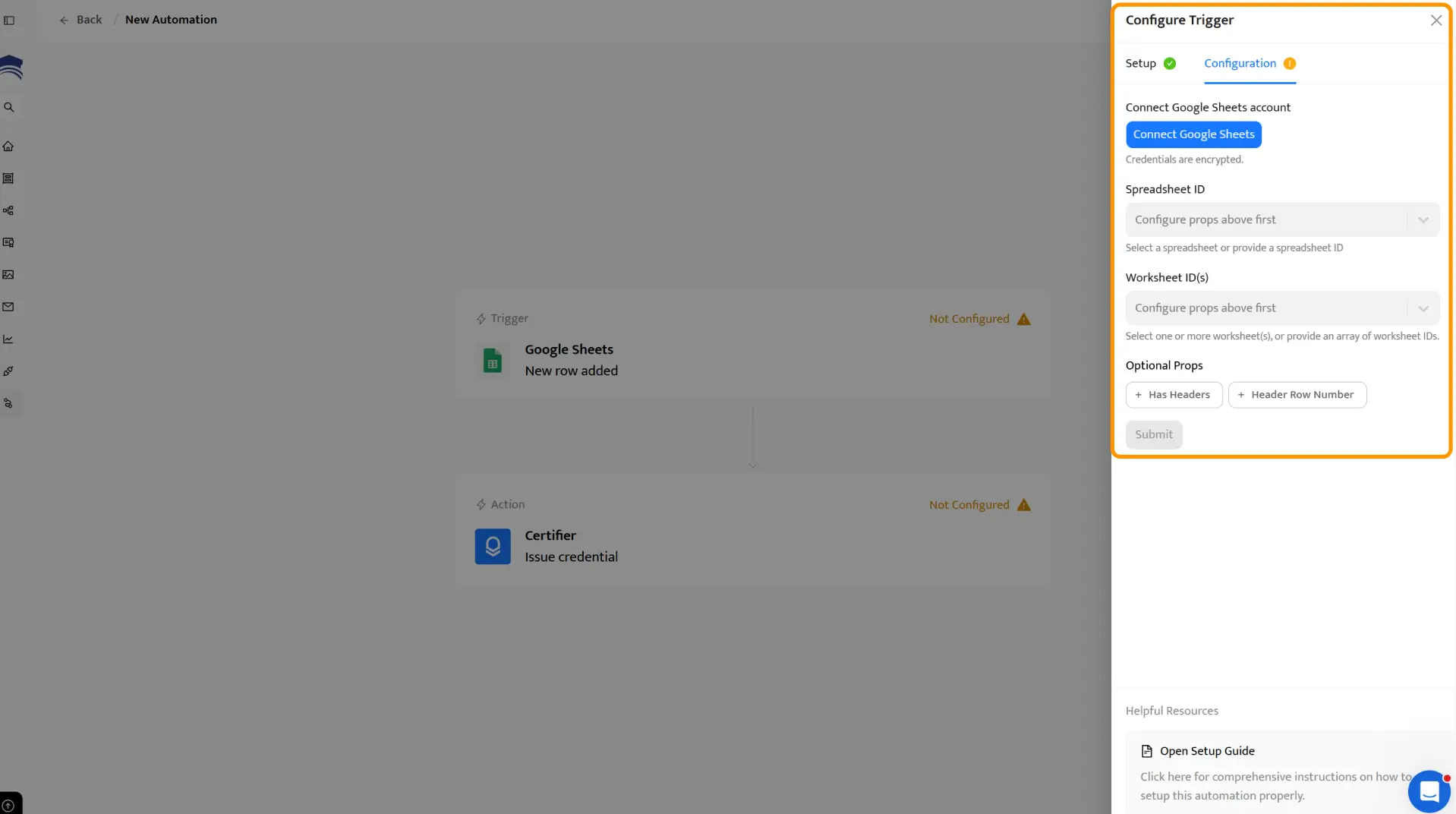
Once set, go to the Action window
Choose Certifier in the App field
Go for Issue credentials and click Continue
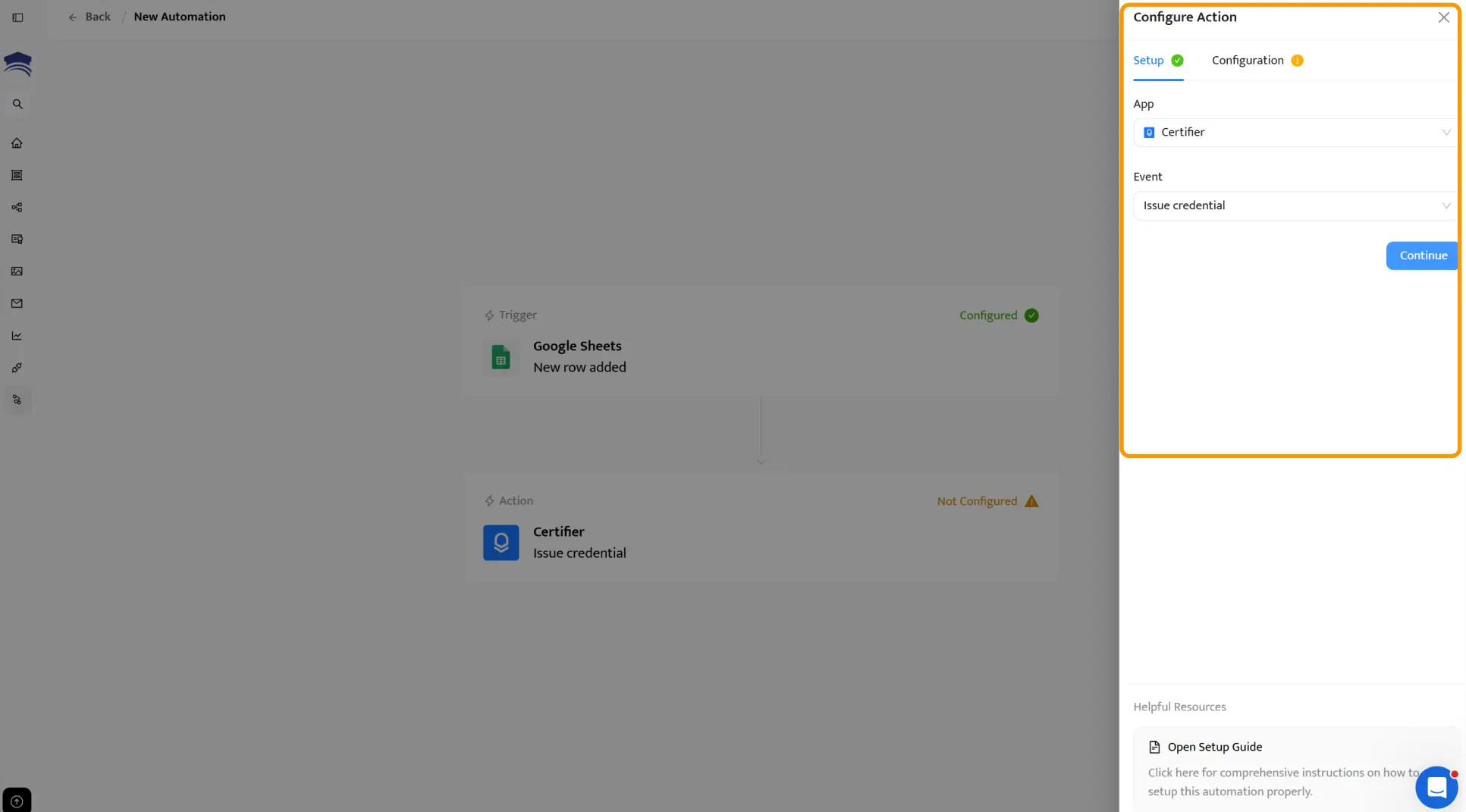
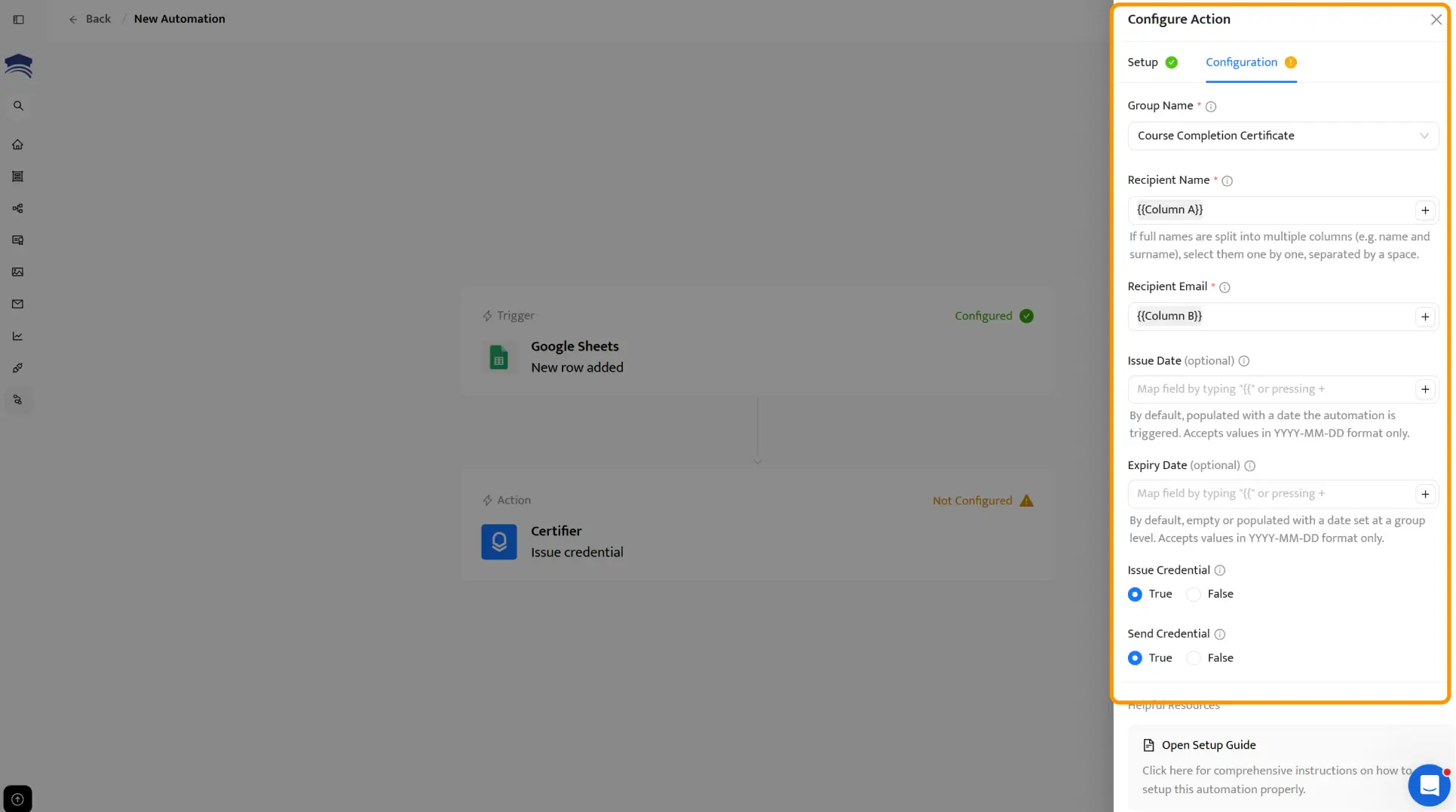
Choose the Group Name
Map column with Recipient Name and Recipient Email
Map the rest field like Issue Date or Expiry Date when needed
When set, choose Continue
Next, click Save & Activate in the upper right-hand corner and Confirm & Activate on the pop-up window
Turn on the automation, then submit your SurveySparrow quiz yourself (or use a test respondent). Within moments, a new row should appear in Google Sheets and Certifier should issue a certificate to the test email address.
Check that the dynamic fields are populated correctly, the design looks right and the verification link works. If everything checks out, your automation is live. Every future quiz completion triggers an automatic SurveySparrow certificate.
For more ways to connect Certifier with your existing tools, explore the full Certifier integrations library.
With the automation running, let’s look at the experience from the respondent’s side. This matters because the moment someone finishes your quiz is a peak engagement point and a professional certificate turns that moment into something shareable and lasting.
The moment their quiz response reaches Google Sheets, Certifier generates a personalized certificate and sends a branded email to the respondent. The email comes from your custom sending domain, not a generic notification from a tool they’ve never heard of.
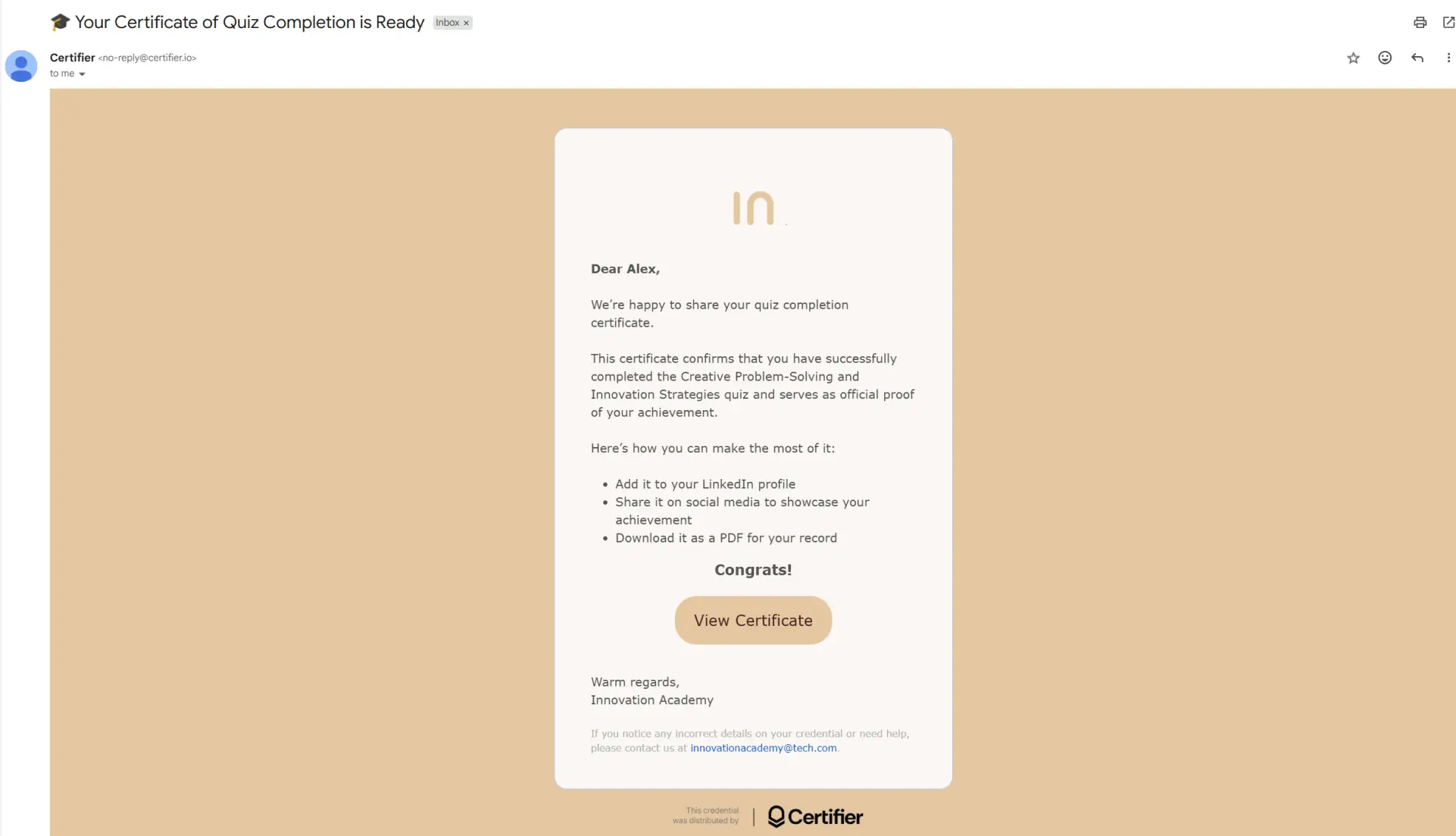
Every respondent has access to a digital wallet where their certificate is stored. From there, they can download the SurveySparrow certificate of completion as a PDF, view the verification page or share it directly.
Recipients can share their certificate to LinkedIn with a single click. Every share includes a link to the verification page, so their network can confirm the credential is authentic. For training programs and certification exams, this organic visibility is invaluable.
Your automation is live and respondents are receiving credentials. Here are a few ways to maximize the value of the integration.
The more polished and branded your certificate looks, the more likely respondents are to post it on LinkedIn. Use your organization’s logo, color palette and a clean layout. Every share provides free visibility for your certification programs.
If your SurveySparrow quiz generates a score, map it to a dynamic attribute on the certificate. A visible score adds credibility and differentiates high performers – respondents are more likely to share a certificate that shows they passed with a strong result.
Each SurveySparrow quiz can write to a different Google Sheet and each sheet can connect to a different Certifier automation with its own certificate design. A compliance certificate should look different from a workshop attendance credential.
If you use other survey tools alongside SurveySparrow, Certifier has similar integrations for issuing SurveyMonkey certificate and generating certificate with Typeform. The setup is nearly identical for each.
For more valuable tips on building a credential, read our article about the top certificate design principles.
Your SurveySparrow quizzes are already collecting the data. Respondents are finishing assessments, passing exams and completing knowledge checks. The only thing missing is a credential that makes those results visible and verifiable.
Certifier adds that layer without adding complexity. Connect it through Google Sheets, design your certificate and let the automation handle the rest. Your first 250 credentials are free. Sign up for Certifier and get started.
Here are the questions we hear most from SurveySparrow users looking to add certificates to their quizzes and assessments.
Connect SurveySparrow to Google Sheets (a built-in SurveySparrow integration), then connect that sheet to Certifier’s automation. Every new quiz response creates a row in the sheet and Certifier automatically issues a branded, verifiable Surveysparrow certificate online to the respondent.
Not natively. SurveySparrow can auto-score quizzes and display results on a Thank You page, but it cannot generate, design or deliver Surveysparrow certificate samples.
The Document Generator creates basic text PDFs, not professional credentials. Certifier adds the missing certificate layer through a simple Google Sheets connection.
Sign up for Certifier (free), pick a template from the library, customise it with your branding and connect it to your SurveySparrow quiz via Google Sheets. Certifier also supports certificate generation from Google Sheets and Excel for manual batch issuance.
Yes. Certifier’s free Starter plan includes 250 credentials per year with full access to design tools, verification, social sharing and the Google Sheets automation. If your program grows beyond that volume, paid plans scale smoothly.
The fastest and simplest method is Certifier’s native Google Sheets automation. No middleware, no Zapier subscription, no code. SurveySparrow sends quiz data to a Google Sheet, Certifier monitors the sheet and certificates are issued automatically.
Yes. If SurveySparrow sends the score to Google Sheets, you can map it to a dynamic attribute on the certificate. The score will appear automatically on every issued credential.

- Product Management
- Customer Research
- Digital Credentials
- Product Strategy
- Design Systems
Product Manager
Uliana leads product management at Certifier, using her UI/UX background to explain platform features and help organizations maximize their credentialing capabilities.


