

Trusted by:
University of Southern California
Warner Bros.
Volvo
Amazon
Stanford University
Updated: October 02, 2026
5 min read
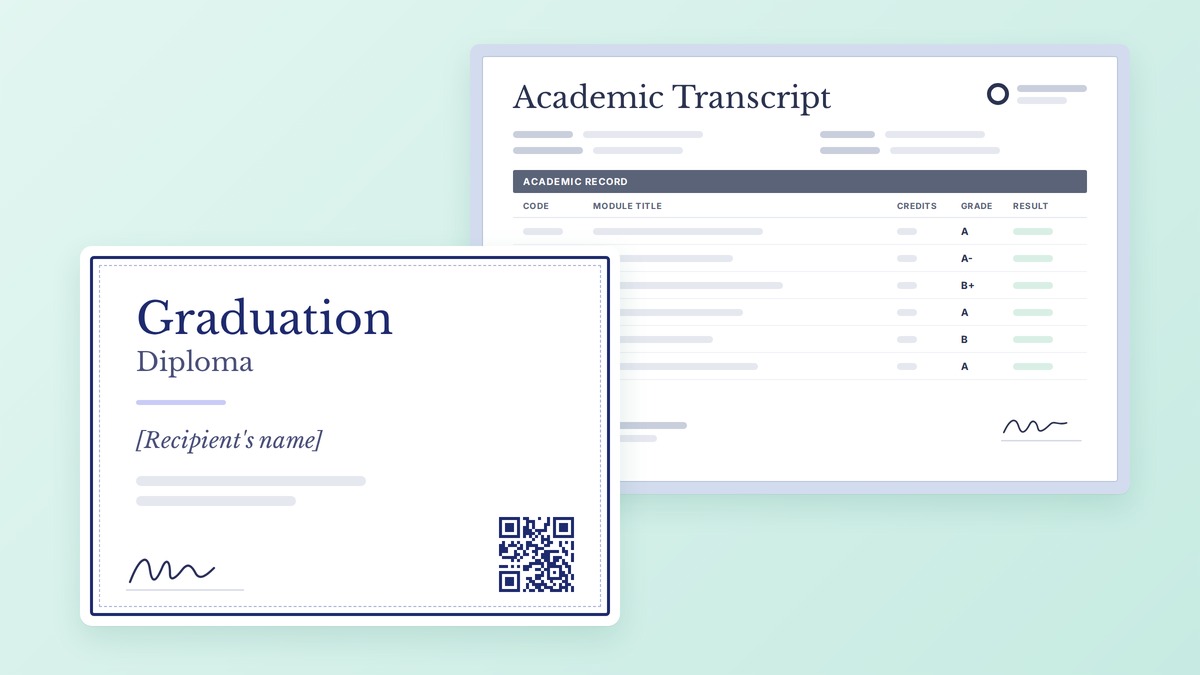
Pair a diploma or certificate with a personalized academic transcript as two designs in one Credential Template. Automatically populate both designs from one spreadsheet row and issue them on a single verifiable credential page.
Research with AI:
You already issue the diploma or certificate, so why not pair it with the record behind it?
The academic transcript contains the modules, credits, hours, and results that a registrar or employer will check. That data doesn’t fit on the award without crowding it.
Certifier allows you to build the award and the transcript as two designs in one Credential Template. Fill both from the same recipient row, then test what the recipient and a verifier see before you issue the cohort.
Keep in mind that a receiving institution may still require transcripts through its official registrar channel. Certifier's one-click verification confirms your credential is genuine, yet acceptance is the receiver’s decision.
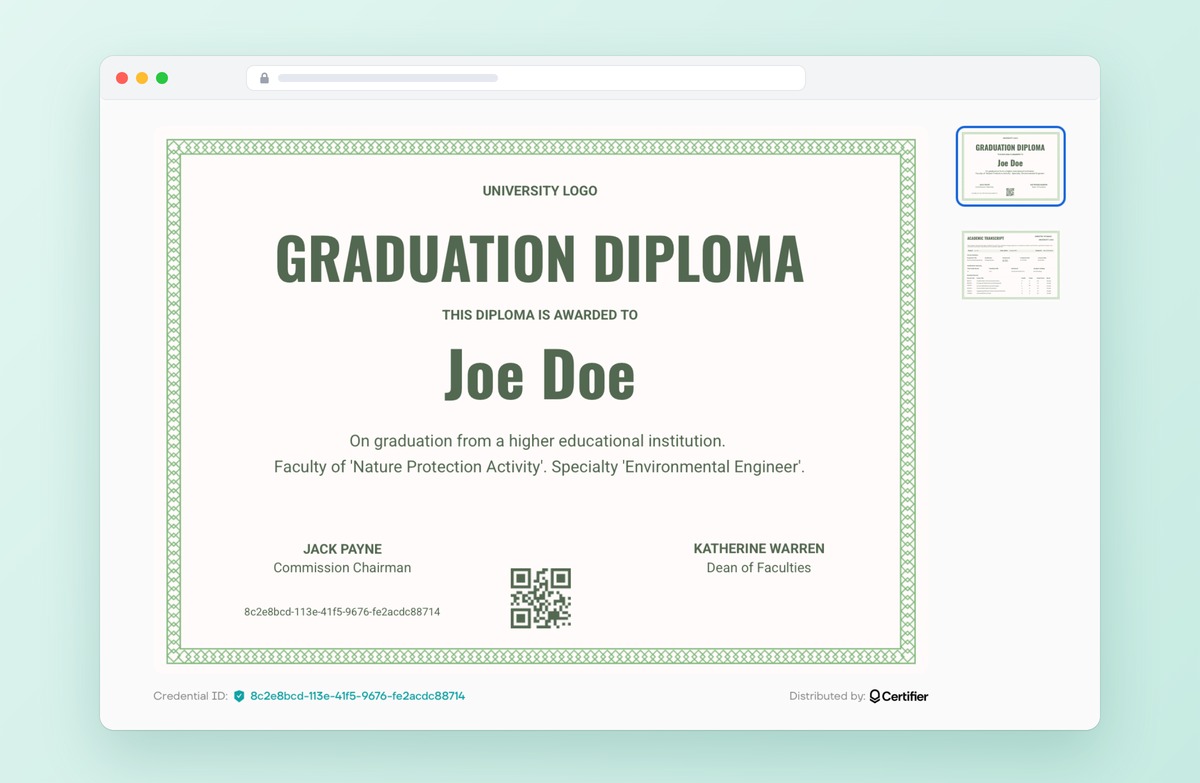
Issue the academic transcript as a second page of the diploma credential. Attach both designs to one Credential Template, so each graduate gets both on one credential page.
Fill both from one spreadsheet row per graduate. Each transcript cell (course, credits, grade) is its own custom attribute.
Make the transcript private while leaving the diploma public. The graduate can unlock the transcript by confirming their email.
Use a PDF attachment only for files that are the same for everyone. Keep registrar delivery for when a receiver requires it.

To issue diplomas or certificates together with academic transcripts, treat them as one credential set:
01Validate your authority, source data, and required transcript format.
02Design the diploma or completion certificate.
03Structure the personalized transcript as a second design, with a custom attribute for each field.
04Pair both designs in one Credential Template.
05Protect the transcript with a private design if results are sensitive (Advanced plan feature).
06Test one credential, from the designs and credential page to the QR code and private view.
07Issue the cohort’s credentials from your spreadsheet.
Two questions decide the method: does the content change per recipient, and does the receiver require a specific channel?
Method | Personalized Per Recipient | Delivered With The Credential | Best For | Main Limitation |
|---|---|---|---|---|
Second design in one Credential Template | Yes, through Attributes | Yes, on the same credential page | Transcripts, scorecards, records of results, personalized supplements | Needs field setup, clean data, and QA. Custom Attribute limits vary by plan. |
Static PDF attachment | No. Every recipient sees the same file | Yes, in the Supporting Documents section | Syllabus, curriculum, course descriptions, policies, shared appendices | Wrong tool for per-recipient results. Public to every visitor, and can’t be made private. Don’t present it as independently verified. |
Separate official transcript channel | Depends on the institution or system | No, it’s a separate workflow | Records that must come through a registrar, clearinghouse, or mandated secure transfer | More coordination and a separate recipient experience, but may be required for acceptance |
Use a second design whenever any value changes from one learner to the next.
Use a PDF attachment for syllabi, catalogs, and grading policies. It’s available on the Professional and Advanced plans. Attachments are public and can’t be made private, so a per-recipient transcript belongs in a private design instead.
Use the official channel when the receiver accepts only transcripts from the registrar. For example, the University of Washington Graduate School requests that official transcripts be sent directly from the issuing institution or through an approved third-party service, as documents submitted by students are not considered official.
If you’re still choosing a credentialing system, we recommend you compare digital credential platforms for higher education.
The award communicates the credential while the record explains the approved learning behind it. Separate those two jobs before you design anything or map any data.
Make the award short enough to recognize at a glance, print, and share. Add the recipient information, program name, issuance date, issuer, official signatures, and a verification link or QR code. For the design basics, see what a diploma needs to include.
The transcript includes what a reviewer checks: each course or module, its credit or hour value, the result, and the dates. Shared identifiers tie it back to the award.
Main Diploma Or Certificate | Personalized Transcript Record Or Supplement | Shared Across Both Where Useful |
|---|---|---|
Recipient name | Course, module, or unit rows | Recipient name or student ID |
Award or program title | Credits or contact hours per row | Issuer name |
Award date | Grade, score, result, or status | Program title |
Issuer and authorized signature | Completion or assessment dates | Credential or record identifier |
Credential ID and optional QR code | Totals, GPA, level, or outcome, where your institution uses them | Issue date or version reference |
Name the second document the way your institution does and match the name to its claims: academic transcript, diploma supplement, record of results, or training record.
Continuing-education providers often follow the same pattern, with a completion certificate plus a record of hours or credits. Browse Certifier’s collection of academic transcript and diploma supplement templates and CEU transcript templates.
ONE CREDENTIAL, MULTIPLE DOCS
Create both designs in one go and issue credentials in bulk.
The gaps appear when the detailed record is bolted on after the award, either as a separate file or as extra rows on the certificate.
A separately emailed transcript raises four concerns:

Delivery: It’s a second send, with its own bounces and resend requests.
Recipient matching: At cohort scale, someone has to confirm the right record reached the right person.
Correction and version control: When a grade changes, the award and the record follow different correction paths.
Verification context: The receiver judges the file apart from the credential.
A separate PDF can still be trustworthy if it’s digitally signed or checkable through its own system.
Putting every module on the diploma fixes detachment and creates a legibility problem. A certificate with 20 lines of results is hard to scan, prints poorly, and looks cluttered when a graduate shares it. It also makes every result as public as the award.
The document most likely to be scrutinized shouldn’t be the least connected part of the credential. Test every supporting record with three questions:
Identity: Is it visibly tied to the same recipient and issuer as the award?
Integrity: Can a viewer check the credential on the issuer’s credential page, or only judge a detached file?
Authority and acceptance: Is the issuer authorized to make these claims, and will the receiver accept this delivery method?
A connected credential set answers the first two. The third answer depends on you and the receiver.
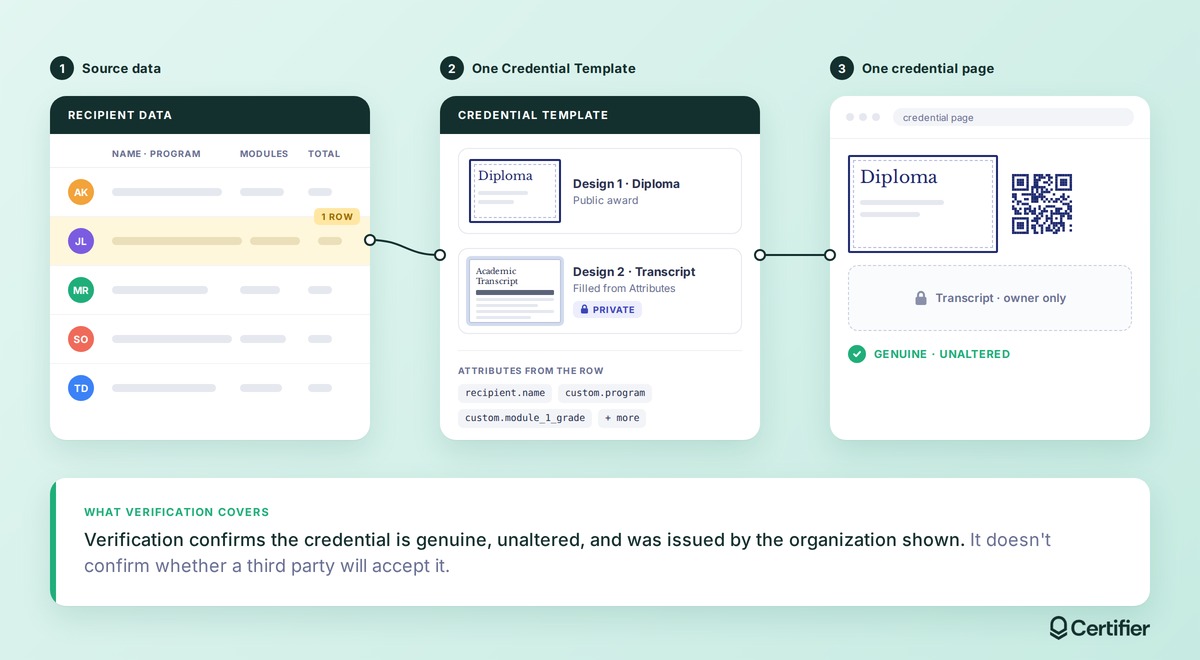
Start from the approved source of truth, which can be your SIS, LMS, or registrar-approved results file. List every field both designs need and confirm how the institution calculates credits, totals, and GPA. Decide whether pending or transfer credits need their own label.
Then check your custom Attribute budget, because plans differ here. Each personalized field needs its own Attribute. Default Attributes such as recipient name, issue date, and credential ID don’t count toward the limit.
Custom Attribute limits are 5 on Starter, 25 on Professional, and unlimited on Advanced. Starter also allows text Attributes only, while number, date, and image Attributes require the Professional plan. In practice, a full transcript needs the Professional plan.
Keep the first page concise and recognizable, and add a shared identifier such as the credential ID. If you add a scannable QR code (Professional and Advanced plan feature), set it to the Verification page so each code opens that recipient’s credential.
Create the transcript as a regular design in the Design Builder or start from a transcript template. Either way, the module table is a set of separate text boxes, one per cell, so rows don’t expand for learners with more modules. Design for the longest transcript in your cohort.
Templates arrive with sample text in every cell, and usually only the student name is already linked to an Attribute. Create your custom Attributes in the Attributes tab, then replace each cell’s sample text with its Attribute, for example [custom.module_1_name], [custom.module_1_credits], and [custom.module_1_grade].
To add a row, select a finished row’s cells, duplicate them, move the copies down, and swap in the next module’s Attributes, for example [custom.module_7_name]. Once the table is aligned, lock the cells so they don’t shift while you edit other elements.
Count the columns before you start. A template with six rows and five columns (code, title, credits, grade, result) needs 30 custom Attributes before totals, which is more than Professional’s 25. Either drop the columns you don’t need or plan for Advanced.
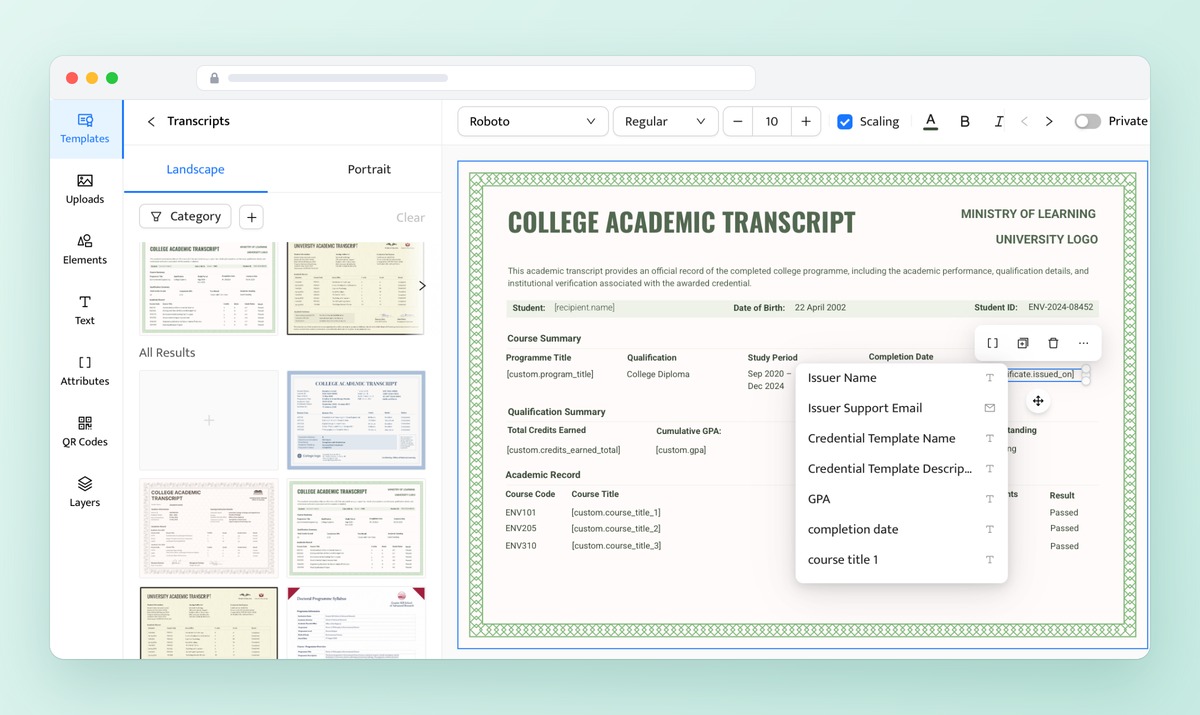
Go to Credentials > Credential Templates, create or open a template, and attach both designs in the Appearance section. Put the award first in the design order, since that order is kept on the public credential page.
You can attach up to 2 designs on Starter and up to 10 on Professional and Advanced, for example, to add a diploma supplement or a translated version. See the Credential Template guide for the full settings.
If results shouldn’t be public, lock the transcript design with the Make Private option. Private designs are available on the Advanced plan. The next section explains what viewers see.
Upload your recipient file (CSV or XLSX) and map each Attribute to a column. Only the recipient name is required, but you need the recipient email to send credentials automatically and to use private designs. Every Attribute in either design needs a value or a deliberate blank.
Issue one test credential to yourself. Check both designs, names and IDs, totals, the private state, the PDF download, the QR destination, and your correction path. You can edit Attribute values after issuing, including ones left blank at issue, and the change goes live right away.
Design edits update every issued credential, while expiration changes only affect future ones.
Once the test passes, issue the batch. For general spreadsheet mechanics, see how to issue credentials in bulk from a spreadsheet.
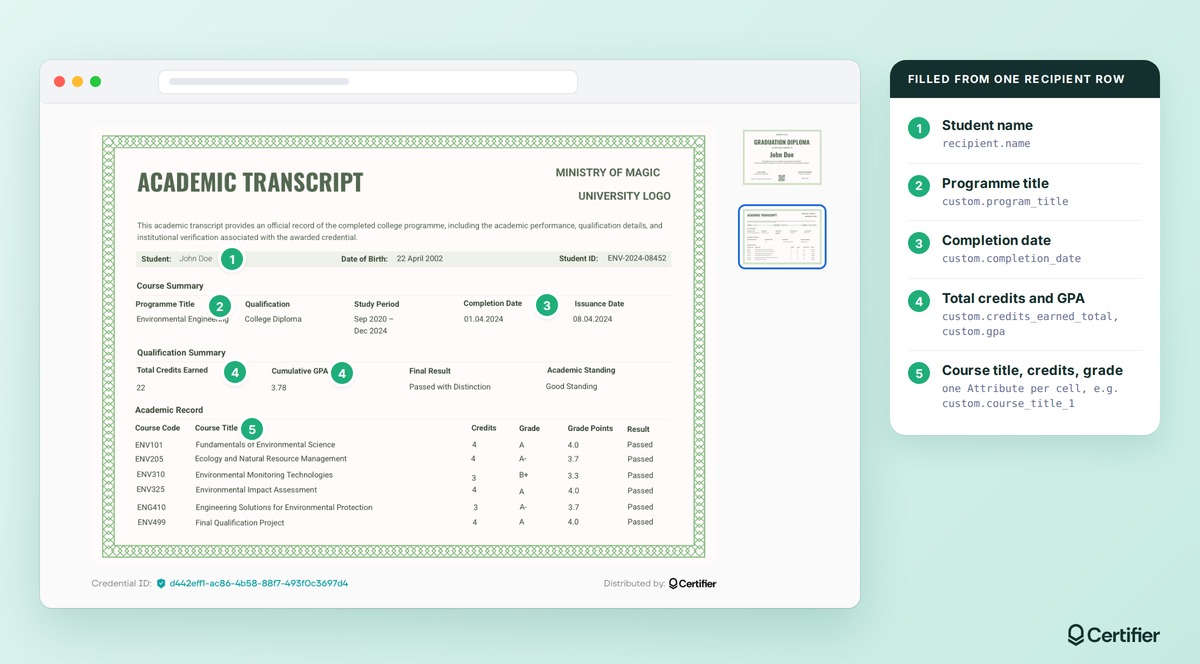
Here’s one credential set built and issued in Certifier from a transcript template. The issuer, student, and results are sample data. Adapt the fields to your own policies.
Sample recipient row:
Column | Value | Used On |
|---|---|---|
recipient.email | john.doe@example.com | Delivery, private view |
recipient.name | John Doe | Both |
custom.program_title | Environmental Engineering | Transcript |
custom.completion_date | 01.04.2024 | Transcript |
certificate.issued_on | 08.04.2024 | Transcript |
custom.course_title_1 | Fundamentals of Environmental Science | Transcript |
custom.course_credits_1 | 4 | Transcript |
custom.course_grade_1 | A | Transcript |
custom.course_title_2 to custom.course_grade_6 | (15 more columns) | Transcript |
custom.credits_earned_total | 22 | Transcript |
custom.gpa | 3.78 | Transcript |
This transcript uses 22 custom Attributes: 18 for six courses (title, credits, grade), plus programme title, completion date, total credits, and GPA. That fits Professional’s limit of 25. Adding the grade points and result columns brings it to 34, which requires Advanced.
Before and after:
Before: Create and send the diploma. Create and send a separate transcript. Maintain two delivery and correction paths.
After: Prepare one approved data row per graduate. Issue one credential containing both designs. Inspect one recipient experience.
A public visitor sees the diploma, the issuer’s details and branding, the credential description and earning criteria, one-click verification, any PDF attachments, and an expired status if the credential has expired.
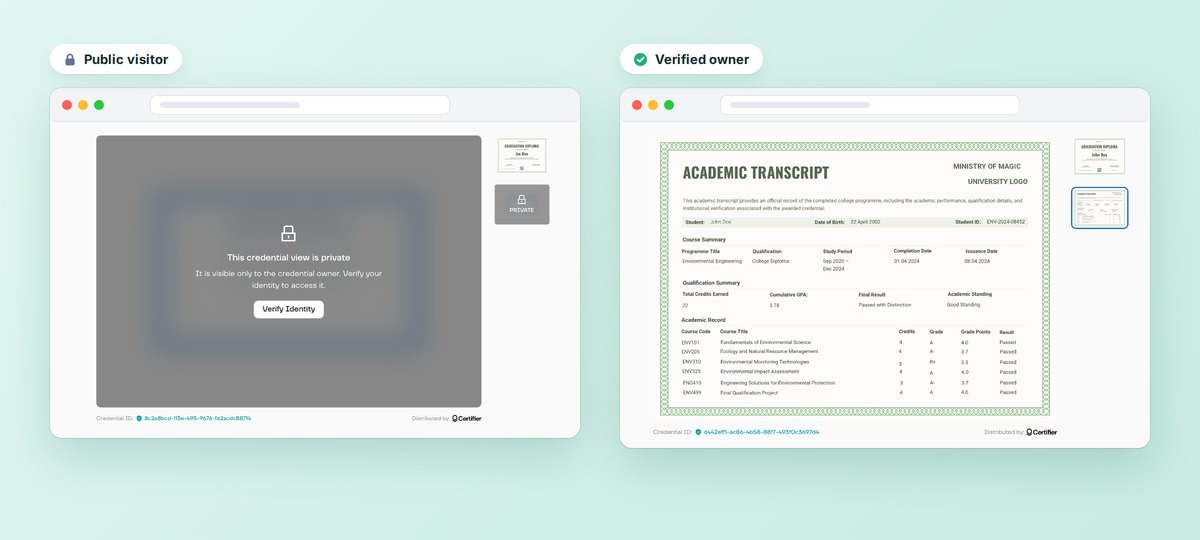
Grades and module results are often more sensitive than the achievement itself. With a private design, the diploma stays public, and only the verified owner sees the transcript.
Credential owner verification works like this:
The visitor enters the email the credential was issued to, then a 6-digit code is sent to that inbox. Access unlocks only if the email matches, and it lasts 72 hours.
Credentials issued without an email have no owner, so a private design can’t be unlocked.
Column1 | Column2 | Column3 |
|---|---|---|
View | Diploma | Transcript |
Public visitor | Visible | Locked placeholder |
Verified owner | Visible | Visible |
Downloaded or printed PDF | Included | Restrict downloads to verified owners (Advanced) |
Include only the fields the transcript needs. Data you leave off a credential is data you don’t have to protect. For the platform side, see the security standards credential platforms follow.
Both designs sit inside one credential record, so that a viewer can check the award and the supporting detail from the same credential page. Here’s what that does and doesn’t settle:
Question | Who Answers It |
|---|---|
Verification: Is the credential genuine, unaltered, and issued by the organization shown? | The credential record, through Certifier’s credential verification features |
Data accuracy: Did the issuer supply correct academic information? | The issuer |
Authority: Is the issuer entitled to make this award and record? | The issuer and its accreditor or regulator |
Acceptance: Will the employer, institution, licensing body, or jurisdiction accept it for this purpose? | The receiving organization |
The W3C Verifiable Credentials standard highlights the same point, stating that credential verification doesn’t imply evaluation of the claim’s truthfulness. Europass notes that the diploma supplement doesn’t substitute the original qualification and doesn’t guarantee qualification recognition.
For the receiver’s side, see how employers catch forged diplomas.
Copy this into your approval process:

Issuer authority confirmed and document name agreed
Source-of-truth owner named
}
Recipient identity and email checked
Program or award title and date correct
Modules, credits or hours, results, totals, and calculations reviewed
Shared credential or record identifier on both designs
Both designs legible on screen and in print
Public or private decision made, and owner access tested
QR code or verification link opens the right destination
PDF download inspected
Correction and version process agreed
Receiver delivery and acceptance requirements checked
One test credential issued and reviewed
This checklist covers credential quality but is not a legal or regulatory compliance review.
ONE CREDENTIAL, MULTIPLE DOCS
Keep recognition and supporting records together.
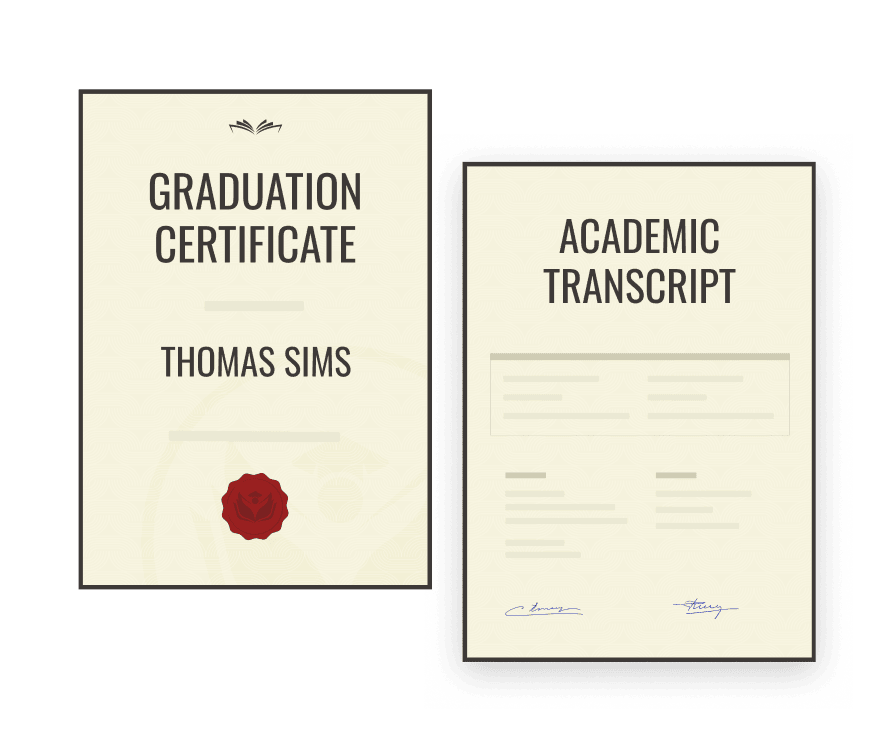
Ready to set it up? A transcript template with the header block, row table, totals, and signature area already built gives you a quicker start than a blank design.
Choose one from our academic transcript templates, then create a multi-design credential.
Yes. Attach the diploma and a personalized transcript as two designs in one Credential Template. Every recipient gets both on the same credential page, filled from their own data.
A transcript usually lists courses, credits, and results. A diploma supplement, common in Europe, also describes the qualification and the education system it belongs to. When you issue student credentials, follow your institution’s or country’s practice.
Official status depends on the authorized issuer and the receiver’s rules. Some educational institutions, such as graduate schools, only accept transcripts sent directly by the issuing institution or an approved service.
Use a second design when content differs per recipient, like grades or modules. Use a PDF attachment when the file is the same for everyone, like a syllabus.
Yes. On the Advanced plan, you can mark the transcript design as private and issue the credential with a recipient email. The owner unlocks the transcript by confirming that email.
An academic transcript usually includes:
Student's full name and student ID
Issuing institution and contact details
Program title and qualification awarded
Course or module rows, with codes, terms, and credits or hours
Grades or results, plus the grading scale used
Totals such as credits earned, GPA, and academic standing
Completion, award, and issue dates
Authorized signature or official seal
A record ID and verification link or QR code
Yes. You can edit any custom Attribute on an issued credential and the change shows on the live credential page right away. Changes to a design also update every credential that uses it.

- copywriting
- B2B content marketing
- content strategy
- on-page SEO
- storytelling
Growth Marketer (Freelance)
Anita Coltuneac is a freelance B2B SaaS marketer with 5+ years helping tech companies grow organic visibility, build authority, and support pipeline. She uses storytelling to turn product expertise into useful content.


